Retail service, Retail store IT, Information technology manager and 1 more role
Business process
Administer system features
Menu item
WorkflowStatus
Main table
WorkflowTrackingStatusTable
Setup steps
1 on this page
Show what matters for
SETUP GUIDEHow to set it up8 sections. Choose a role to highlight what matters to you.
Everyone
1What it is and why
What it is
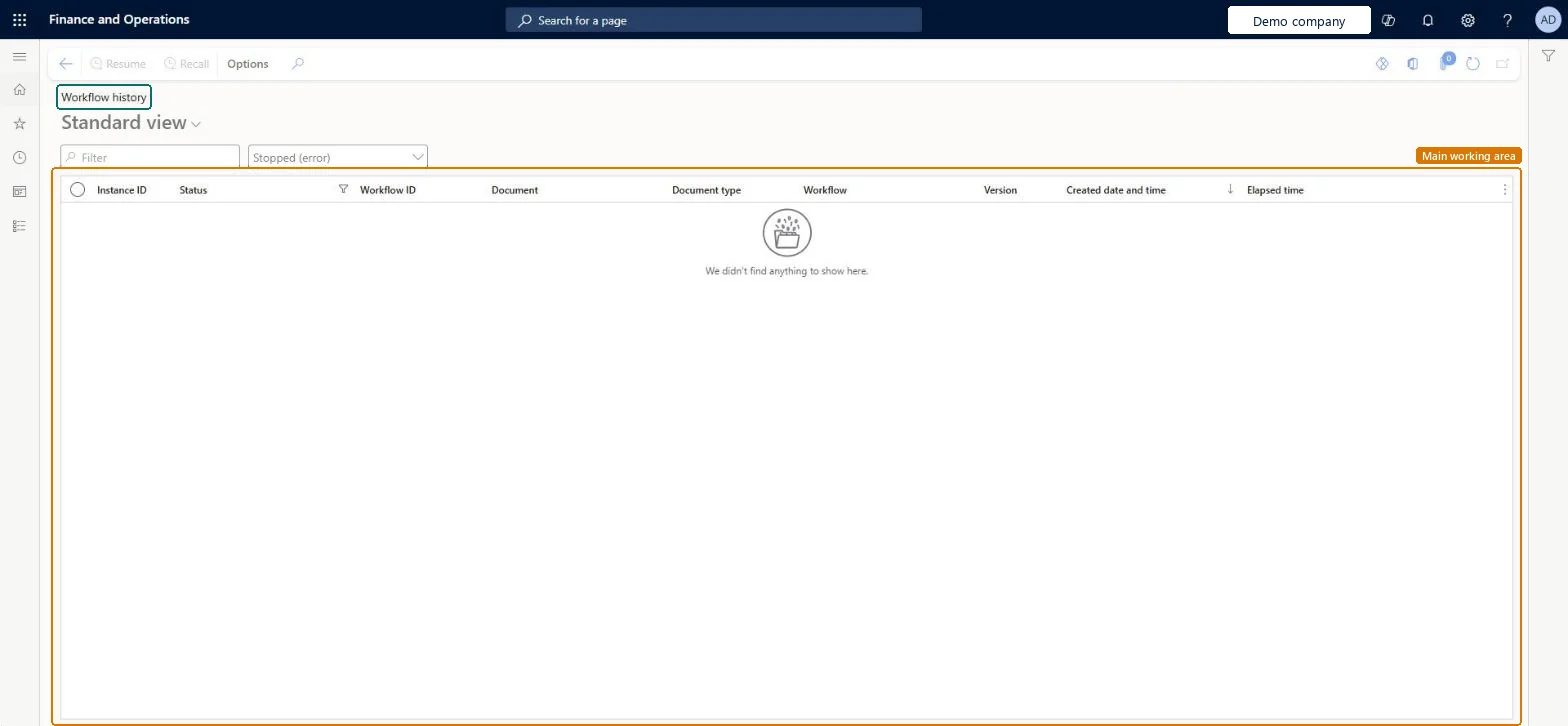
An inquiry page that shows the status and history of documents that were submitted to the workflow system.
What you do here
Use this page to follow a document through its workflow, see its work items, and resume, recall or reassign work when needed.
Example
For example, a BEAT buyer asks why purchase requisition PR-000124 isn't approved yet. The workflow administrator opens Workflow history, finds the instance, sees in Work items that it waits on an approver who is on leave, and reassigns it to the deputy.
The page in Dynamics 365. page title tab to open what to set or check
About the examples: Examples and screenshots in this guide use BEAT, a demo company in a Dynamics 365 test environment. Use your own company's codes and values instead of copying them.
Setup steps on this page
Trace and unblock workflows
Find where a document is in its workflow and move it on when it is stuck.
Steps from Microsoft
Go to Common > Inquiries > Workflow > Workflow history.
Select the link in the row for the document.
Expand the Work items section to see the tasks and approvals for the document.
Select Reassign if a work item must go to another user.
Expand the Tracking details section to see the workflow history.
Open the instance, check the Work items section for the pending assignee, and Reassign the work item; Resume restarts a stopped instance. Microsoft Learn
Test checklist
Submit a document to a workflow.
Open Workflow history, find the instance ID and check its status, workflow and version.
Open the instance and check the Work items section shows the pending approval.
Use Reassign to move the work item to another user and check it appears in that user's work items.
Check the Tracking details section records the reassignment.
Find the instance by document, then read Work items before using Reassign, Recall or ResumeWork items show who the document waits on; the actions change the live workflow.
New records on this page take their Instance ID from the WorkflowInstanceNumber reference; BEAT uses number sequence Work_1. Checked in Dynamics 365
Feature management and licence
Licence or add-in
On the live system, these roles can open the page: System user, TestEssentialsRole, Retail store IT, Information technology manager, Retail service.
Checked in Dynamics 365
Solution architect
5Design impact
Shared or per company
The page lists the workflow instances of submitted documents with their status, workflow and version. Microsoft Learn
Can it be undone
Hard to reverse: Recall, Resume and Reassign change the live workflow; given approvals are not undone.
If you change it later
Recall stops the document from being processed, Resume restarts a stopped instance and Reassign moves a work item to another user; approvals already given stay. Microsoft Learn
Technical architect
6Technical
Menu item
WorkflowStatusChecked in Dynamics 365
Form
WorkflowStatusChecked in Dynamics 365
Table
WorkflowTrackingStatusTableShown as “WORKFLOW TRACKING STATUS TABLE” in Record infoKey field: InstanceNumberChecked in Dynamics 365
Who can open it
PrivilegesMaintain workflow instances WorkflowManageWorkflowInstancesView workflow history WorkflowViewWorkflowHistoryDutiesUse basic functionality SysServerAXBasicMaintainMaintain workflow and alerts settings WorkflowAlertsSettingsMaintain7 security rolesAifTestSecRoleEventTestRoleRetail service RetailServiceRetail store IT RetailStoreITInformation technology manager SysServerITManagerSystem user SystemUserTestEssentialsRoleChecked in Dynamics 365
Roles to set it up and use it
To use itSystem user SystemUserTestEssentialsRole Retail store IT RetailStoreITInformation technology manager SysServerITManagerRetail service RetailServiceGive people one of these roles. On this system, 5 roles can open this page.Checked in Dynamics 365
Actions on the page
(Action Pane without tabs): Resume, RecallChecked in Dynamics 365
Developer
7Developer
Open it by URL
https://<your-environment>/?mi=WorkflowStatus
Data migration
Load order: Workflow history has no data entity in Data management. The history is written by the workflow engine; finish or recall workflows in the old system and resubmit open documents after go-live.Microsoft Learn