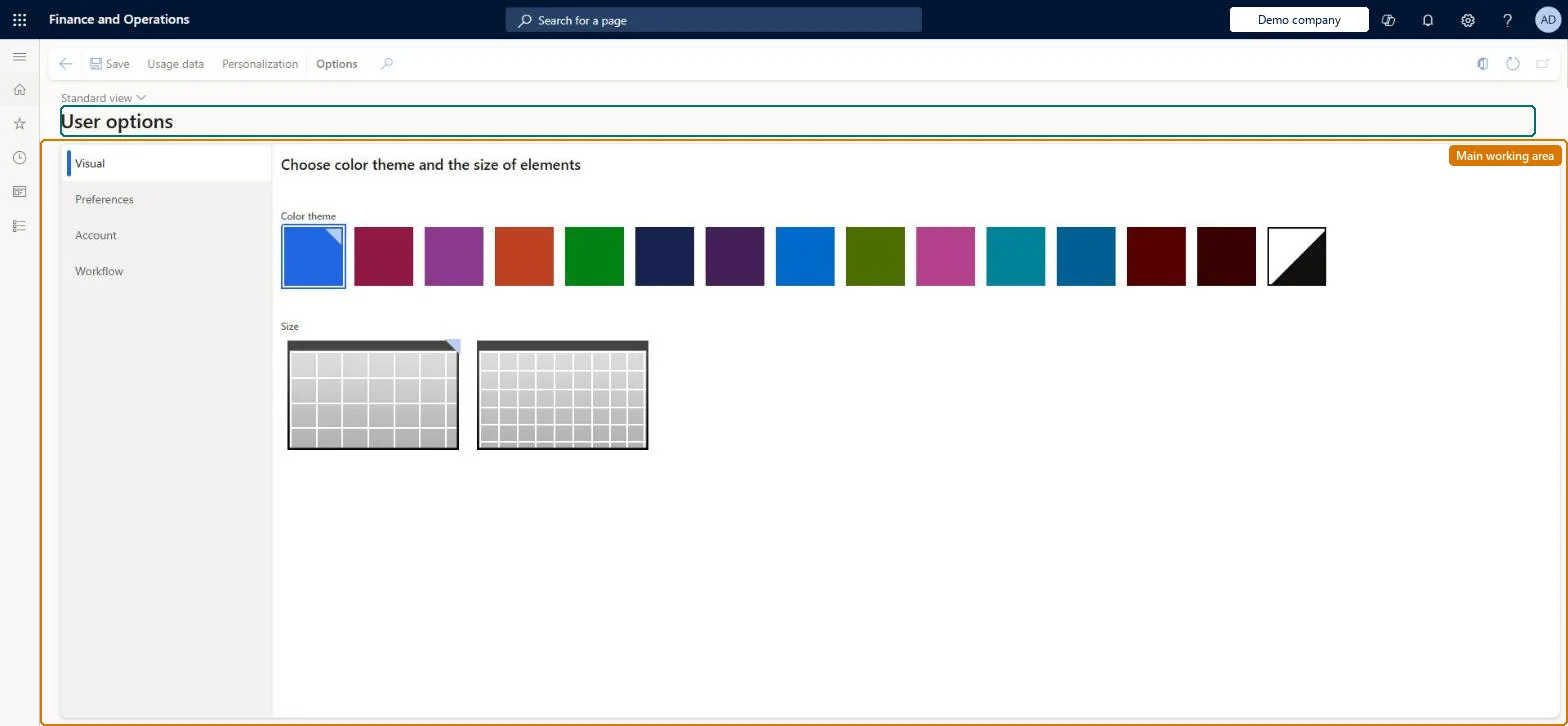
A setup page that holds the current user's own system-wide settings, such as color theme, default company, initial page, language, time zone, date and number formats, and workflow options.
Budget manager, Retail catalog manager, Retail store IT and 4 more roles
Business process
Administer system features
Menu item
SysUserSetup
Main table
SysUserInfo
Data entity
None for this page's own settings
Setup steps
1 on this page
Show what matters for
PAGE GUIDEWhat the page does and how to use it8 sections. Choose a role to highlight what matters to you.
Everyone
1What it is and why
What it is
A setup page that holds the current user's own system-wide settings, such as color theme, default company, initial page, language, time zone, date and number formats, and workflow options.
What you do here
Use this page to set your personal defaults and preferences, and to view or delete your usage data and personalizations.
Example
For example, a warehouse worker's user options are set to their language and the time zone where they work, so the warehouse app shows the right formats and time stamps.
The page in Dynamics 365. page title tab to open what to set or check
About the examples: Examples and screenshots in this guide use BEAT, a demo company in a Dynamics 365 test environment. Use your own company's codes and values instead of copying them.
Setup steps on this page
Set up User options
Use this page to set your personal defaults and preferences, and to view or delete your usage data and personalizations.
Steps from Microsoft
Go to Common > Setup > User options (or select Settings on the navigation bar, and then select User options).
On the Visual tab, select a color theme and element size.
On the Preferences tab, set the default company, initial page, language, time zone, and date, time, and number formats.
On the Account and Workflow tabs, adjust account and workflow options as needed.
On the Personalization tab, review or remove your page personalizations.
Each user sets default company, initial page, language and time zone on the Preferences tab, and sets up a delegation rule on the Workflow tab before planned absencesPreferences tab values are used every time the user opens the system. Delegation rules with Start date/time, End date/time and Enabled pass new work items to another user while the approver is away.
On the live system, these roles can open the page: System user, TestEssentialsRole, Retail store IT, Information technology manager, System external user.
Checked in Dynamics 365
Solution architect
5Design impact
Shared or per company
Per user: the settings apply only to the user who sets them, in every legal entity. Microsoft Learn
Can it be undone
Reversible: All settings on this page can be changed again by the user and affect only that user. Deleting personalizations from the Personalization tab removes them; export them first if they might be needed again. Microsoft Learn
If you change it later
The time zone changes how combined date-and-time values are shown to you, and for warehouse app users it sets the time stamp on every registration they make in the app. Microsoft Learn
Technical architect
6Technical
Menu item
SysUserSetupChecked in Dynamics 365
Form
SysUserSetupChecked in Dynamics 365
Table
SysUserInfoShown as “USER INFORMATION” in Record infoChecked in Dynamics 365
Data entities
SystemUserEntityUser information (only the user account record that the options belong to; personal preferences such as theme and personalizations are not loaded by it)
Who can open it
PrivilegesUser administration essentials AdministrationMenuItemsClient essentials ClientEssentialsClient essentials privileges for retail trial RetailTrialClientEssentialsMaintainDutiesEnable budget process BudgetBudgetProcessEnableView retail channels RetailChannelsViewMaintain system for retail trial. RetailTrialSystemExternalBasicMaintainMaintain system settings SysServerSettingsMaintainUse basic external functionality SystemExternalBasicMaintain11 security rolesAifTestSecRoleBudget manager BudgetBudgetManagerEventTestRoleRetail catalog manager RetailCatalogManagerRetail store IT RetailStoreITRetail store manager RetailStoreManagerInformation technology manager SysServerITManagerSystem external user SystemExternalUserSystem user SystemUserTestEssentialsExternalUserRoleTestEssentialsRoleChecked in Dynamics 365
Roles to set it up and use it
To set it up or change itSystem user SystemUserTestEssentialsRole Retail store IT RetailStoreITInformation technology manager SysServerITManagerSystem external user SystemExternalUserGive people one of these roles. On this system, 8 roles can open this page.Checked in Dynamics 365
Actions on the page
(Action Pane without tabs): Usage data, PersonalizationChecked in Dynamics 365
Developer
7Developer
Open it by URL
https://<your-environment>/?mi=SysUserSetup
Data migration
SystemUserEntity (User information): shared by all companies.Load order: Load users with User information first; users set their own options afterwards, or personalizations are exported and imported from the Personalization tab.Load first: usersChecked in Dynamics 365