Cash and bank managementBank statement reconciliation
BankStatementTableMenuItem
Used by
Accounts payable manager, Auditor, Chief executive officer and 7 more roles
Business process
Perform advanced bank reconciliation in Dynamics 365 Finance
Menu item
BankStatementTableMenuItem
Main table
BankStmtISOAccountStatement
Data entity
BankStatementEntity
Setup steps
1 on this page
Show what matters for
SETUP GUIDEHow to set it up8 sections. Choose a role to highlight what matters to you.
Everyone
1What it is and why
What it is
A list page where you import electronic bank statements, validate them and post the new transactions they contain.
What you do here
Use this page to bring bank statements into Finance and get them ready for advanced bank reconciliation.
Example
For example, BEAT uploads one zip file holding the BAI2 statements of three bank accounts, two of them in another legal entity, with Import statement for multiple bank accounts in all legal entities = Yes; each statement goes to its own account and, with Reconcile after import = Yes, is validated and its default matching rule set runs.
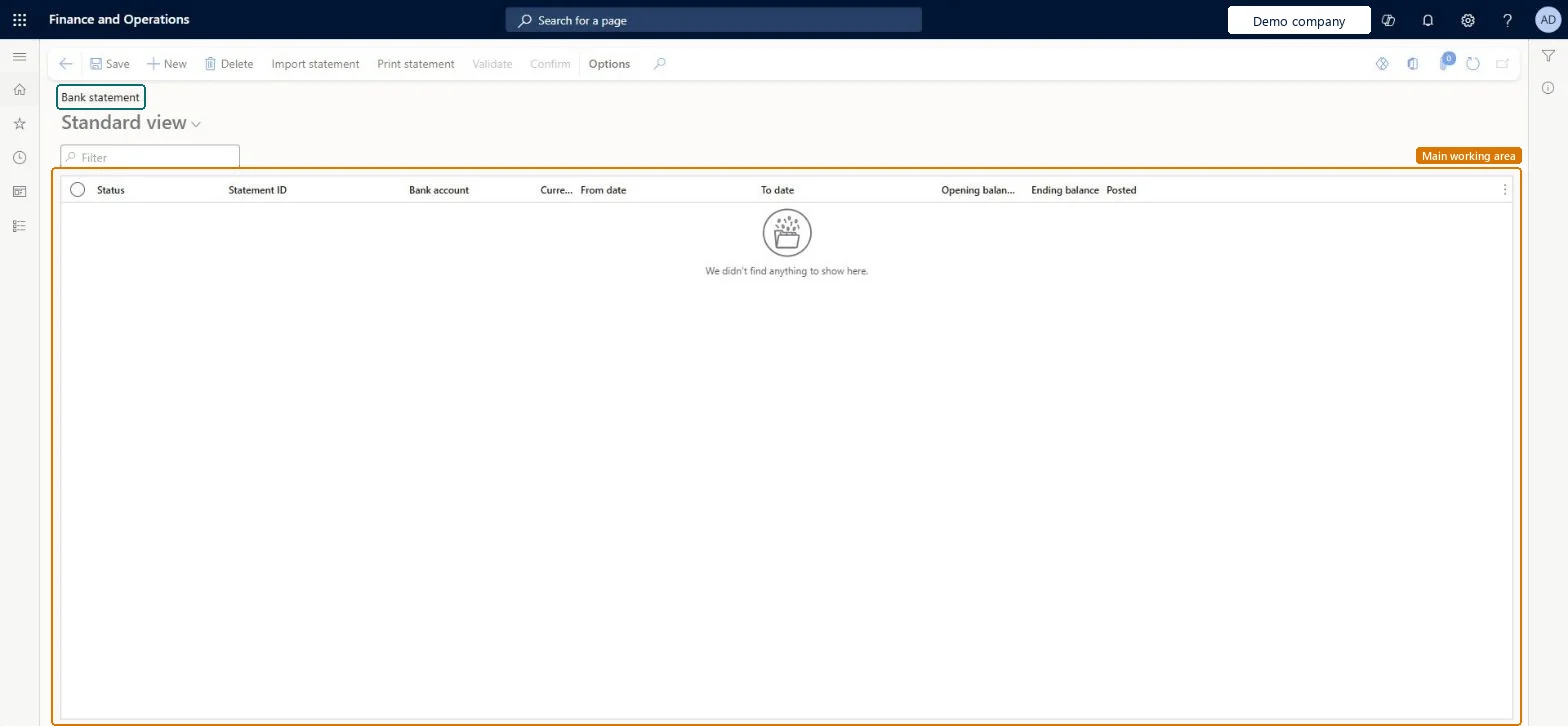
The page in Dynamics 365. page title tab to open what to set or check
About the examples: Examples and screenshots in this guide use BEAT, a demo company in a Dynamics 365 test environment. Use your own company's codes and values instead of copying them.
Setup steps on this page
Import and validate bank statements
Import each electronic bank statement and validate it before reconciliation.
Steps from Microsoft
Go to Cash and bank management > Bank statement reconciliation > Bank statements and select Import statement.
For one account, set Import statement for multiple bank accounts in all legal entities to No and select the bank account; for a file or zip with several accounts, set it to Yes.
Select Browse, choose the statement file, select Upload and then OK.
Set Reconcile after import to Yes if the statement should be validated and matched straight away.
Otherwise select Validate (and Confirm when Modern bank reconciliation is on) before you reconcile.
After reconciliation, post the lines marked as New from this page; posting can be done once per statement.
Import statement for multiple bank accounts in all legal entities
Set to Yes to import one file that holds statements for several bank accounts.Microsoft Learn
Yes
Reconcile after import
When Yes, the statement is validated, a reconciliation and worksheet are created, and the default matching rules run automatically.Microsoft Learn
Yes
Statement format
The format that matches the bank statement file being imported.Microsoft Learn
Common errors and fixes
Message
What to do
The statement isn't imported because it is a duplicate
A statement with the same bank account, statement ID, from date and to date already exists. Import only new statements, or check whether the bank resent a file. Microsoft Learn
Validation fails on the opening balance
The opening balance must equal the closing balance of the previous statement for the account, and dates must not overlap another statement. Import any missing statement first. Microsoft Learn
Import of bank statements was unsuccessful for specific bank accounts
Statements that can't be tied to exactly one bank account by bank name, account number, routing number, SWIFT or IBAN aren't imported. Check those values on the bank account, and that the user has access to the account's legal entity. Microsoft Learn
Test checklist
Import a statement for one account and select Validate.
Check the status changes to Validated (and Confirm it when Modern bank reconciliation is on).
Import the same file again and check it's rejected as a duplicate.
Import a zip with statements of two accounts in different legal entities and check each lands on its own account.
Import daily with Reconcile after import = Yes on each bank account, and use a zip file with Import statement for multiple bank accounts in all legal entities = Yes when one bank sends several accounts.Reconcile after import validates the statement, creates the reconciliation and runs the default matching rule set, leaving only the lines that need manual matching.
Hard to reverse: Posting of New lines happens once per statement.
If you change it later
A validated statement becomes the basis of the reconciliation; its lines marked as New are posted from here once, and a posted statement can only be reversed with the Reverse posted bank statement with new transactions feature. Microsoft Learn
Technical architect
6Technical
Menu item
BankStatementTableMenuItemChecked in Dynamics 365
Form
BankAutomationStatementFormChecked in Dynamics 365
Table
BankStmtISOAccountStatementShown as “Bank statement account statement” in Record infoKey field: Identification, BankAccountTable, RegistrationId, SwiftNo, IBAN, SequenceNumberChecked in Dynamics 365
Data entities
BankStatementEntityBank statement account statement Microsoft data model BankStatementImportEntityBank statements (Composite entity that imports a whole statement file: statement document, statement, balances and lines.) BankStatementDMFEntityBank statement header (Bank statement header only (statement ID, bank account, currency, balances and dates).) BankStatementLineDMFEntityBank statement lines (Bank statement lines only.)
Who can open it
PrivilegesMaintain bank statement BankAccountStatementMaintainView bank statement BankAccountStatementViewDutiesEnable bank management process BankBankManagementProcessEnableReview bank management process performance BankBankManagementProcessPerfReviewInquire into bank management reference data BankBankMgmtReferenceDataInquire10 security rolesAuditor AuditPolicyManagerChief executive officer CompanyChiefExecutiveOfficerChief financial officer CompanyChiefFinancialOfficerAccounts receivable manager CustInvoiceAccountsReceivableManagerAccountant LedgerAccountantAccounting manager LedgerAccountingManagerAccounting supervisor LedgerAccountingSupervisorFinancial controller LedgerFinancialControllerTreasurer PaymTreasurerAccounts payable manager VendInvoiceAccountsPayableManagerChecked in Dynamics 365
Roles to set it up and use it
To set it up or change itTreasurer PaymTreasurerAccountant LedgerAccountantTo use itChief financial officer CompanyChiefFinancialOfficerAccounting manager LedgerAccountingManagerFinancial controller LedgerFinancialControllerAccounting supervisor LedgerAccountingSupervisorAccounts receivable manager CustInvoiceAccountsReceivableManagerGive people one of these roles. On this system, 10 roles can open this page.Checked in Dynamics 365
Actions on the page
Options: Personalize, Page options, Edit, ShareChecked in Dynamics 365
BankStatementDMFEntity (Bank statement header): STATEMENTID, BANKACCOUNT, CURRENCY, OPENINGBALANCE, ENDINGBALANCE, FROMDATE, TODATE.BankStatementLineDMFEntity (Bank statement lines): LINENUMBER, BANKACCOUNT, STATEMENTID, BOOKINGDATE, AMOUNT, BANKSTATEMENTTRANSACTIONCODE and the other line fields.Load order: Load the statement header before its lines. Statements are usually imported from the bank's file with Import statement rather than migrated.Load first: Bank accountsMicrosoft Learn
Checked in a working Dynamics 365 system, version 10.0.49: the menu item, form, table and security, the page.
To cite this step: CB-REC-020, Import and validate bank statements. Beyond ERP Atlas Hub, 2026-11-11. https://www.beyonderp.cloud/atlas/step/CB-REC-020