BeyondERP.Newsletter
Menu

Setup step on the Positive pay file page · Cash and bank management

Generate positive pay files

Send the bank the list of issued checks for each bank account that uses positive pay.

Business process
Issue and settle supplier payments
Menu item
action:BankPositivePayGenerate
Data entity
None for this page's own settings
Setup steps
1 on this page
Show what matters for
SETUP GUIDEHow to set it up8 sections. Choose a role to highlight what matters to you.
Everyone

1What it is and why

What it isA periodic task that generates positive pay files for one or all legal entities and one or all bank accounts that use a positive pay format, up to a cut-off date.
What you do hereUse this task to send your bank the list of checks you issued, so the bank clears checks that match the list and holds the others for review.
ExampleFor example, when a check is presented, the bank compares it with the list: a match is cleared, and a check that doesn't match is held for review.
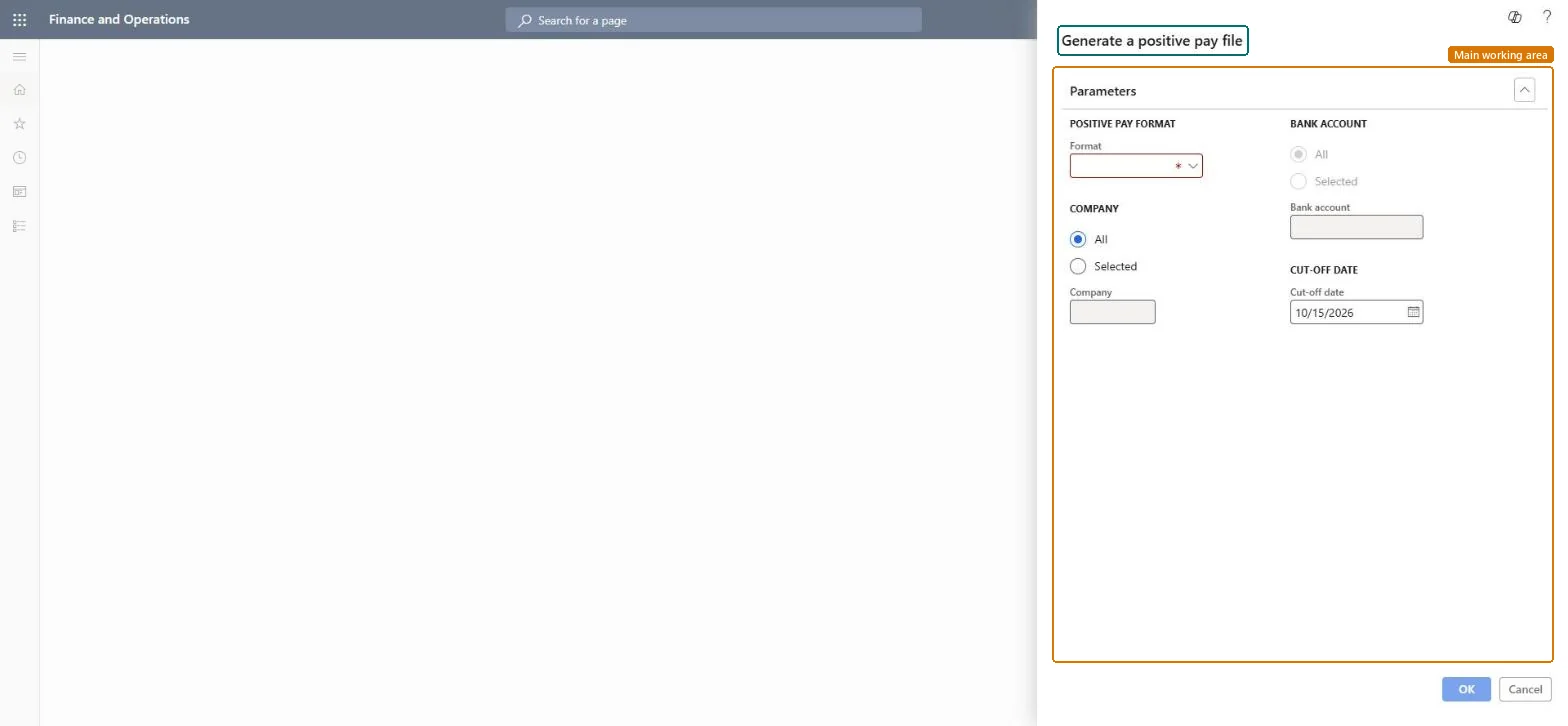
Positive pay file page in Dynamics 365
The page in Dynamics 365. page title tab to open what to set or check
Functional consultant · Solution architect

2Where it fits

End user · Functional consultant

3How to do it

About the examples: Examples and screenshots in this guide use BEAT, a demo company in a Dynamics 365 test environment. Use your own company's codes and values instead of copying them.

When to run it

When to run itAfter checks are created and before they are presented to the bank, so the bank can clear matching checks and hold the others for review.
How oftenAfter each check run, or on a recurrence that matches your bank's submission window.
Batch settingsWith the Enhance positive pay file generation through batch processing feature (version 10.0.50), run it in the background for large check volumes; the files then go to the configured Electronic reporting destination.
What the output showsPositive pay files for the selected bank accounts with status Created on the Positive pay file summary page. A file that lists far more checks than expected usually belongs to a bank account with no Positive pay start date.

Source: Microsoft Learn

Setup steps on this page

Generate positive pay files

Send the bank the list of issued checks for each bank account that uses positive pay.

Steps from Microsoft

  1. Go to Cash and bank management > Periodic tasks > Positive pay file.
  2. Select the Positive pay format that is assigned to the bank accounts.
  3. Choose all legal entities or one; for one legal entity, choose all bank accounts that use the format or a single bank account.
  4. In Cut-off date, enter the last check date to include; every check not yet in a positive pay file by the end of that date is included.
  5. Generate the files and review them on Positive pay file summary, with the checks on Positive pay file details.

Source: Microsoft Learn

Fields on the page

FieldWhat it meansExample
Cut-off dateThe last check date in the file; all checks not yet sent by that date are included.Microsoft Learn 10/15/2026
Positive pay formatThe format whose bank accounts are included; it must be the format set on those bank accounts.Microsoft Learn PP-ER
Legal entityAll legal entities or one; for one, choose all bank accounts with the format or a single bank account.Microsoft Learn All

Common errors and fixes

MessageWhat to do
The first file lists every check ever created for the bank accountSet the Positive pay start date on the bank account before the first run; recall the file and generate again. Microsoft Learn
The Generate bank positive pay file function is used before the entity list is refreshedGo to Data management > Framework parameters and select Refresh entity list on the Entity settings FastTab, then generate again. Microsoft Learn

Test checklist

  1. Positive pay file summary shows one new file per bank account with status Created.
  2. The checks on Positive pay file details are the ones dated up to the cut-off date.
  3. Running it again without new checks adds no checks that are already in a file.

Source: Microsoft Learn

Functional consultant

4Setup decisions

Setup stepRecommended value and whyDecision, common mistake and test
Generate positive pay filesRun after each check run with Cut-off date = the last check date of the run, for all bank accounts that use the format.Learn: the bank clears matching checks and holds the others; the cut-off date decides which checks go into the file.Generate positive pay per bank account or for all at once?Not setting the Positive pay start date on the bank account: the first file includes all checks ever created.Test: Generate one file per bank account

Number sequences

ReferenceShared or per companyNote
Positive pay numberPer companyEach positive pay file must have a unique number from this sequence; BEAT uses Bank_35. Checked in Dynamics 365

Feature management and licence

Feature to turn onEnhance positive pay file generation through batch processing (Available from version 10.0.50)
Licence or add-inIn this system 10 roles can open this page, among them Treasurer, Chief financial officer, Accounting manager and Financial controller.

Microsoft Learn

Solution architect

5Design impact

Shared or per companyShared: the task can generate files for several legal entities and bank accounts in one run. Microsoft Learn
Can it be undoneReversible: A Created file can be recalled on Positive pay file summary.
If you change it laterIf a bank account has no Positive pay start date, its first file includes every check ever created for that account. Microsoft Learn
Technical architect

6Technical

Menu itemaction:BankPositivePayGenerate Checked in Dynamics 365
FormDialog Checked in Dynamics 365
Data entitiesBankPositivePayExportEntityBank positive pay transaction table (The check data a positive pay file is built from; the task exports through it, it isn't used to load data.) Microsoft data model
Roles to set it up and use itTo use itTreasurer PaymTreasurerChief financial officer CompanyChiefFinancialOfficerAccounting manager LedgerAccountingManagerFinancial controller LedgerFinancialControllerAccountant LedgerAccountantGive people one of these roles. On this system, 10 roles can run this page.Checked in Dynamics 365
Developer

7Developer

Open it by URLhttps://<your-environment>/?mi=action:BankPositivePayGenerate
Data migrationLoad order: A positive pay file has no data entity in Data management, so it can't be loaded from a file or a configuration template. Files are generated from checks in each environment. At go-live set the Positive pay start date on each bank account so migrated checks aren't sent.Microsoft Learn
Everyone

8Sources

To cite this step: CB-PP-030, Generate positive pay files. Beyond ERP Atlas Hub, 2026-11-11. https://www.beyonderp.cloud/atlas/step/CB-PP-030