Cash and bank managementInquiries and reportsPositive pay
BankPositivePayTableInquiry
Used by
Accounts payable manager, Chief executive officer, Chief financial officer and 8 more roles
Business process
Issue and settle supplier payments
Menu item
BankPositivePayTableInquiry
Main table
BankPositivePayTable
Setup steps
1 on this page
Show what matters for
SETUP GUIDEHow to set it up8 sections. Choose a role to highlight what matters to you.
Everyone
1What it is and why
What it is
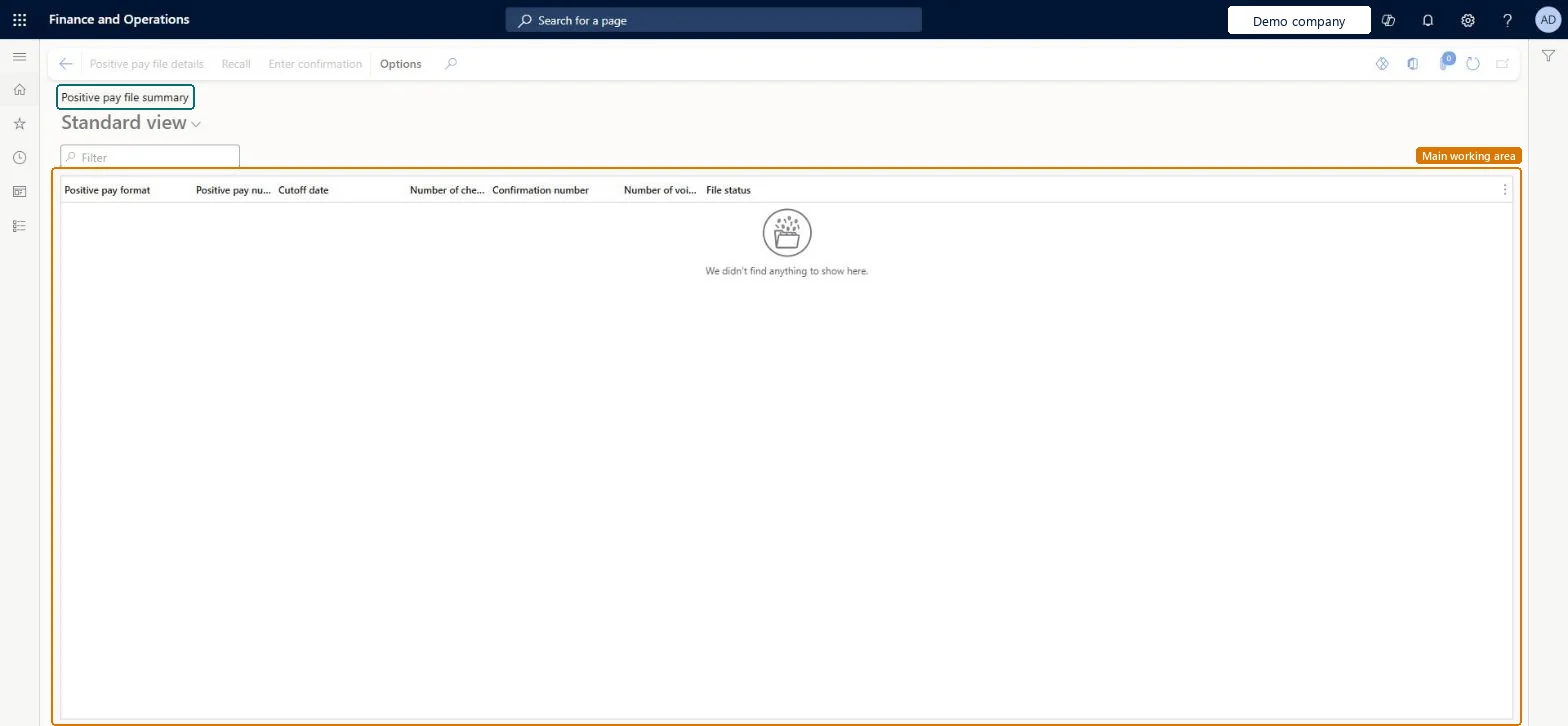
The list of positive pay files that were generated for the company's checks, with their status, where a file is confirmed with the bank's number or recalled.
What you do here
Use this page to record the bank's confirmation number for a positive pay file once its checks are paid, or to recall a file that must be changed so its checks can go into a new file.
Example
For example, file 000017 lists 42 checks for 96,400.00 up to the cut-off date 15 October. The bank confirms it with number 7781-22, so you select Enter confirmation and record that number.
The page in Dynamics 365. page title tab to open what to set or check
About the examples: Examples and screenshots in this guide use BEAT, a demo company in a Dynamics 365 test environment. Use your own company's codes and values instead of copying them.
Setup steps on this page
Confirm or recall positive pay files
Record the bank's confirmation or recall a positive pay file that must change.
Steps from Microsoft
Go to Cash and bank management > Inquiries and reports > Positive pay > Positive pay file summary.
Select a positive pay file with status Created; open Positive pay file details to see its checks.
After the bank pays the checks and sends a confirmation number, select Enter confirmation and record it.
If the file must change, select Recall instead; each check's positive pay flag is reset.
Generate a new file that includes the recalled checks from Positive pay file.
The first positive pay file of a bank account lists every check ever created
The bank account has no Positive pay start date. Recall the file, set the start date on the bank account and generate again. Microsoft Learn
Recall or Enter confirmation isn't available
Both work only on a file with status Created, and they need the privileges Recall positive pay file (BankPositivePayRecall) and Confirm positive payment file (BankPositivePayConfirm). Microsoft Learn
Test checklist
Generate a positive pay file for a test bank account.
Open this page and check the new file has status Created.
Recall it and check its checks can be included again in a new file.
Generate again and enter a confirmation number on the new file.
Confirm each file when the bank returns its confirmation number; recall only files with status Created that must change.The confirmation records that the bank received the list; recall resets the checks so nothing is lost or sent twice.
Each positive pay file must have a unique number from this sequence; BEAT uses Bank_35. Checked in Dynamics 365
Feature management and licence
Feature to turn on
Enhance positive pay file generation through batch processing (Available from version 10.0.50)
Licence or add-in
In this system 11 roles can open this page, among them Chief executive officer, Chief financial officer, Accounts receivable manager and Payroll administrator.
Shared: one list of positive pay files for all legal entities; Learn describes this page as viewing bank positive pay information for multiple legal entities. Microsoft Learn
Can it be undone
Reversible: A Created file can be recalled.
If you change it later
Recalling a file resets the flag on each of its checks, so those checks can go into a new positive pay file. Microsoft Learn
Technical architect
6Technical
Menu item
BankPositivePayTableInquiryChecked in Dynamics 365
Form
BankPositivePaySummaryChecked in Dynamics 365
Table
BankPositivePayTableShown as “Bank positive payment table” in Record infoKey field: PositivePayNumChecked in Dynamics 365
Who can open it
PrivilegesConfirm positive payment file BankPositivePayConfirmRecall positive pay file BankPositivePayRecallView bank positive pay information for multiple legal entities BankPositivePayViewDutiesInquire into bank accounts master BankBankAccountsInquireInquire into customer positive payments PaymCustPositivePayInquireMaintain positive payments PaymPositivePayMaintainInquire into vendor positive payments PaymVendPositivePayInquireMaintain payroll positive payments PayrollPositivePayMaintain11 security rolesChief executive officer CompanyChiefExecutiveOfficerChief financial officer CompanyChiefFinancialOfficerAccounts receivable manager CustInvoiceAccountsReceivableManagerPayroll administrator HcmPayrollAdministratorAccountant LedgerAccountantAccounting manager LedgerAccountingManagerAccounting supervisor LedgerAccountingSupervisorFinancial controller LedgerFinancialControllerAccounts payable positive payment clerk PaymPositivePaymentClerkTreasurer PaymTreasurerAccounts payable manager VendInvoiceAccountsPayableManagerChecked in Dynamics 365
Roles to set it up and use it
To set it up or change itTreasurer PaymTreasurerAccountant LedgerAccountantAccounting supervisor LedgerAccountingSupervisorAccounting manager LedgerAccountingManagerAccounts payable manager VendInvoiceAccountsPayableManagerTo use itAccounts payable positive payment clerk PaymPositivePaymentClerkGive people one of these roles. On this system, 11 roles can open this page.Checked in Dynamics 365
Actions on the page
Options: Personalize, Page options, ShareChecked in Dynamics 365
Load order: A positive pay file has no data entity in Data management, so it can't be loaded from a file or a configuration template. Files are generated from the checks in each environment. Set a Positive pay start date on every bank account at go-live so migrated checks don't go into the first file.Microsoft Learn