SETUP GUIDEHow to set it up8 sections. Choose a role to highlight what matters to you.
Everyone
1What it is and why
What it is
A periodic task that creates prenotes for customer or vendor bank accounts, which the company's bank uses to verify account data such as routing and account numbers before electronic payments.
What you do here
Use this task to send the bank zero-amount test entries for new or changed customer and vendor bank accounts, so wrong routing or account numbers are found before money is sent.
Example
For example, a new vendor gives routing number 021000021 and an account number for ACH payments. Before the first 12,000.00 payment, you create a prenote for that vendor only and wait until the prenote shows as approved on the vendor bank account.
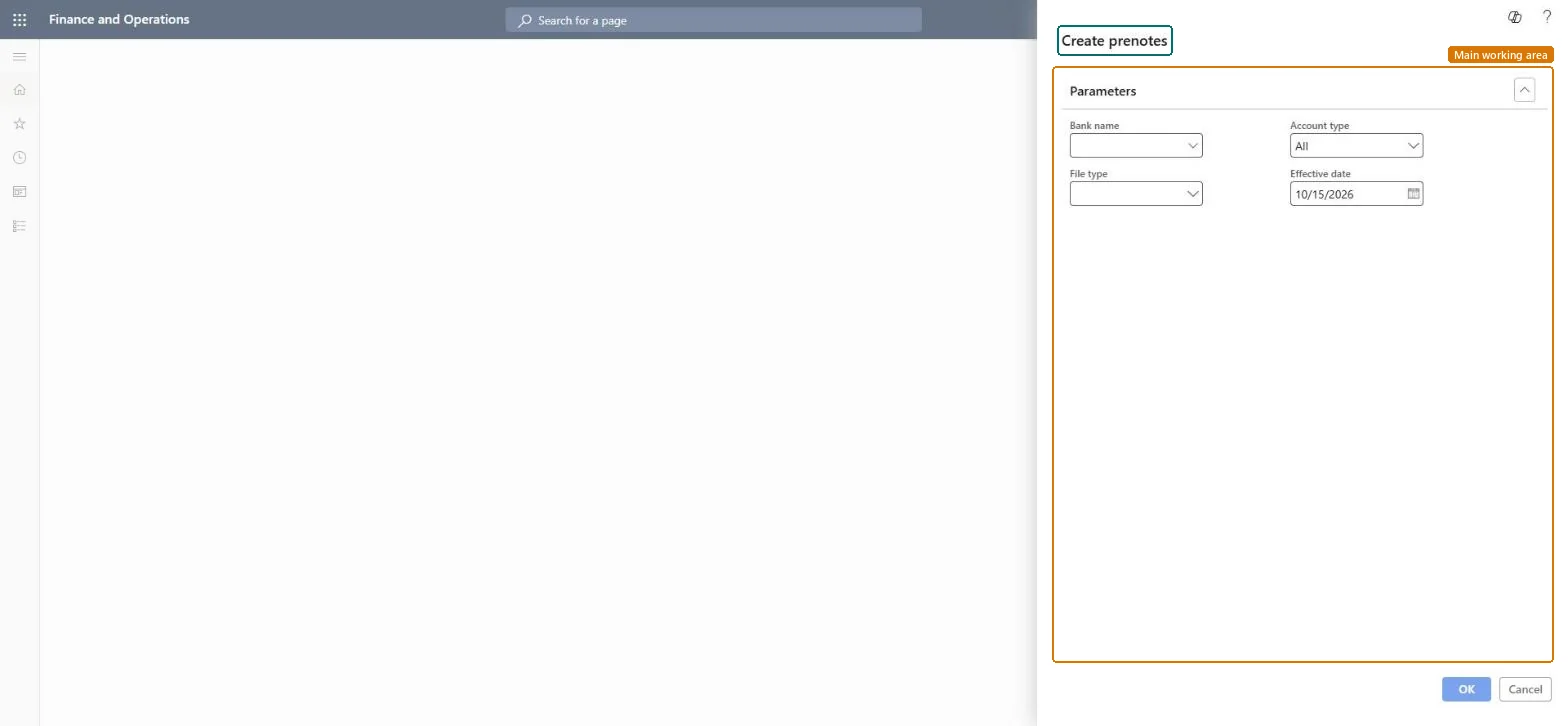
The page in Dynamics 365. page title tab to open what to set or check
About the examples: Examples and screenshots in this guide use BEAT, a demo company in a Dynamics 365 test environment. Use your own company's codes and values instead of copying them.
When to run it
When to run it
Before the first electronic payment to a new customer or vendor bank account, and again whenever such a bank account changes.
How often
On demand, when customer or vendor bank accounts are added or changed.
What the output shows
Prenotes with zero-amount test transactions for the selected accounts, in the chosen file type, for the bank to check routing and account numbers. A prenote the bank rejects usually points to a wrong routing or account number on the bank account.
Your organization's bank that the prenotes are created for.Microsoft Learn
File type
The prenote file format: CCD, CTX or PPD; ask your bank which one it prefers.Microsoft Learn
PPD
Account type
Which accounts get prenotes: all, all customers, all vendors, or one customer or vendor.Microsoft Learn
Vendor
Account
The single customer or vendor account, used only when Account type is Customer or Vendor.Microsoft Learn
Common errors and fixes
Message
What to do
No prenote is created for a bank account that isn't active yet
Turn on Allow prenote creation on inactive bank accounts in Cash and bank management parameters, or wait until the account's active date. Microsoft Learn
The bank rejects the prenote file type
Banks prefer a specific file type (CCD, CTX or PPD). Ask the bank and create the prenotes again with that type. Microsoft Learn
Account type = Vendor (or Customer) for the one account that is new or changed; File type = the one your bank asks for.Prenotes verify routing and account numbers before money moves; a changed bank account needs a new prenote.
Per company: prenotes are created for the customer and vendor bank accounts of the current legal entity, and their number sequence is set per company. Checked in Dynamics 365
Can it be undone
Not needed: Prenotes move no money; create a new one if the bank account changes.
If you change it later
If a customer or vendor bank account changes after its prenote was created, you must create a new prenote for the new account. Microsoft Learn
Technical architect
6Technical
Menu item
action:PrenoteBankChecked in Dynamics 365
Form
DialogChecked in Dynamics 365
Roles to set it up and use it
To use itTreasurer PaymTreasurerAccountant LedgerAccountantGive people one of these roles. On this system, 2 roles can run this page.Checked in Dynamics 365
Developer
7Developer
Open it by URL
https://<your-environment>/?mi=action:PrenoteBank
Data migration
Load order: A prenote has no data entity in Data management, so it can't be loaded from a file or a configuration template. Prenotes are created by this task in each environment. After migrating customer and vendor bank accounts, create prenotes again for accounts whose details changed.Checked in Dynamics 365
Checked in a working Dynamics 365 system, version 10.0.49: the menu item, form, table and security, the page.
To cite this step: CB-JOB-210, Create prenotes for new bank accounts. Beyond ERP Atlas Hub, 2026-11-11. https://www.beyonderp.cloud/atlas/step/CB-JOB-210