Cash and bank managementInquiries and reportsDeposit slips
BankDeposit
Used by
Chief financial officer, Accountant, Accounting manager and 5 more roles
Business process
Process customer payments
Menu item
BankDeposit
Main table
BankDeposit
Setup steps
1 on this page
Show what matters for
SETUP GUIDEHow to set it up8 sections. Choose a role to highlight what matters to you.
Everyone
1What it is and why
What it is
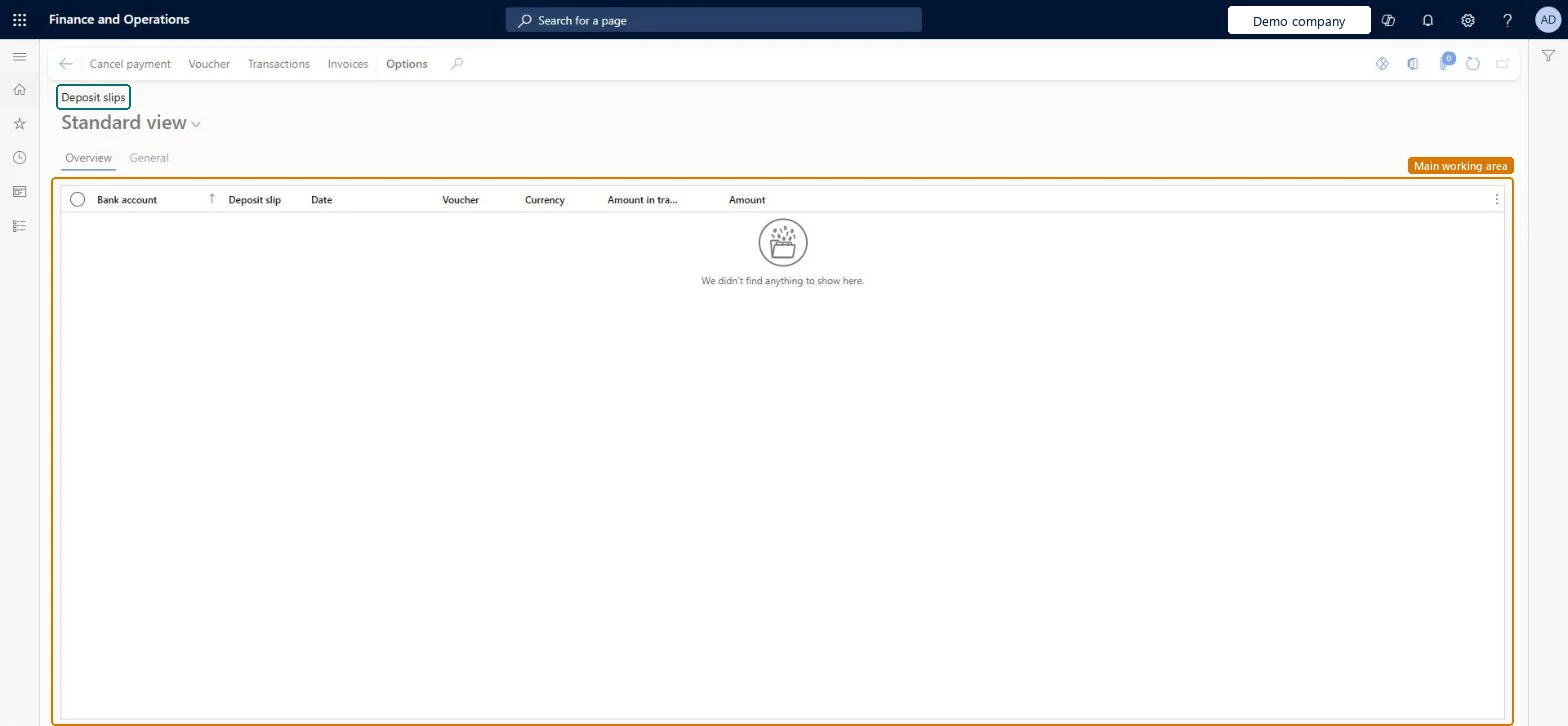
The Deposit slips list opened from Inquiries and reports; it is the same page as Payment reversals > Deposit slips, used here to look up deposit slips and their payments.
What you do here
Use this entry to find a deposit slip and see which customer payments it holds and whether any is cancelled or pending cancellation.
Example
For example, the bank credits 2,500.00 for deposit slip 000041 instead of 3,300.00. You open the slip here, see the three payments and find the 800.00 check that was cancelled after the bank returned it.
The page in Dynamics 365. page title tab to open what to set or check
About the examples: Examples and screenshots in this guide use BEAT, a demo company in a Dynamics 365 test environment. Use your own company's codes and values instead of copying them.
Setup steps on this page
Look up deposit slips
Find a deposit slip and its payments when a bank credit doesn't match.
Steps from Microsoft
Go to Cash and bank management > Inquiries and reports > Deposit slips > Deposit slips.
Filter on the bank account and the deposit slip number.
Review the payments on the slip and whether any of them is cancelled or Pending cancellation.
If a payment must be cancelled, use Cancel payment here; it works as on Payment reversals > Deposit slips.
Filter on the bank account and deposit slip number first.A deposit slip groups several customer payments, so the slip is how the bank's single credit is matched to them.
Numbers the deposit slips created from customer payment journals. Set it on the Number sequences tab of Cash and bank management parameters; BEAT uses Bank_3. Checked in Dynamics 365
Feature management and licence
Licence or add-in
In this system 8 roles can open this page, among them Chief financial officer, Accountant, Accounting manager and Accounting supervisor.
This entry opens the same Deposit slips page, so Cancel payment here behaves the same: a payment already reconciled on a bank statement can't be cancelled. Microsoft Learn
Technical architect
6Technical
Menu item
BankDepositChecked in Dynamics 365
Form
BankDepositChecked in Dynamics 365
Table
BankDepositShown as “Bank deposit” in Record infoKey field: DepositNum, AccountIdChecked in Dynamics 365
Who can open it
PrivilegesView deposit slips BankDepositViewDutiesInquire into bank transaction status BankBankTransactionStatusInquireCustBankTransactionStatusInquire8 security rolesChief financial officer CompanyChiefFinancialOfficerAccountant LedgerAccountantAccounting manager LedgerAccountingManagerAccounting supervisor LedgerAccountingSupervisorFinancial controller LedgerFinancialControllerAccounts receivable centralized payments clerk PaymAccountsReceivableCentralPaymClerkAccounts receivable payments clerk PaymAccountsReceivablePaymentsClerkTreasurer PaymTreasurerChecked in Dynamics 365
Roles to set it up and use it
To use itTreasurer PaymTreasurerChief financial officer CompanyChiefFinancialOfficerAccounting manager LedgerAccountingManagerFinancial controller LedgerFinancialControllerAccountant LedgerAccountantGive people one of these roles. On this system, 8 roles can open this page.Checked in Dynamics 365
Actions on the page
Options: Personalize, Page options, ShareChecked in Dynamics 365
Developer
7Developer
Open it by URL
https://<your-environment>/?mi=BankDeposit
Data migration
Load order: A deposit slip has no data entity in Data management, so it can't be loaded from a file or a configuration template. Deposit slips come from posted customer payment journals; there is nothing to load on this inquiry entry.Checked in Dynamics 365