Setup step on the Dimensions for budgeting page · Budgeting
Set up Dimensions for budgeting
Used to make all, or only some, financial dimensions available for budgeting.
- Used by
- —
- Business process
- Create procurement budgets with Dynamics 365 Finance
- Menu item
BudgetPrimaryLedgerDimensionAttribute- Main table
- —
- Data entity
- —
- Setup steps
- 1 on this page
Show what matters for
Everyone
1What it is and why
| What it is | A setup page where you choose which financial dimensions from the chart of accounts are used for budgeting. |
|---|---|
| What you do here | Used to make all, or only some, financial dimensions available for budgeting. |
| Example | For example, choosing only Department and Cost center lets each department and cost center hold a budget no matter which main account is used. |
Functional consultant · Solution architect
2Where it fits
| Business process | Develop procurement and sourcing strategy › Develop spend strategy › Create procurement budgets with Dynamics 365 Finance |
|---|---|
| Menu path | Budgeting › Setup › Basic budgeting › Dimensions for budgeting |
| Set up first | — |
| Used next by | Budget register entries Microsoft Learn ↗Budget control configuration Microsoft Learn ↗ |
| Related pages | — |
| In this process | ← Set up Budgeting parameters · Set up Budget codes → |
End user · Functional consultant
3How to do it
Step by step, with screenshots
Set up Dimensions for budgeting1 screen
Used to make all, or only some, financial dimensions available for budgeting.
Screen 1
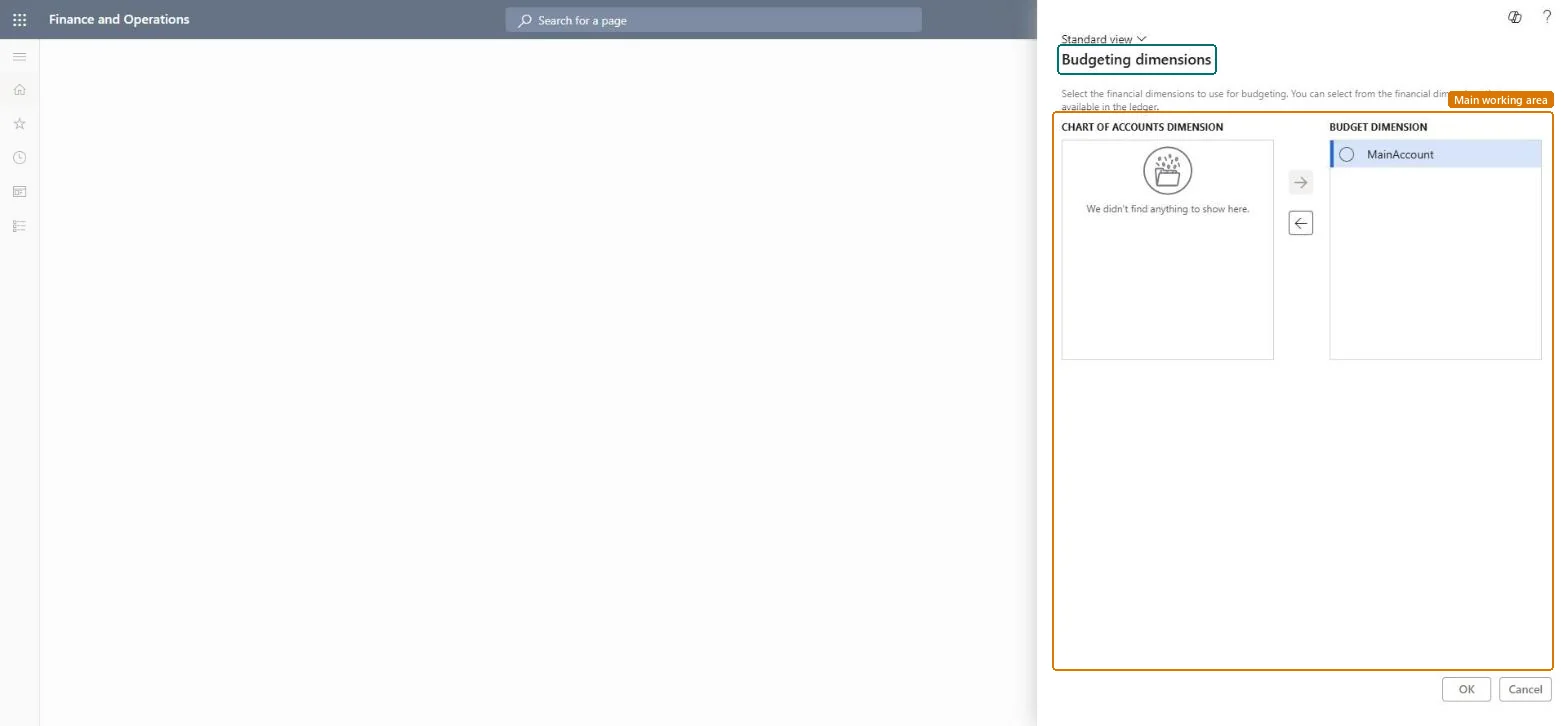
Choose the budgeting dimensions
Go to Budgeting > Setup > Basic budgeting > Dimensions for budgeting
- Select MainAccount in the Chart of accounts dimension list
- Select the right arrow to move it to the Budget dimension list
- Select OK
1Budget dimension MainAccount 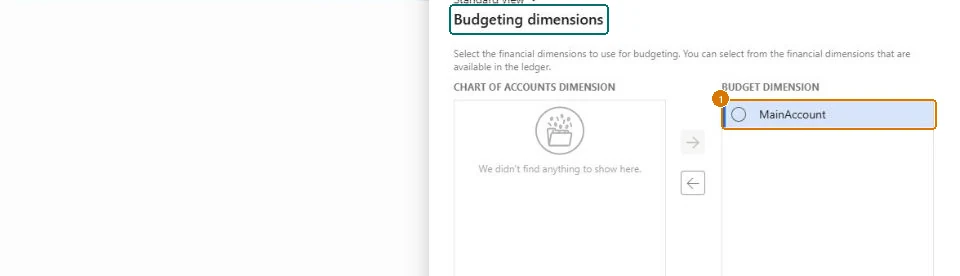
Show the full screen
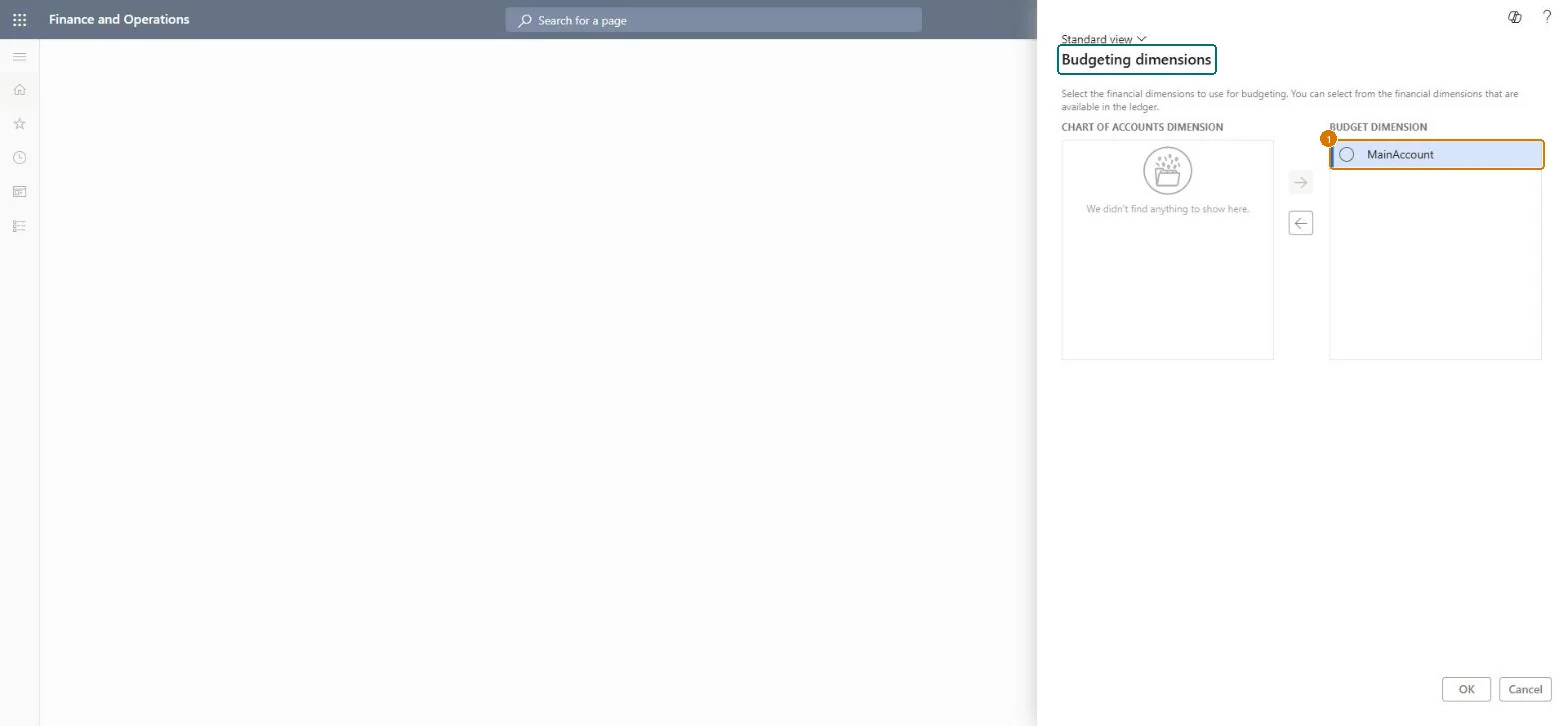
page title tab to open what to set or check
Microsoft's steps
- Go to Budgeting > Setup > Basic budgeting > Dimensions for budgeting.
- Select the financial dimensions in the Chart of accounts dimension list.
- Select the arrow button to move them to the Budget dimension list.
Source: Microsoft Learn ↗
Field guide
| Field | What it means | Worked example | Table column |
|---|---|---|---|
| Budget dimension | — | MainAccount | — |
Functional consultant
4Setup decisions
| Setup step | Recommended value and why | Decision · common mistake · test |
|---|---|---|
| Set up Dimensions for budgeting | — | — |
Solution architect
5Design impact
| Shared or per company | — |
|---|---|
| Can it be undone | — |
| Feature or country | — |
| If you change it later | — |
Technical architect
6Technical
| Menu item | BudgetPrimaryLedgerDimensionAttribute Checked in Dynamics 365 |
|---|---|
| Form | BudgetPrimaryLedgerDimensionAttribute Checked in Dynamics 365 |
| Table | — |
| Data entities | — |
| Who can open it | — |
| Actions on the page | — |
Developer
7Developer
| Open it directly | https://<your-environment>/?mi=BudgetPrimaryLedgerDimensionAttribute |
|---|---|
| Integrate with | — |
| Table definition | — |
Everyone
8Sources and checks
- learn.microsoft.com/dynamics365/finance/budgeting/basic-budgeting-overview-configuration
- learn.microsoft.com/training/modules/setup-use-basic-budgeting-finance/exercise-set-up-components
- learn.microsoft.com/dynamics365/finance/budgeting/budget-register-entries
- learn.microsoft.com/dynamics365/finance/budgeting/budget-control-overview-configuration
- Checked in a working Dynamics 365 system, version 10.0.49: the menu item, form, table and security, the page, the demo records and the values in the screenshots.
BUD-SETUP-020 — Set up Dimensions for budgeting. Beyond ERP Atlas Hub, snapshot 2026-10-16, partly verified. https://www.beyonderp.cloud/atlas/step/BUD-SETUP-020