About the examples: Examples and screenshots in this guide use BEAT, a demo company in a Dynamics 365 test environment. Use your own company's codes and values instead of copying them.
Setup steps on this page
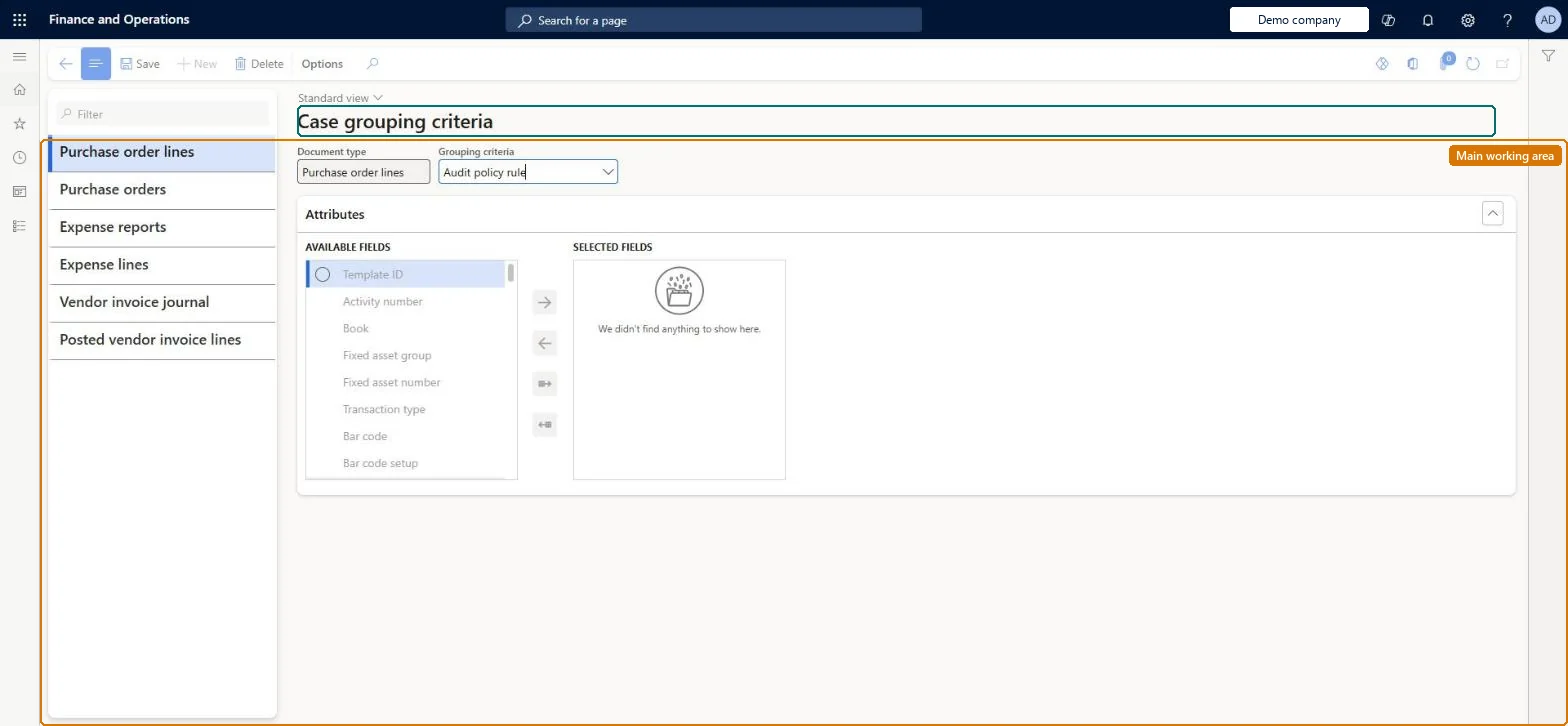
Set up Case grouping criteria
Use this page to group violations by document attributes so the system creates fewer cases, such as one case per project or per vendor account.
How to use it
Go to Audit workbench > Setup > Case grouping criteria.
In the list, select the document type, such as Purchase order lines or Expense reports.
In the Grouping criteria field, select how violations are grouped into cases.
Under Attributes, move fields from Available fields to Selected fields with the arrow buttons.
Select Save.
Source: Checked in Dynamics 365
Test checklist
Set grouping for vendor invoices by vendor account.
Run a policy whose rule flags several invoices from the same vendor.
Check one case is created per vendor account.
Run a Duplicate-type rule and check its cases follow the rule's own duplicate fields.
Group by the attribute the reviewer works by, for example expense headers by project ID and vendor invoices by vendor accountBy default cases are grouped per audit policy rule; grouping criteria put all violations with the same value into one case, so fewer cases are created.
Expecting the grouping to apply to Duplicate rules. Those violations are grouped by the criteria built into the rule instead.
Solution architect
5Design impact
Can it be undone
Reversible: Grouping decides how violations are put into cases when a policy runs.
If you change it later
The grouping you choose decides which violations end up in the same case; it does not apply to rules based on the Duplicate query type, which group by the criteria built into the rule. Microsoft Learn
Technical architect
6Technical
Menu item
AuditPolicyCaseGroupChecked in Dynamics 365
Form
AuditPolicyCaseGroupChecked in Dynamics 365
Table
AuditPolicyCaseGroupShown as “AUDIT POLICY CASE GROUP” in Record infoKey field: SourceRelationTypeChecked in Dynamics 365
Who can open it
PrivilegesMaintain case grouping criteria AuditPolicyCaseGroupMaintainView case grouping criteria AuditPolicyCaseGroupViewDutiesInquire into audit policies AuditPolicyInquireMaintain audit policies AuditPolicyMaintain2 security rolesAuditor AuditPolicyManagerFinancial controller LedgerFinancialControllerChecked in Dynamics 365
Roles to set it up and use it
To set it up or change itAuditor AuditPolicyManagerTo use itFinancial controller LedgerFinancialControllerGive people one of these roles. On this system, 2 roles can open this page.Checked in Dynamics 365