About the examples: Examples and screenshots in this guide use BEAT, a demo company in a Dynamics 365 test environment. Use your own company's codes and values instead of copying them.
Step by step, with screenshots
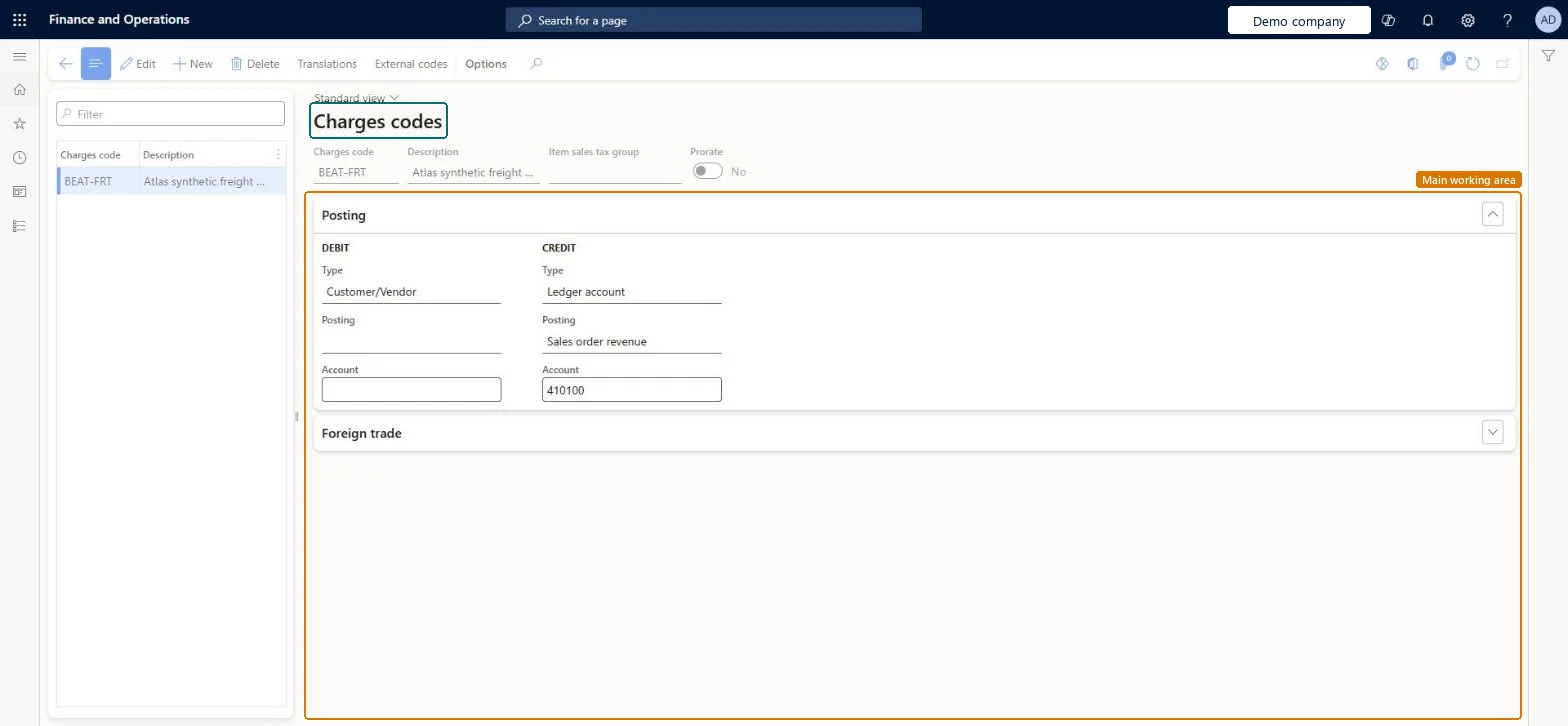
Set up Charges code1 screen
Set up the codes for charges such as invoice fees, freight and insurance that are used on sales orders.
Screen 1
Create the freight charges code
Go to Accounts receivable > Charges setup > Charges code
Select New and enter the charges code and a description
On the Posting FastTab, set the debit type
Set the credit type, posting and account
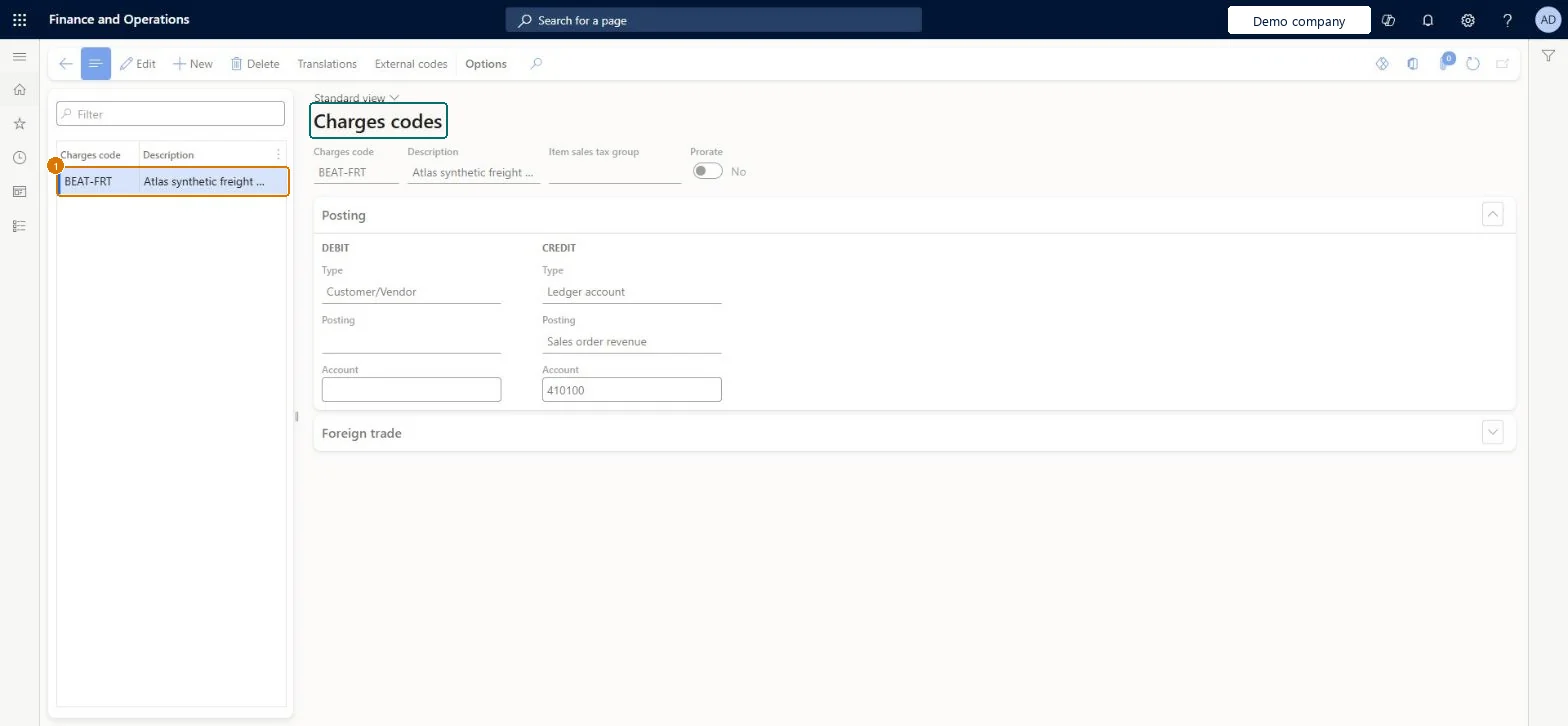
1Charges code
BEAT-FRT
Debit type
Customer/Vendor
Credit type
Ledger account
Credit posting
Sales order revenue
Credit account
410100
Show the full screen page title tab to open what to set or check
Steps from Microsoft
Go to Accounts receivable > Charges setup > Charges code.
Select New.
In the Charges code field, enter a code for the charge.
In the Description field, enter a description.
Optionally, in the Item sales tax group field, select a sales tax group.
On the Posting FastTab, set how the charge is debited and credited.
If the debit or credit type is Ledger account, enter the posting type and the main account.
For charges the customer pays (for example invoice fees or freight): Debit Type Customer/Vendor and Credit Type Ledger account with the revenue main account for that charge.Debit to the customer adds the charge to the sales order totals, and the ledger credit records the charge income on its own revenue account.
Expecting a charge in a different currency from the order when neither the debit nor credit type is Ledger account or Item; a separate charge currency is only allowed for those types.
Reversible: Posting setup on a charges code is used when charges are posted, so changes apply to charges posted afterwards; posted vouchers aren't changed.
Technical architect
6Technical
Menu item
MarkupTable_CustChecked in Dynamics 365
Form
MarkupTableChecked in Dynamics 365
Table
MarkupTableShown as “Charges code” in Record infoKey field: MarkupCodeChecked in Dynamics 365
PrivilegesMaintain charges in the sale process MarkupAutoSetup_CustMaintainView charges in the sales process MarkupAutoSetup_CustViewDutiesEnable quotation to sales order process RentalSalesQuotationToSlsOrdProcessEnableInquire into sales order progress SalesOrderProgressInquireEnable quotation to sales order process SalesQuotationToSalesOrderProcessEnable20 security rolesCredit management clerk CredManClerkAccounts receivable clerk CustInvoiceAccountsReceivableClerkAccounts receivable manager CustInvoiceAccountsReceivableManagerMCRTestUserRoleAccounts receivable centralized payments clerk PaymAccountsReceivableCentralPaymClerkAccounts receivable payments clerk PaymAccountsReceivablePaymentsClerkProject manager ProjProjectManagerRental clerk RentalClerkRental coordinator agent RentalCoordinatorAgentRental manager RentalManagerRental purchasing manager RentalPurchasingManagerRental representative RentalRepresentativeRental sales manager RentalSalesManagerProduction planner ReqProductionPlannerRetail service RetailServiceRetail store manager RetailStoreManagerCustomer service representative TradeCustomerServiceRepresentativeSales clerk TradeSalesClerkSales manager TradeSalesManagerSales representative TradeSalesRepresentativeChecked in Dynamics 365
Roles to set it up and use it
To set it up or change itRental manager RentalManagerAccounts receivable manager CustInvoiceAccountsReceivableManagerRental coordinator agent RentalCoordinatorAgentSales manager TradeSalesManagerRetail service RetailServiceTo use itAccounts receivable clerk CustInvoiceAccountsReceivableClerkAccounts receivable payments clerk PaymAccountsReceivablePaymentsClerkAccounts receivable centralized payments clerk PaymAccountsReceivableCentralPaymClerkSales representative TradeSalesRepresentativeRental representative RentalRepresentativeGive people one of these roles. On this system, 19 roles can open this page.Checked in Dynamics 365
Actions on the page
Buttons: Translations, External codesChecked in Dynamics 365
InventoryChargeEntity (Inventory charge codes): loaded for each company, in Microsoft's default template 405 - Transportation management.PurchProcurementChargeEntity (Procurement charge codes): loaded for each company, in Microsoft's default template 120 - Accounts payable.SalesChargeEntity (Sales charge codes): loaded for each company, in Microsoft's default template 140 - Accounts receivable.Load order: Microsoft's default template 405 - Transportation management loads Inventory charge codes at execution unit 1, level 30, sequence 10. Lower levels load first, and entities at the same level load in sequence order.Load first: the default templates at lower levels (System setup to General ledger)Microsoft Learn
Checked in a working Dynamics 365 system, version 10.0.49: the menu item, form, table and security, the page, the demo records and the values in the screenshots.
To cite this step: AR-SETUP-080, Set up Charges code. Beyond ERP Atlas Hub, 2026-11-11. https://www.beyonderp.cloud/atlas/step/AR-SETUP-080