Setup page · Accounts receivable
Charges code
A setup page for charges codes used on sales orders and purchase orders.
- Used by
- Accounts receivable clerk, Accounts receivable manager, Credit management clerk and 17 more roles
- Business process
- Define freight and other charges for orders in Dynamics 365 Supply Chain Management
- Menu item
MarkupTable_Cust- Main table
MarkupTable- Data entity
InventoryChargeEntity- Setup steps
- 1 on this page
Show what matters for
Everyone
1What it is and why
| What it is | A setup page for charges codes used on sales orders and purchase orders. |
|---|---|
| What you do here | Use it to set up codes for charges such as invoice fees, freight and insurance. |
| Example | For example, when the customer pays an invoice charge, you set up the code to add the charge to the sales order totals and the customer's account. |
Functional consultant · Solution architect
2Where it fits
| Business process | Develop sales policies › Develop sales pricing strategy › Define freight and other charges for orders in Dynamics 365 Supply Chain Management |
|---|---|
| Menu path | Accounts receivable › Charges setup › Charges code |
| Set up first | — |
| Used next by | Auto charges Microsoft Learn ↗Period charge rule Microsoft Learn ↗ |
| Related pages | Charges code (Accounts payable) Microsoft Learn ↗ |
End user · Functional consultant
3How to do it
Step by step, with screenshots
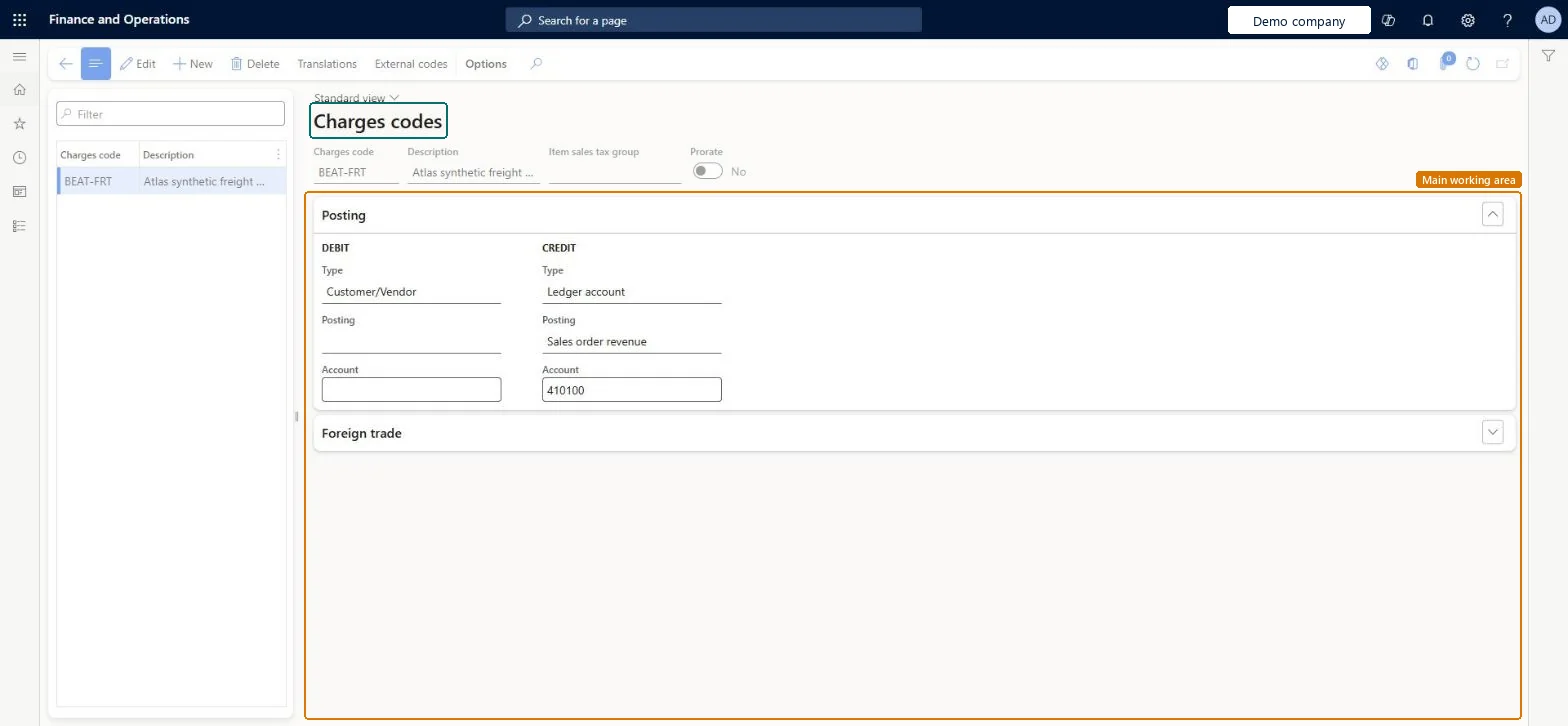
Set up Charges code1 screen
Set up the codes for charges such as invoice fees, freight and insurance that are used on sales orders.
Screen 1
Create the freight charges code
Go to Accounts receivable > Charges setup > Charges code
- Select New and enter the charges code and a description
- On the Posting FastTab, set the debit type
- Set the credit type, posting and account
1Charges code BEAT-FRT Debit type Customer/Vendor Credit type Ledger account Credit posting Sales order revenue Credit account 410100 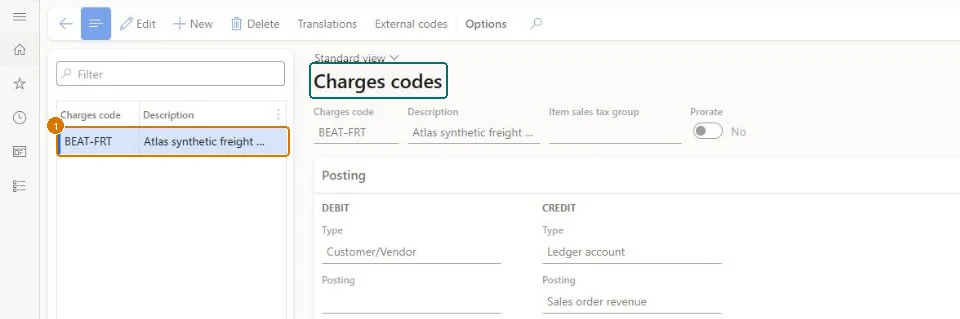
Show the full screen
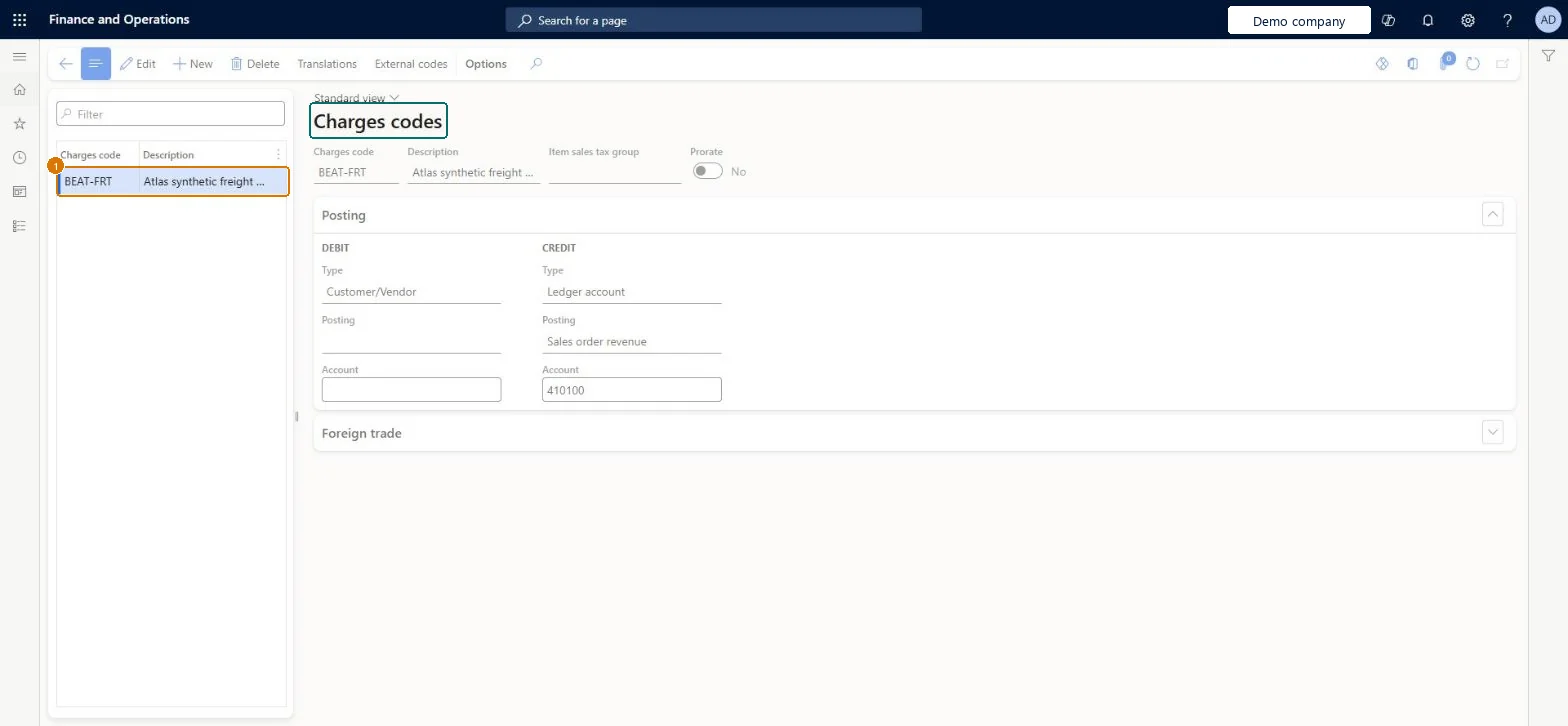
page title tab to open what to set or check
Microsoft's steps
- Go to Accounts receivable > Charges setup > Charges code.
- Select New.
- In the Charges code field, enter a code for the charge.
- In the Description field, enter a description.
- Optionally, in the Item sales tax group field, select a sales tax group.
- On the Posting FastTab, set how the charge is debited and credited.
- If the debit or credit type is Ledger account, enter the posting type and the main account.
Source: Microsoft Learn ↗
Field guide
| Field | What it means | Worked example | Table column |
|---|---|---|---|
| Charges code | The code for the charge, such as freight or an invoice fee.Microsoft Learn ↗ | BEAT-FRT | — |
| Item sales tax group | The sales tax group for the charge, if any.Microsoft Learn ↗ | — | — |
| Prorate | Set to Yes to prorate the charge; available only for sales orders.Microsoft Learn ↗ | — | MCRProRate |
| Type | The type of account the charge posts to on the debit or credit side, such as Ledger account, Customer/Vendor or Item.Microsoft Learn ↗ | — | — |
| Posting | The posting type used when the type is Ledger account.Microsoft Learn ↗ | — | — |
| Account | The main account the charge posts to.Microsoft Learn ↗ | — | — |
| Debit type | — | Customer/Vendor | CustType |
| Credit type | — | Ledger account | VendType |
| Credit posting | — | Sales order revenue | VendPosting |
| Credit account | — | 410100 | VendorLedgerDimension |
Functional consultant
4Setup decisions
| Setup step | Recommended value and why | Decision · common mistake · test |
|---|---|---|
| Set up Charges code | — | — |
Solution architect
5Design impact
| Shared or per company | Per company: each legal entity has its own records. Microsoft data model ↗ |
|---|---|
| Can it be undone | — |
| Feature or country | — |
| If you change it later | — |
Technical architect
6Technical
| Menu item | MarkupTable_Cust Checked in Dynamics 365 |
|---|---|
| Form | MarkupTable Checked in Dynamics 365 |
| Table | MarkupTableShown as “Charges code” in Record infoKey field: MarkupCodeChecked in Dynamics 365 |
| Data entities | InventoryChargeEntityInventory charge codes Microsoft data model ↗PurchProcurementChargeEntityProcurement charge codes Microsoft data model ↗SalesChargeEntitySales charge codes Microsoft data model ↗SalesDeliveryChargeEntitySales delivery charge codes Microsoft data model ↗ |
| Who can open it | PrivilegesMaintain charges in the sale process MarkupAutoSetup_CustMaintainView charges in the sales process MarkupAutoSetup_CustViewDutiesEnable quotation to sales order process RentalSalesQuotationToSlsOrdProcessEnableInquire into sales order progress SalesOrderProgressInquireEnable quotation to sales order process SalesQuotationToSalesOrderProcessEnable20 security rolesCredit management clerkCredManClerkAccounts receivable clerk CustInvoiceAccountsReceivableClerkAccounts receivable manager CustInvoiceAccountsReceivableManager MCRTestUserRoleAccounts receivable centralized payments clerk PaymAccountsReceivableCentralPaymClerkAccounts receivable payments clerk PaymAccountsReceivablePaymentsClerkProject manager ProjProjectManagerRental clerk RentalClerkRental coordinator agent RentalCoordinatorAgentRental manager RentalManagerRental purchasing manager RentalPurchasingManagerRental representative RentalRepresentativeRental sales manager RentalSalesManagerProduction planner ReqProductionPlannerRetail service RetailServiceRetail store manager RetailStoreManagerCustomer service representative TradeCustomerServiceRepresentativeSales clerk TradeSalesClerkSales manager TradeSalesManagerSales representative TradeSalesRepresentative |
| Actions on the page | Buttons: Translations, External codesChecked in Dynamics 365 |
Developer
7Developer
| Open it directly | https://<your-environment>/?mi=MarkupTable_Cust |
|---|---|
| Integrate with | InventoryChargeEntity data entity Microsoft data model ↗ |
| Table definition | MarkupTable columns and relations Microsoft data model ↗ |
Everyone
8Sources and checks
- learn.microsoft.com/dynamics365/finance/accounts-receivable/accounts-receivables-set-up-overview
- learn.microsoft.com/dynamics365/finance/accounts-receivable/accounts-receivables-set-up-overview
- learn.microsoft.com/dynamics365/finance/accounts-receivable/create-charges-codes
- learn.microsoft.com/common-data-model/schema/core/operationscommon/tables/supplychain/procurementandsourcing/group/markuptable
- learn.microsoft.com/dynamics365/supply-chain/procurement/automatic-charges-allocation
- learn.microsoft.com/dynamics365/supply-chain/sales-marketing/period-charges
- Checked in a working Dynamics 365 system, version 10.0.49: the menu item, form, table and security, the page, the demo records and the values in the screenshots.