Setup page · Accounts payable
Charges code
A setup page for charges codes, which track purchase amounts in addition to line items.
- Used by
- Accounts payable manager, , Rental coordinator agent and 5 more roles
- Business process
- Perform invoice matching in Dynamics 365 Finance
- Menu item
MarkupTable_Vend- Main table
MarkupTable- Data entity
InventoryChargeEntity- Setup steps
- 1 on this page
Show what matters for
Everyone
1What it is and why
| What it is | A setup page for charges codes, which track purchase amounts in addition to line items. |
|---|---|
| What you do here | Used to define each charge, its optional maximum amount for invoice validation, and how it is debited and credited when posted. |
| Example | You pay freight and insurance on a purchase order and want these amounts itemized separately on the order. |
Functional consultant · Solution architect
2Where it fits
| Business process | Manage accounts payable › Process supplier invoices › Perform invoice matching in Dynamics 365 Finance |
|---|---|
| Menu path | Accounts payable › Charges setup › Charges code |
| Set up first | — |
| Used next by | Automatic charges Microsoft Learn ↗Charges tolerances Microsoft Learn ↗ |
| Related pages | Vendor charges group Microsoft Learn ↗Item charge groups Microsoft Learn ↗Automatic charges Microsoft Learn ↗ |
End user · Functional consultant
3How to do it
Step by step, with screenshots
Set up Charges code1 screen
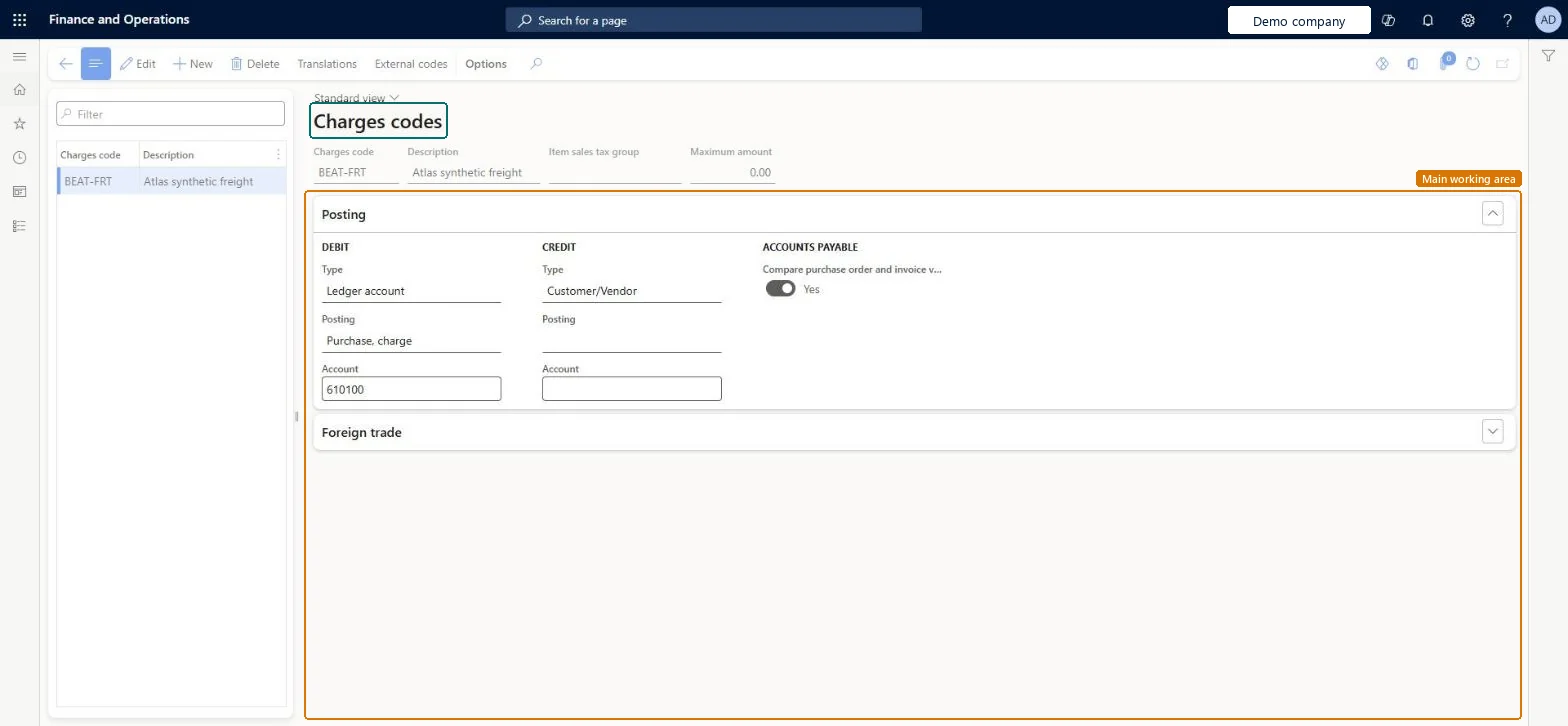
Set up the codes for the charges, such as freight or fees, that are used on purchase orders.
Screen 1
Create the freight charges code
Go to Accounts payable > Charges setup > Charges code, Posting section
- Select New and enter the charges code and description
- In the Posting section, set the debit and credit types
- Turn on Compare purchase order and invoice values
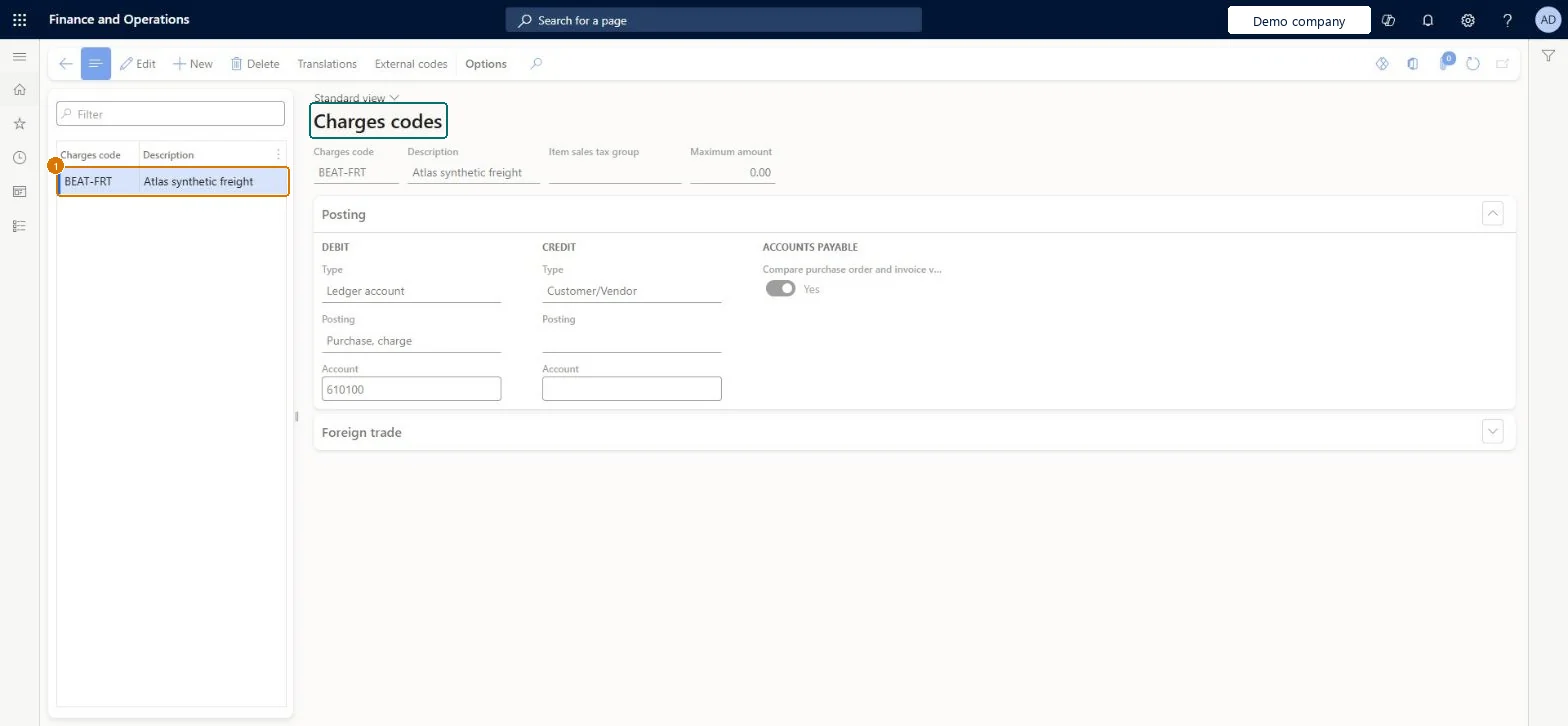
1Charges code BEAT-FRT Description Atlas synthetic freight Maximum amount 0.00 Debit Type Ledger account Debit Posting Purchase, charge Debit Account 610100 Credit Type Customer/Vendor Compare purchase order and invoice values Yes 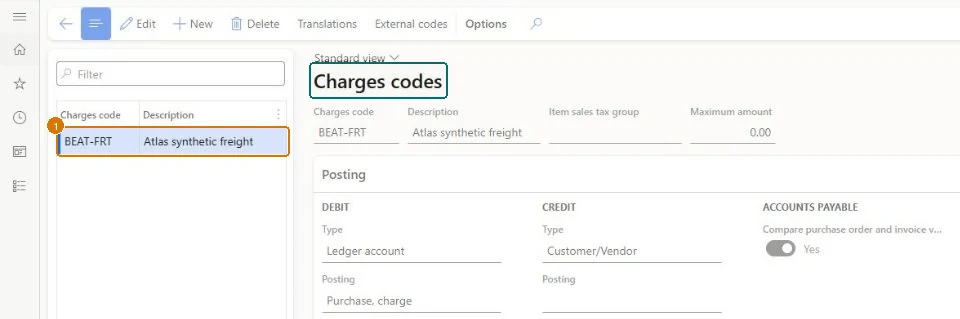
Show the full screen
page title tab to open what to set or check
Microsoft's steps
- Go to Accounts payable > Charges setup > Charges code.
- Select New.
- In the Charges code field, enter a code for the charge, and add a description.
- Optionally, select an Item sales tax group and enter a Maximum amount for the charge.
- On the Posting FastTab, set how the charge is debited and credited, including the posting types and main accounts for ledger postings.
- To compare the charge on invoices with the purchase order, turn on Compare purchase order and invoice values.
Source: Microsoft Learn ↗
Field guide
| Field | What it means | Worked example | Table column |
|---|---|---|---|
| Maximum amount | The highest amount allowed for this charge, used when vendor invoice charges are validated.Microsoft Learn ↗ | 0.00 | MaxAmount |
| Compare purchase order and invoice values | When on, the charge on an invoice is compared with the same charge on the purchase order.Microsoft Learn ↗ | Yes | — |
| Debit posting | For ledger postings, the posting type used on the debit side, together with the debit main account.Microsoft Learn ↗ | — | CustPosting |
| Charges code | — | BEAT-FRT | — |
| Description | — | Atlas synthetic freight | — |
| Debit Type | — | Ledger account | CustType |
| Debit Account | — | 610100 | CustomerLedgerDimension |
| Credit Type | — | Customer/Vendor | VendType |
Functional consultant
4Setup decisions
| Setup step | Recommended value and why | Decision · common mistake · test |
|---|---|---|
| Set up Charges code | — | — |
Solution architect
5Design impact
| Shared or per company | Per company: each legal entity has its own records. Microsoft data model ↗ |
|---|---|
| Can it be undone | — |
| Feature or country | — |
| If you change it later | — |
Technical architect
6Technical
| Menu item | MarkupTable_Vend Checked in Dynamics 365 |
|---|---|
| Form | MarkupTable Checked in Dynamics 365 |
| Table | MarkupTableShown as “Charges code” in Record infoKey field: MarkupCodeChecked in Dynamics 365 |
| Data entities | InventoryChargeEntityInventory charge codes Microsoft data model ↗PurchProcurementChargeEntityProcurement charge codes Microsoft data model ↗SalesChargeEntitySales charge codes Microsoft data model ↗SalesDeliveryChargeEntitySales delivery charge codes Microsoft data model ↗ |
| Who can open it | PrivilegesMaintain charges in the purchase process MarkupAutoSetup_VendMaintainView charges in the purchase process MarkupAutoSetup_VendViewDutiesInquire into product sales prices and discount master PriceDiscProdSalesPriceDiscMasterInquirEnable purchase order to invoice process PurchOrderToInvoiceProcessEnableEnable quotation to sales order process RentalSalesQuotationToSlsOrdProcessEnable8 security rolesMCRTestUserRoleRental coordinator agent RentalCoordinatorAgentRental manager RentalManagerRental sales manager RentalSalesManagerPurchasing manager TradePurchasingManagerSales clerk TradeSalesClerkSales manager TradeSalesManagerAccounts payable manager VendInvoiceAccountsPayableManager |
| Actions on the page | Buttons: Translations, External codesChecked in Dynamics 365 |
Developer
7Developer
| Open it directly | https://<your-environment>/?mi=MarkupTable_Vend |
|---|---|
| Integrate with | InventoryChargeEntity data entity Microsoft data model ↗ |
| Table definition | MarkupTable columns and relations Microsoft data model ↗ |
Everyone
8Sources and checks
- learn.microsoft.com/training/modules/configure-accounts-payable-dyn365-finance/10-ap-charges
- learn.microsoft.com/dynamics365/finance/accounts-payable/accounts-payable-overview#optional-setup-pages-for-accounts-payable
- learn.microsoft.com/training/modules/configure-accounts-payable-dyn365-finance/10-ap-charges
- learn.microsoft.com/common-data-model/schema/core/operationscommon/tables/supplychain/procurementandsourcing/group/markuptable
- learn.microsoft.com/dynamics365/finance/accounts-payable/accounts-payable-invoice-matching
- learn.microsoft.com/dynamics365/finance/accounts-payable/accounts-payable-overview
- Checked in a working Dynamics 365 system, version 10.0.49: the menu item, form, table and security, the page, the demo records and the values in the screenshots.