Setup step on the Free text invoice templates page · Accounts receivable
Set up Free text invoice templates
Stores reusable free text invoice definitions, including lines, charges and accounting distributions, that are assigned to customers to generate recurring invoices.
About the examples: Examples and screenshots in this guide use BEAT, a demo company in a Dynamics 365 test environment. Use your own company's codes and values instead of copying them.
Step by step, with screenshots
Set up Free text invoice templates5 screens
Stores reusable free text invoice definitions, including lines, charges and accounting distributions, that are assigned to customers to generate recurring invoices.
Screen 1
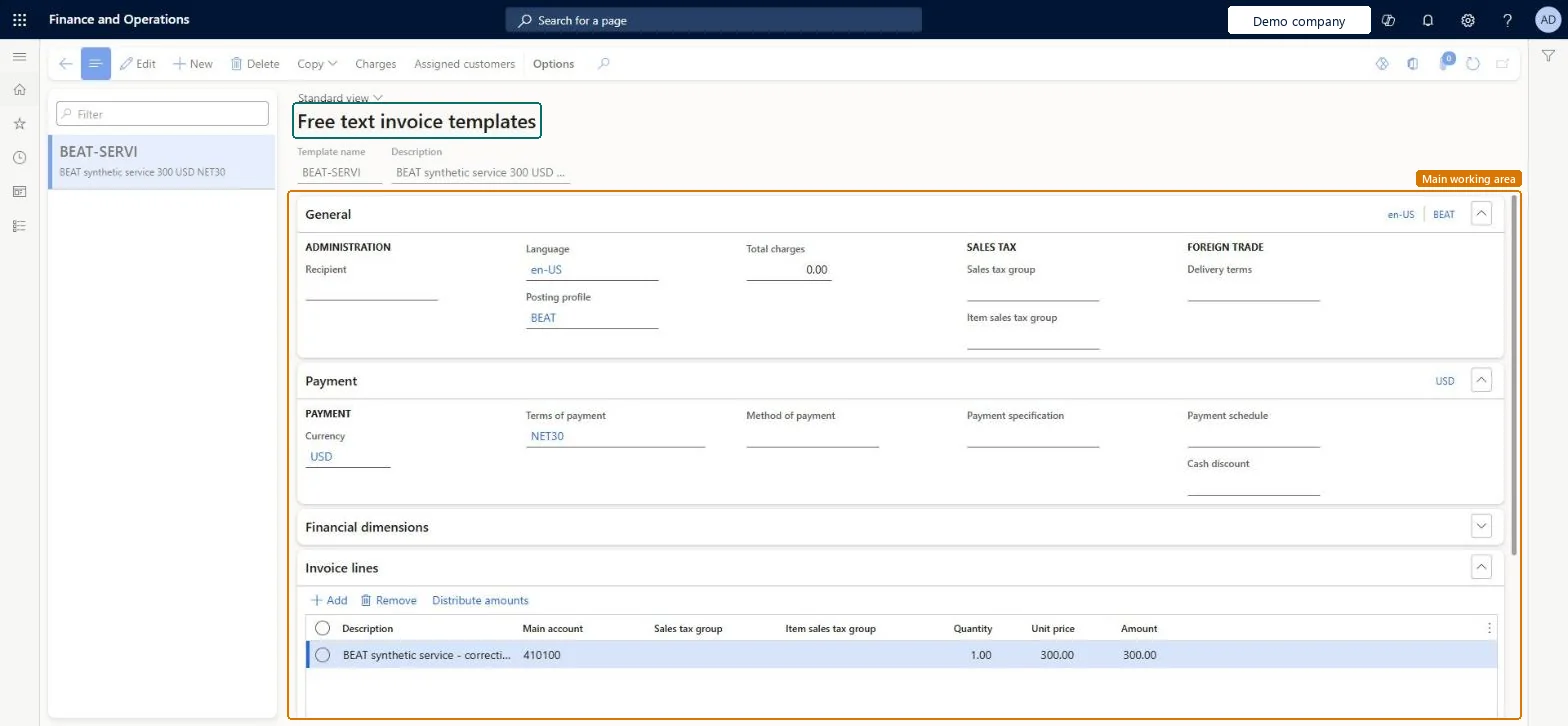
Create the free text invoice template
Go to Accounts receivable > Invoices > Recurring invoices > Free text invoice templates
Select New and enter BEAT-SERVI as the template, with a description
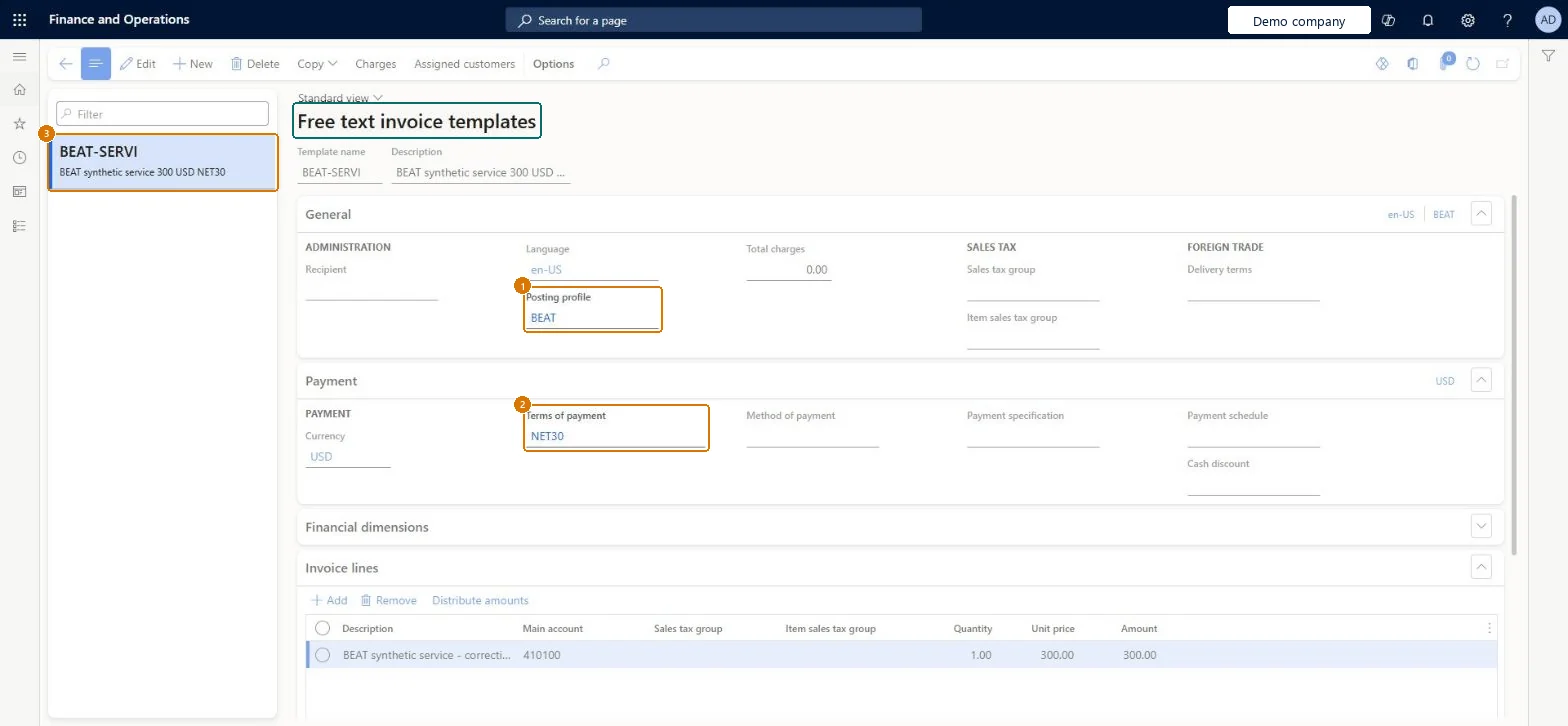
On the General FastTab, set the posting profile
On the Payment FastTab, set the currency and terms of payment
On the Invoice lines FastTab, select Add and enter the main account, quantity and unit price
1Posting profile
BEAT
2Terms of payment
NET30
Description
Service 300 USD NET30
Currency
USD
Main account
410100
Quantity
1.00
Unit price
300.00
Show the full screen page title tab to open what to set or check
Screen 2
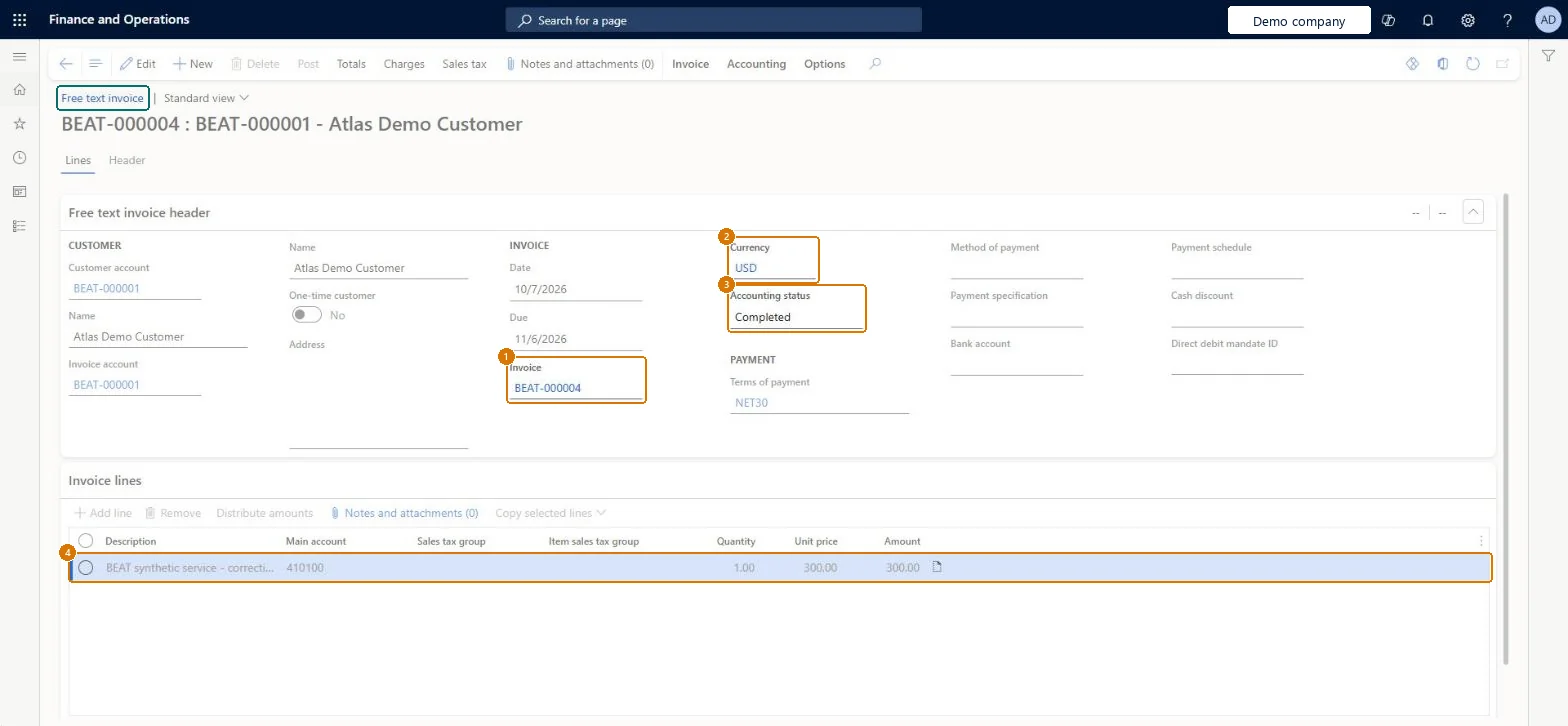
Check the posted invoice
Go to Free text invoice BEAT-000004, Lines tab
Open free text invoice BEAT-000004
Review the header and the Invoice lines FastTab
Check Invoice BEAT-000004 for customer BEAT-000001 shows currency USD, accounting status Completed, terms NET30, date 10/7/2026, and one line of 1 x 300.00 = 300.00 USD to main account 410100.
page title tab to open what to set or check
Screen 3
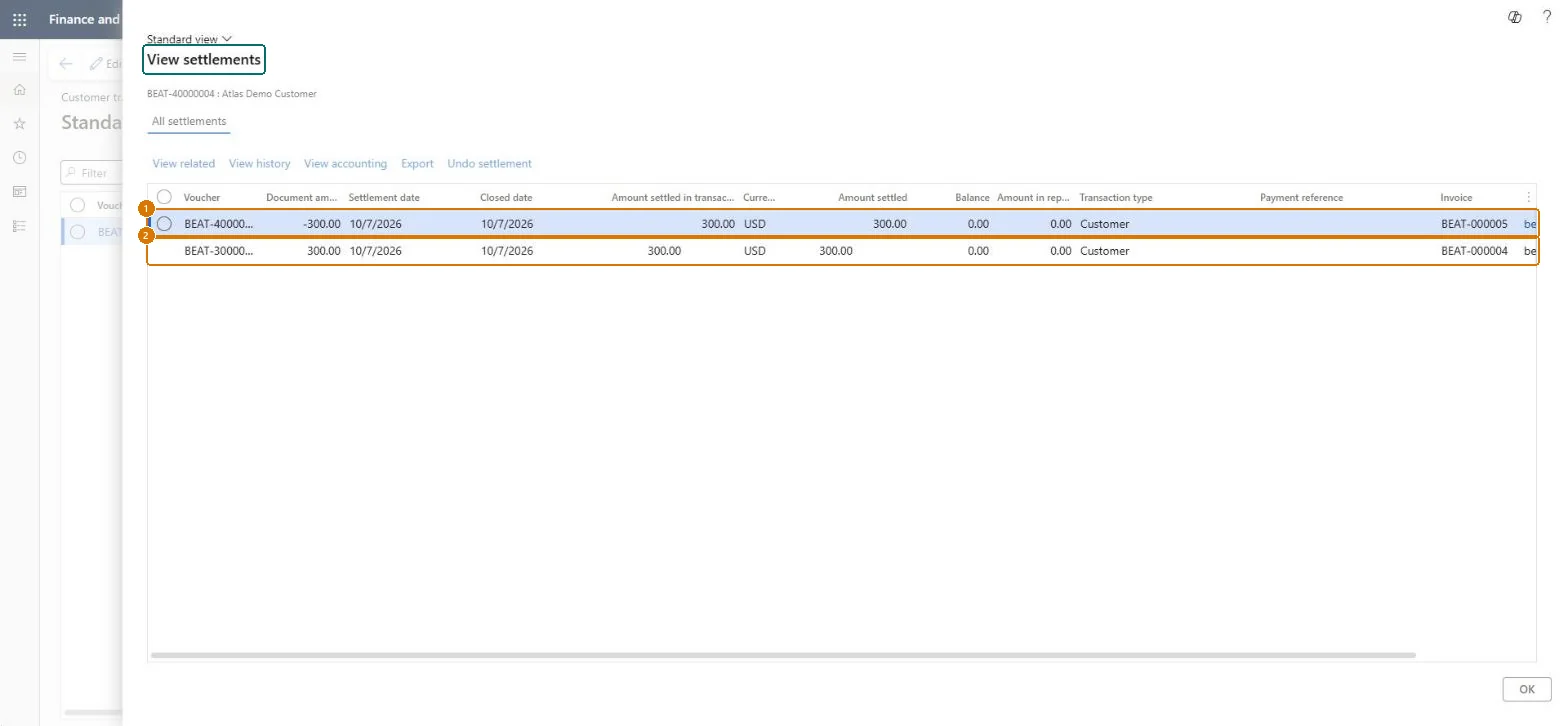
Check the invoice settlement
Go to Customer transactions > View settlements
Open the customer's transactions
Select the credit voucher BEAT-40000004 and open View settlements
Check Credit voucher BEAT-40000004 (-300.00) and invoice voucher BEAT-30000003 (300.00 USD) are each settled 300.00, with settlement and closed dates of 10/7/2026 and a balance of 0.00.
Show the full screen page title tab to open what to set or check
Screen 4
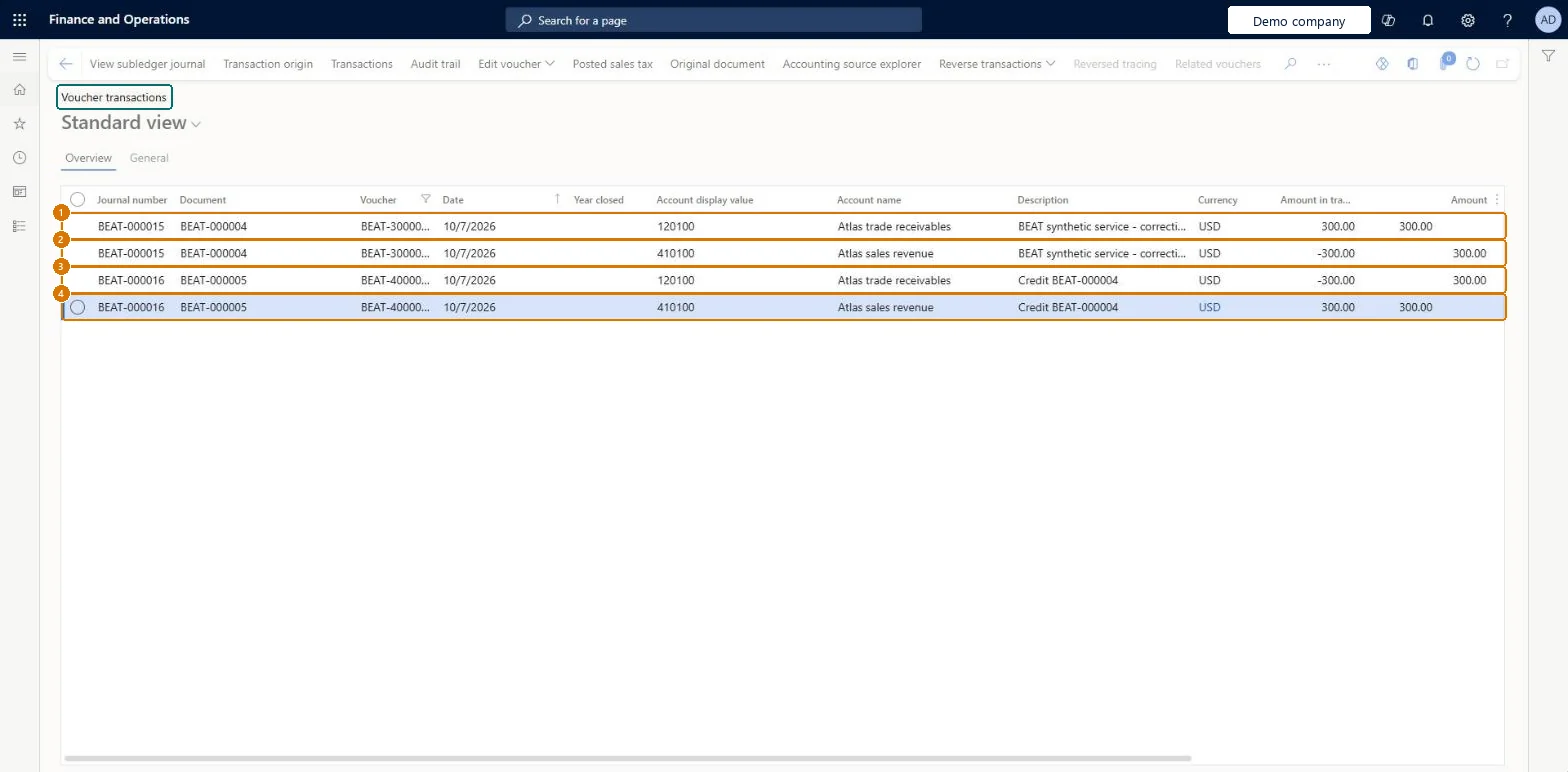
Check the ledger vouchers
Go to General ledger > Inquiries and reports > Voucher transactions
In the Inquiry dialog, set Voucher to BEAT-30000003,BEAT-40000004 and select OK
Review the four lines on the Overview tab
Check Invoice voucher BEAT-30000003 (document BEAT-000004) posts 120100 +300.00 and 410100 -300.00 USD; credit note voucher BEAT-40000004 (document BEAT-000005) posts the exact opposite: 120100 -300.00 and 410100 +300.00 USD.
Show the full screen page title tab to open what to set or check
Screen 5
Check the second posted invoice
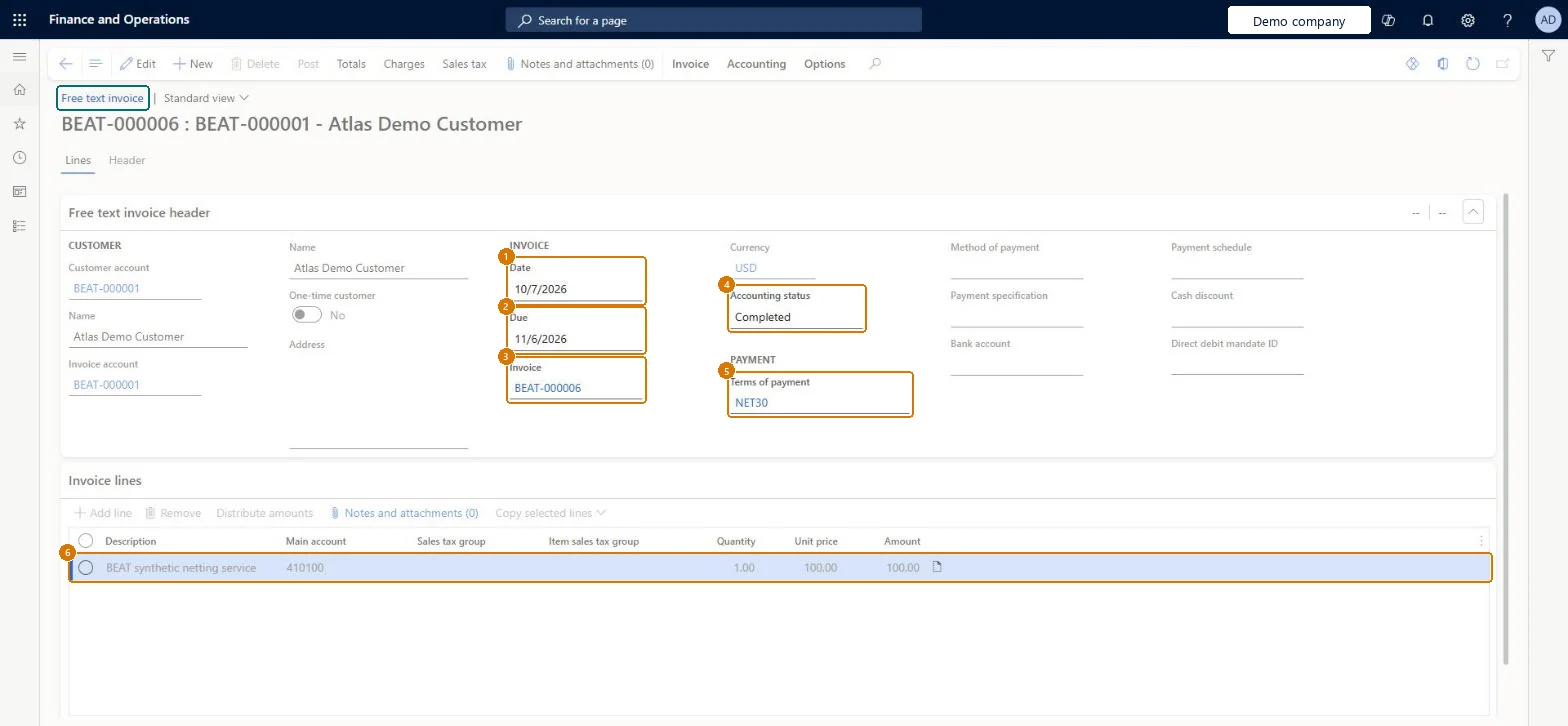
Go to Free text invoice BEAT-000006, Lines tab
Open free text invoice BEAT-000006
Review the header and the Invoice lines FastTab
Check Invoice BEAT-000006 for customer BEAT-000001 is dated 10/7/2026, due 11/6/2026, with accounting status Completed, terms NET30, and one line of 1 x 100.00 = 100.00 USD to main account 410100.
Show the full screen page title tab to open what to set or check
Steps from Microsoft
Go to Accounts receivable > Invoices > Recurring invoices > Free text invoice templates.
Select New.
In the Template name field, enter a unique name, and enter a Description.
Expand the Invoice lines tab and enter a Description for the line.
In the Main account field, select a revenue account.
Select the Sales tax group and Item sales tax group for the line.
Enter the Quantity and Unit price.
Add more lines as needed and review the accounting distributions for each line.
Create a template with two lines, each with a revenue Main account, Sales tax group, Quantity and Unit price.
Assign it to a customer under Invoice > Recurring invoices with a Billing start date, a monthly Recurrence pattern and default values from the template.
Generate recurring invoices and check that one free text invoice is created under a recurrence ID with the template lines and amounts.
Delete the generated invoice, generate again and check that it's recreated.
Post the invoice from Post recurring invoices and check the voucher uses the template's revenue accounts.
One template per recurring service, complete with lines, revenue main accounts, sales tax groups, charges and accounting distributions. On each customer's recurring invoice setup, decide whether defaults come from the template or from the customer account.A recurring template is effectively a whole invoice saved for reuse. When it's assigned to a customer, the setting Generate recurring invoices by using the default values from decides whether payment terms, sales tax groups, posting profile, currency and financial dimensions come from the template or the customer.
Using Save to template with a name that already exists. The system warns you, but selecting OK replaces the existing template, and every customer using that template then gets the new lines.Test: Recurring invoice uses the chosen default source
Reversible: Template changes apply to invoices generated afterwards. Generated recurring invoices can be reviewed and deleted before posting; deleting one resets the customer's recurrence for that template so you can generate it again.
If you change it later
When generating recurring invoices, defaults such as payment terms and tax groups come from either the template or the customer account, as chosen on the customer's recurring invoice setup. Microsoft Learn
Technical architect
6Technical
Menu item
CustInvoiceTemplateChecked in Dynamics 365
Form
CustInvoiceTemplateChecked in Dynamics 365
Table
CustInvoiceTemplateShown as “Free text invoice template” in Record infoChecked in Dynamics 365
Who can open it
PrivilegesMaintain customer invoice template CustInvoiceTemplateMaintainView a list of invoices that were generated for this customer and the template that was used CustInvoiceTemplateViewDutiesInquire into customer invoice status CustInvoiceCustomerInvoiceStatusInquireMaintain customer invoice transactions CustInvoiceCustomerInvoiceTransMaintain11 security rolesCollections agent CollectionLetterCollectionsAgentCollections manager CollectionLetterCollectionsManagerChief financial officer CompanyChiefFinancialOfficerAccounts receivable clerk CustInvoiceAccountsReceivableClerkAccounts receivable manager CustInvoiceAccountsReceivableManagerAccountant LedgerAccountantAccounting manager LedgerAccountingManagerAccounting supervisor LedgerAccountingSupervisorFinancial controller LedgerFinancialControllerAccounts receivable centralized payments clerk PaymAccountsReceivableCentralPaymClerkAccounts receivable payments clerk PaymAccountsReceivablePaymentsClerkChecked in Dynamics 365
Roles to set it up and use it
To set it up or change itAccounts receivable clerk CustInvoiceAccountsReceivableClerkTo use itAccounts receivable manager CustInvoiceAccountsReceivableManagerAccounting manager LedgerAccountingManagerCollections manager CollectionLetterCollectionsManagerAccounts receivable payments clerk PaymAccountsReceivablePaymentsClerkAccounts receivable centralized payments clerk PaymAccountsReceivableCentralPaymClerkGive people one of these roles. On this system, 11 roles can open this page.Checked in Dynamics 365
Actions on the page
Buttons: Copy, Charges, Assigned customersChecked in Dynamics 365
Checked in a working Dynamics 365 system, version 10.0.49: the menu item, form, table and security, the page, the demo records and the values in the screenshots.
To cite this step: AR-INVOICES-010, Set up Free text invoice templates. Beyond ERP Atlas Hub, 2026-11-11. https://www.beyonderp.cloud/atlas/step/AR-INVOICES-010