About the examples: Examples and screenshots in this guide use BEAT, a demo company in a Dynamics 365 test environment. Use your own company's codes and values instead of copying them.
Step by step, with screenshots
Set up Return format status mapping1 screen
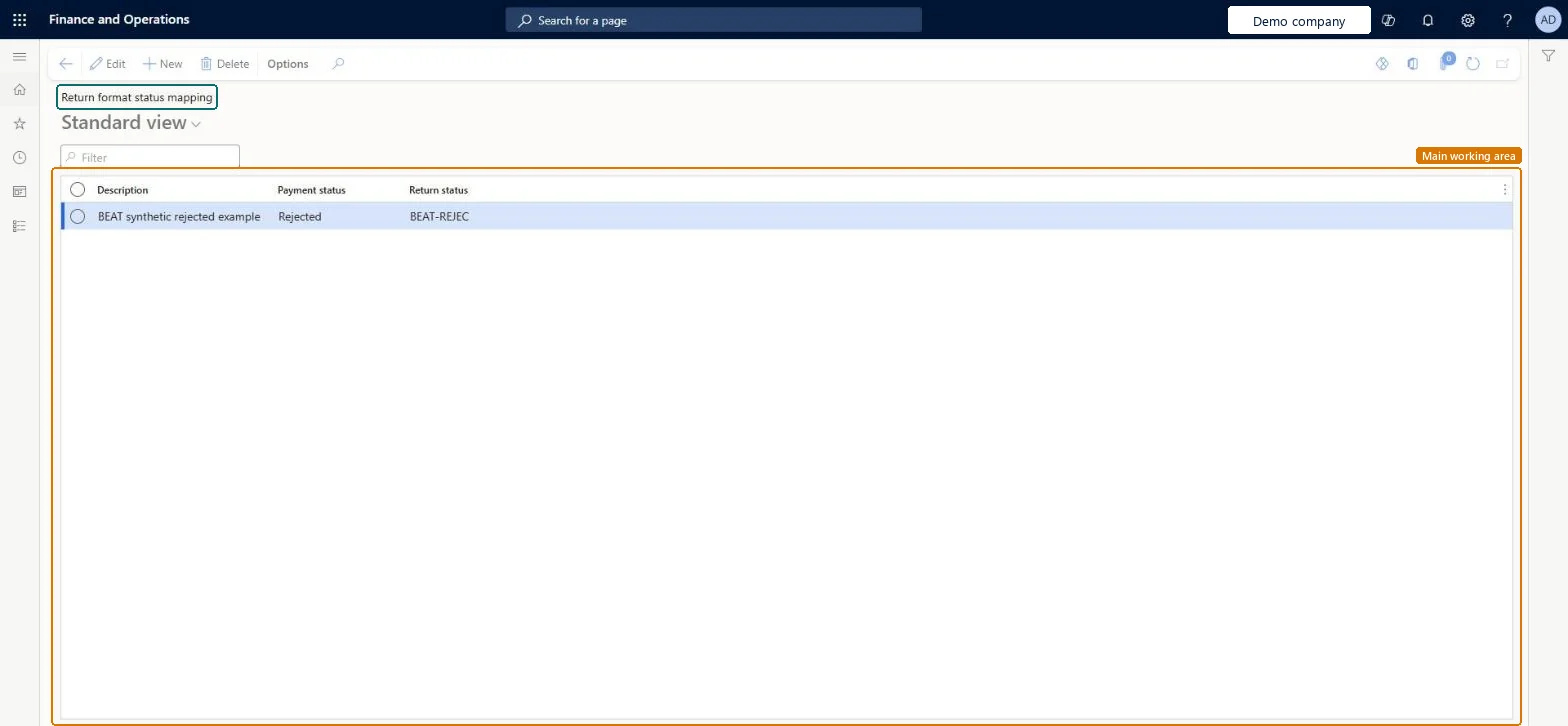
Maps the status codes in pain.002 return files (for example RJCT, ACCP, ACSP) to the payment statuses used on vendor payment journal lines.
Screen 1
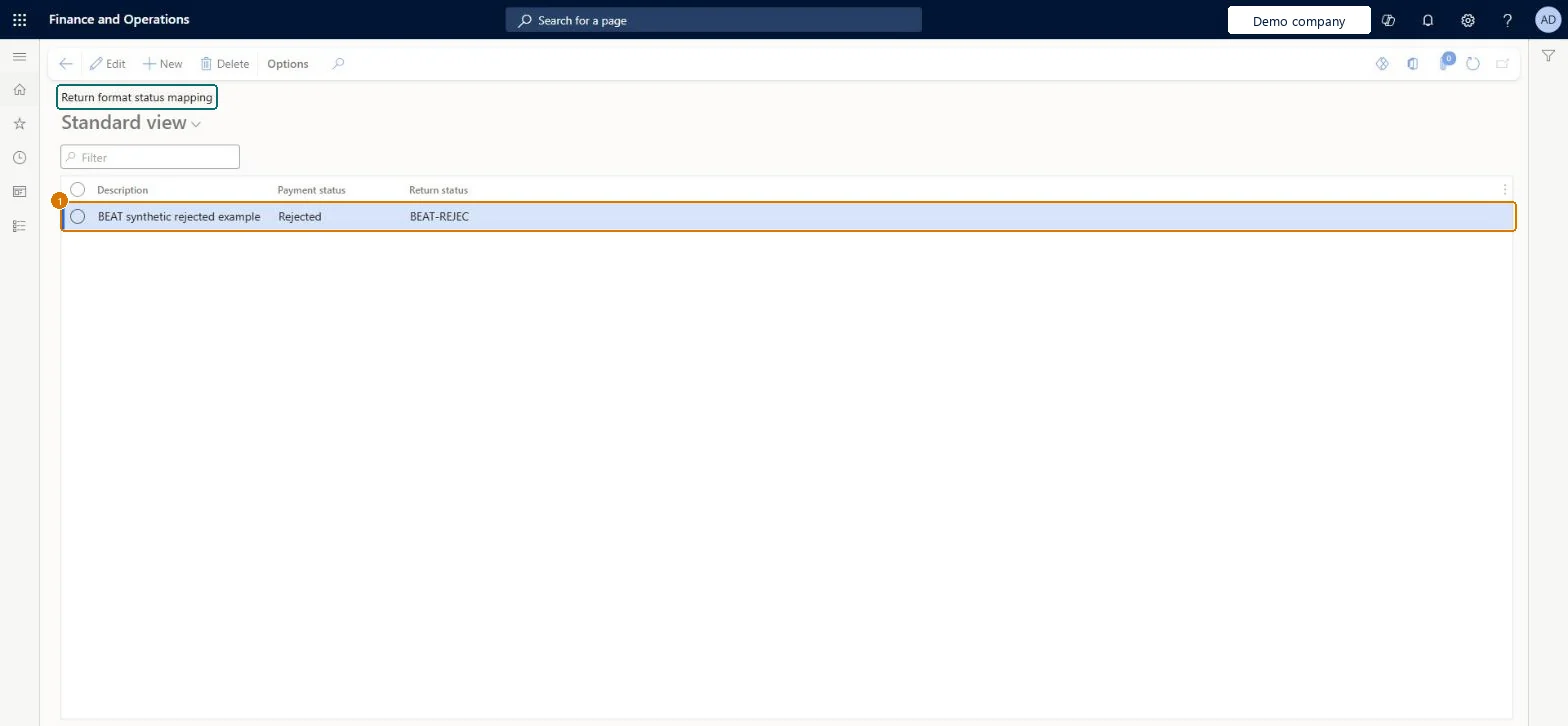
Map the return status to a payment status
Go to Accounts payable > Payment setup > Return format status mapping
Select New
Enter the Description
Set Payment status and Return status
Description
Payment rejected
Payment status
Rejected
Return status
BEAT-REJEC
Show the full screen page title tab to open what to set or check
How to use it
Go to Accounts payable > Payment setup > Return format status mapping.
Select New to add a row.
Enter the Description, choose the Payment status and enter the Return status.
Select a row and select Edit to change it, or select Delete to remove it.
Source: Checked in Dynamics 365
Fields on the page
Field
What it means
Example
Table column
Return status
The pain.002 status from the bank, such as RJCT, ACCP or ACSP, mapped to a payment status such as Rejected, Accepted or Received.Microsoft Learn
REJECT
ReturnStatus
Description
A short description of the return status.Checked in Dynamics 365
Payment rejected
Description
Payment status
Rejected
PaymentStatus
Test checklist
Map RJCT, ACCP and ACSP as above.
Generate an ISO 20022 credit transfer for two vendor payments.
Import a pain.002 file that accepts one and rejects the other.
Check the payment statuses show Accepted and Rejected.
RJCT to Rejected, ACCP to Accepted, ACSP to ReceivedThis is the mapping Learn shows between pain.002 return statuses and vendor payment journal statuses.
Not activating the generic electronic return format on the method of payment, so the import can't update payment statuses.
Checked in a working Dynamics 365 system, version 10.0.49: the menu item, form, table and security, the page, the demo records and the values in the screenshots.
To cite this step: AP-PAYSETUP-110, Set up Return format status mapping. Beyond ERP Atlas Hub, 2026-11-11. https://www.beyonderp.cloud/atlas/step/AP-PAYSETUP-110