About the examples: Examples and screenshots in this guide use BEAT, a demo company in a Dynamics 365 test environment. Use your own company's codes and values instead of copying them.
Steps from Microsoft
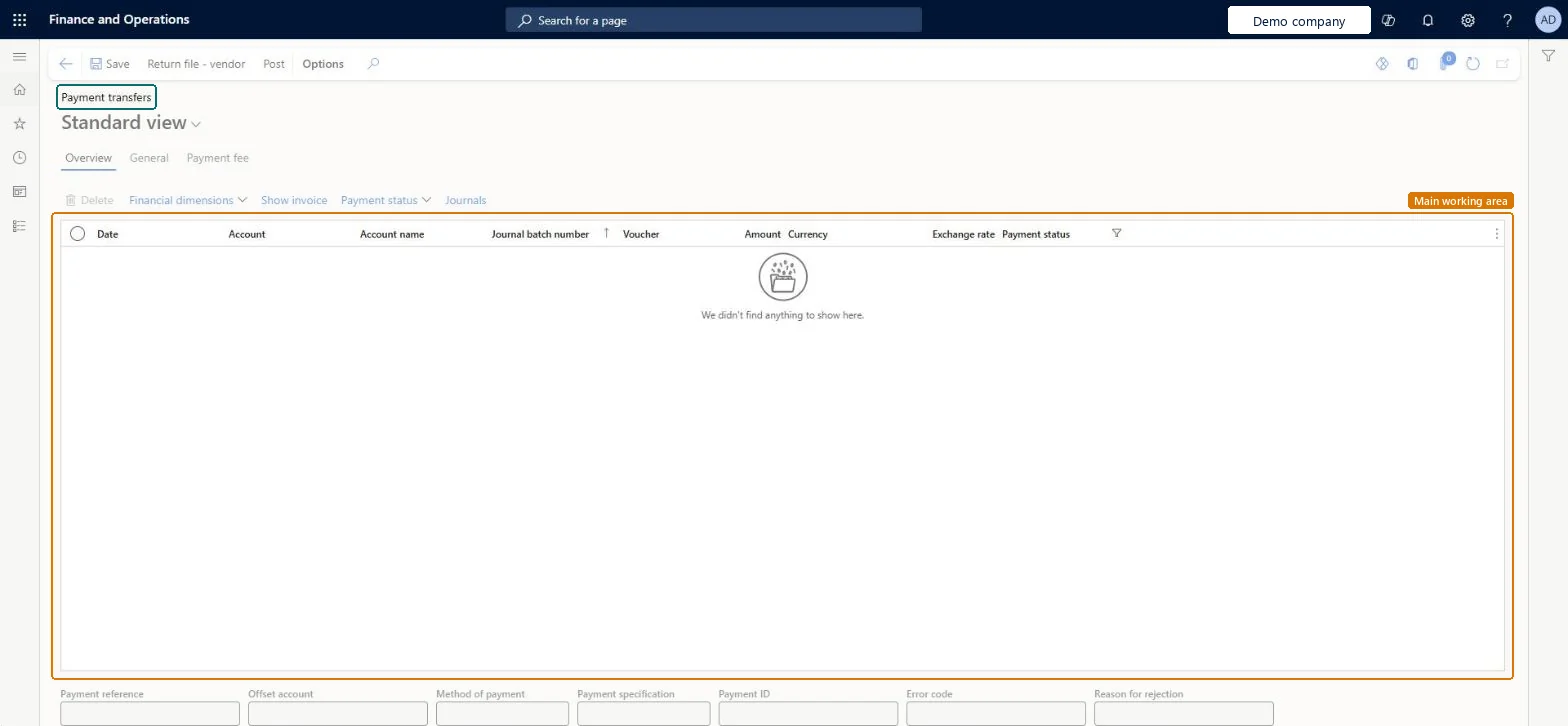
Open the Payment transfers page in Accounts payable.
Select Return file - vendor.
Select the method of payment that is set up for the bank's return file, and select OK.
Select the file format to import, and select OK.
Enter the parameters and the file path, and select OK.
Review the imported payments and their status on the Payment transfers page.
PrivilegesMaintain vendor payment transfer journals VendPaymReconciliationMaintainView vendor payment transfer journals VendPaymReconciliationViewDutiesMaintain vendor payments PaymVendorPaymentsMaintainInquire into vendor payment status PaymVendorPaymentStatusInquire9 security rolesChief financial officer CompanyChiefFinancialOfficerAccountant LedgerAccountantAccounting manager LedgerAccountingManagerAccounting supervisor LedgerAccountingSupervisorFinancial controller LedgerFinancialControllerAccounts payable centralized payments clerk PaymAccountsPayableCentralPaymClerkAccounts payable payments clerk PaymAccountsPayablePaymentsClerkAccounts payable clerk VendInvoiceAccountsPayableClerkAccounts payable manager VendInvoiceAccountsPayableManagerChecked in Dynamics 365
Roles to set it up and use it
To set it up or change itAccounts payable payments clerk PaymAccountsPayablePaymentsClerkTo use itAccounts payable manager VendInvoiceAccountsPayableManagerAccounting supervisor LedgerAccountingSupervisorAccounting manager LedgerAccountingManagerAccounts payable clerk VendInvoiceAccountsPayableClerkChief financial officer CompanyChiefFinancialOfficerGive people one of these roles. On this system, 9 roles can open this page.Checked in Dynamics 365
Actions on the page
Buttons: Return file - vendor, PostChecked in Dynamics 365