Accounts payable manager, Auditor, Budget manager and 7 more roles
Business process
Develop maintenance strategy
Menu item
EntAssetObjectDocument
Main table
EntAssetObjectDocument
Data entity
EntAssetMaintenanceAssetDocumentEntity
Setup steps
1 on this page
Show what matters for
SETUP GUIDEHow to set it up8 sections. Choose a role to highlight what matters to you.
Everyone
1What it is and why
What it is
A setup page where you create asset document records that automatically relate documents to job types, asset manufacturers, asset types, assets, and similar.
What you do here
Use this page to attach documents such as procedures and manuals once, so that they are available from assets and work orders that match the record.
Example
For example, you relate the standard manual for a manufacturer model to the combination of asset type, manufacturer, and model so that it opens from every matching asset.
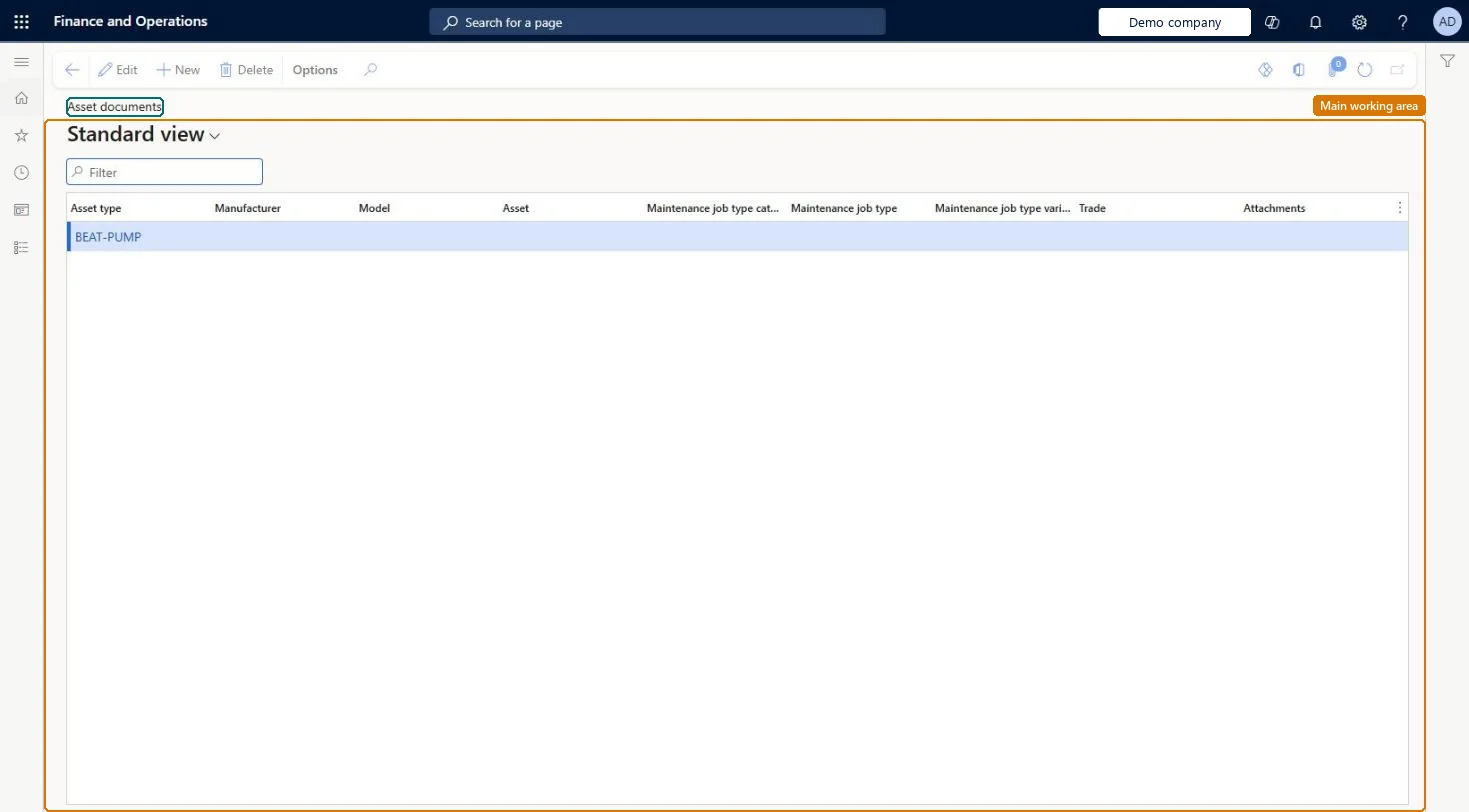
The page in Dynamics 365. page title tab to open what to set or check
About the examples: Examples and screenshots in this guide use BEAT, a demo company in a Dynamics 365 test environment. Use your own company's codes and values instead of copying them.
Setup steps on this page
Set up Asset documents
Use this page to attach documents such as procedures and manuals once, so that they are available from assets and work orders that match the record.
Steps from Microsoft
Go to Asset management > Setup > Asset documents.
Select New to create an asset document record.
Select values in one or more of the fields Asset type, Manufacturer, Model, Asset, Job type category, Job type, Job type variant, and Job requirement.
Select Attachments.
On the Document handling page, attach the documents or notes for the record.
Attach manuals at Asset type, Manufacturer and Model level and procedures at Job type level, rather than on single assetsLearn gives these as the typical relations: a procedure for a job type, and the standard manual for a manufacturer model. When a new document version is released you only replace it on the one record.
Leaving the old version on the record after a new one is released. The record is where assets and work orders pick up documents, so users keep opening the outdated file.
Solution architect
5Design impact
Can it be undone
Reversible: Records and attachments can be changed any time; assets and work orders show the current attachments of matching records.
If you change it later
When the system looks for documents for an asset or work order, it checks the most specific combination first, so a more specific record is matched before a general one. Microsoft Learn
Technical architect
6Technical
Menu item
EntAssetObjectDocumentChecked in Dynamics 365
Form
EntAssetObjectDocumentChecked in Dynamics 365
Table
EntAssetObjectDocumentShown as “ASSET DOCUMENTS” in Record infoKey field: ObjectType_ObjectTypeID, Product_ProductID, Model_ModelID, Object_ObjectID, JobGroup_JobGroupID, JobType_JobTypeID, JobVariant_JobVariantID, JobTrade_JobTradeID, FunctionalLocation_FunctionalLocationIdChecked in Dynamics 365
Data entities
EntAssetMaintenanceAssetDocumentEntityAsset management asset documents Checked in Dynamics 365
Who can open it
PrivilegesMaintain integration from Fixed assets to Asset management EntAssetFixedAssetIntegrationMaintainView Asset management data from Fixed assets. EntAssetFixedAssetIntegrationViewMaintain asset table EntAssetObjectTableMaintainView asset table EntAssetObjectTableViewDutiesInquire into fixed assets AssetFixedAssetsInquireMaintain fixed assets AssetFixedAssetsMaintainInquire into asset master EntAssetObjectMasterInquireMaintain asset master EntAssetObjectMasterMaintain10 security rolesAuditor AuditPolicyManagerBudget manager BudgetBudgetManagerChief financial officer CompanyChiefFinancialOfficerMaintenance clerk EntAssetMaintenanceClerkMaintenance manager EntAssetMaintenanceManagerMaintenance worker EntAssetMaintenanceWorkerAccountant LedgerAccountantAccounting manager LedgerAccountingManagerAccounting supervisor LedgerAccountingSupervisorAccounts payable manager VendInvoiceAccountsPayableManagerChecked in Dynamics 365
Roles to set it up and use it
To set it up or change itMaintenance manager EntAssetMaintenanceManagerMaintenance clerk EntAssetMaintenanceClerkTo use itMaintenance worker EntAssetMaintenanceWorkerBudget manager BudgetBudgetManagerAuditor AuditPolicyManagerChief financial officer CompanyChiefFinancialOfficerAccounts payable manager VendInvoiceAccountsPayableManagerGive people one of these roles. On this system, 10 roles can open this page.Checked in Dynamics 365