About the examples: Examples and screenshots in this guide use BEAT, a demo company in a Dynamics 365 test environment. Use your own company's codes and values instead of copying them.
Setup steps on this page
Set up Maintenance request lifecycle states
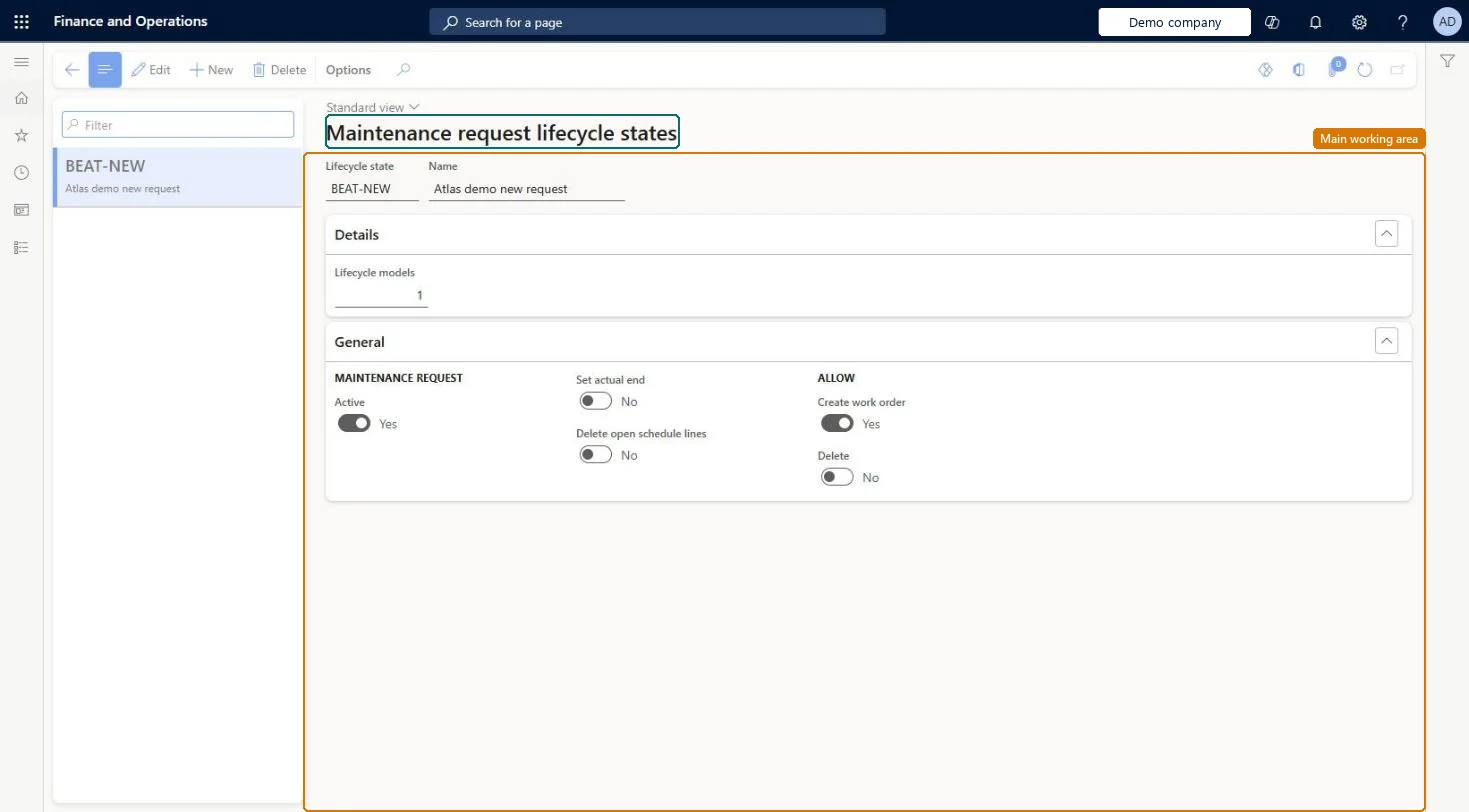
Use this page to set, for each state, whether a request is active, whether a work order can be created from it, and whether it can be deleted.
Steps from Microsoft
Go to Asset management > Setup > Maintenance requests > Lifecycle states.
Use the buttons on the Action Pane to add or edit a lifecycle state.
Enter the Lifecycle state ID and the Name.
On the General FastTab, set Active, Set actual end, Delete open schedule lines, Create work order, and Delete.
If you use depot repair, set Inbound and Outbound on the Update FastTab.
Created and Active states with Create work order = Yes, and an Ended or Closed state with Active = No for requests that have been converted to work ordersLearn says a request should be updated to Ended or Closed when it is converted to a work order, to show it is no longer active.
Setting Delete open schedule lines = Yes on a state used mid-process: maintenance schedule lines without a work order reference are deleted when the request reaches it.
Feature management and licence
Licence or add-in
Configuration key Asset management > Inbound/outbound (shows the Inbound and Outbound options for depot repair; enable in maintenance mode)
To set it up or change itMaintenance manager EntAssetMaintenanceManagerTo use itMaintenance clerk EntAssetMaintenanceClerkMaintenance worker EntAssetMaintenanceWorkerMaintenance requester EntAssetMaintenanceRequesterGive people one of these roles. On this system, 4 roles can open this page.Checked in Dynamics 365
Checked in a working Dynamics 365 system, version 10.0.49: the menu item, form, table and security, the page.
To cite this step: AM-REQ-030, Set up Maintenance request lifecycle states. Beyond ERP Atlas Hub, 2026-11-11. https://www.beyonderp.cloud/atlas/step/AM-REQ-030