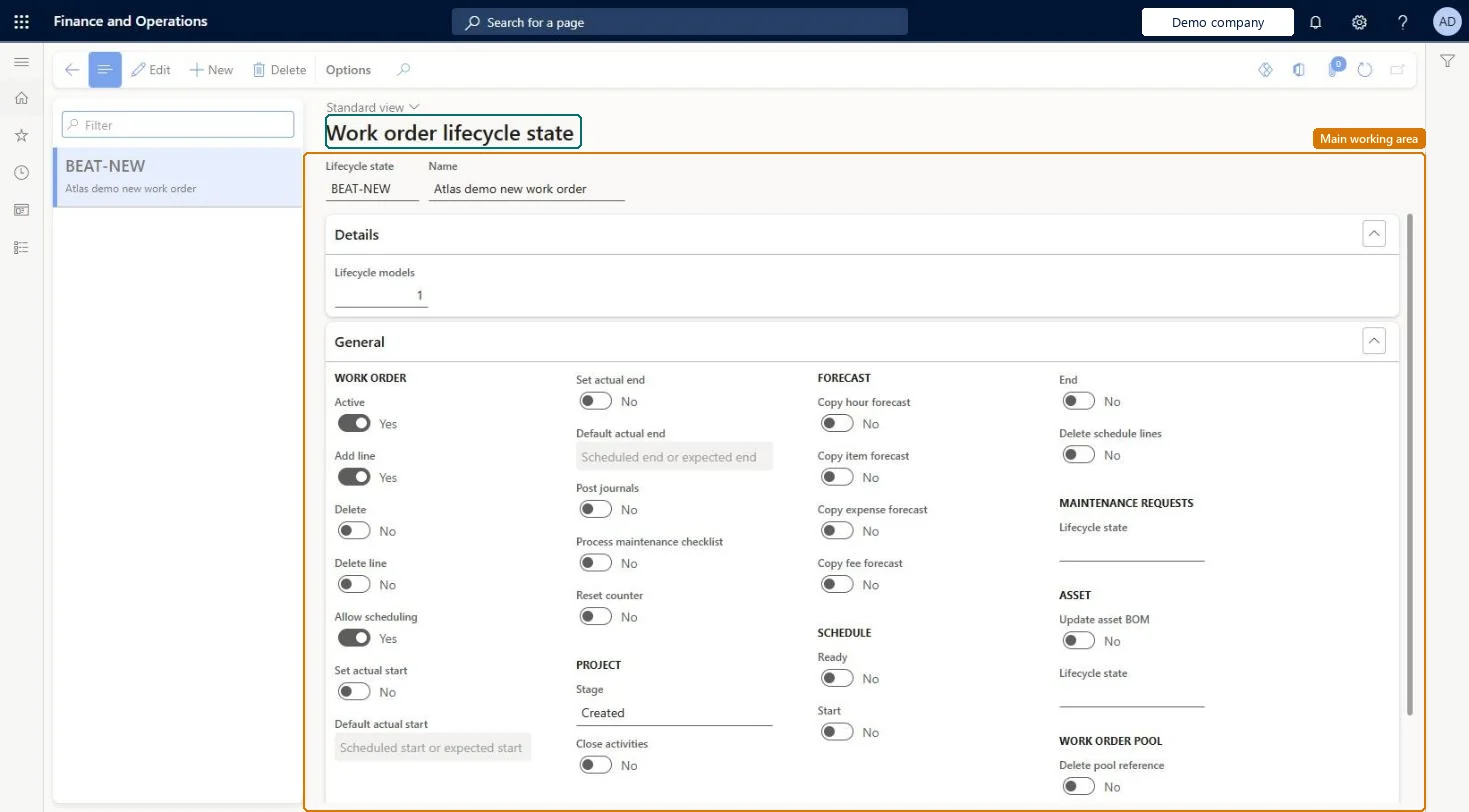
A setup page where you create work order lifecycle states, which define the states a work order can go through, such as Created, Scheduled, In progress, and Ended.
Maintenance clerk, Maintenance manager, Maintenance requester and 1 more role
Business process
Develop maintenance strategy
Menu item
EntAssetWorkOrderLifecycleState
Main table
EntAssetWorkOrderLifecycleState
Data entity
EntAssetMaintenanceWorkOrderLifecycleStateEntity
Setup steps
1 on this page
Show what matters for
PAGE GUIDEWhat the page does and how to use it8 sections. Choose a role to highlight what matters to you.
Everyone
1What it is and why
What it is
A setup page where you create work order lifecycle states, which define the states a work order can go through, such as Created, Scheduled, In progress, and Ended.
What you do here
Use this page to set what is allowed and what happens automatically when a work order is in each state, such as scheduling, journal posting, checklist processing, asset BOM updates, and validations.
Example
For example, an Estimated state with Delete schedule lines set to Yes removes the scheduling when a work order is rolled back for rescheduling.
The page in Dynamics 365. page title tab to open what to set or check
About the examples: Examples and screenshots in this guide use BEAT, a demo company in a Dynamics 365 test environment. Use your own company's codes and values instead of copying them.
Setup steps on this page
Set up Work order lifecycle states
Use this page to set what is allowed and what happens automatically when a work order is in each state, such as scheduling, journal posting, checklist processing, asset BOM updates, and validations.
Steps from Microsoft
Go to Asset management > Setup > Work orders > Lifecycle states.
Select New.
In the Lifecycle state field, enter an ID, and in the Name field, enter a name.
On the General FastTab, in the Work order section, set the options for this state to Yes.
In the Project section, in the Stage field, select the related project stage.
Set the Forecast, Schedule, Maintenance requests, Asset, and Work order pool options as required.
On the Validate FastTab, select the validations and the message type for each.
On the Security roles FastTab, select the roles that can change to this state.
Link each state to a project stage that is selected for the project types your work orders use; set Post journals and Update asset BOM to Yes only on the state that ends the workLearn says the project stage must be selected for the project type or work order projects won't update correctly, and Update asset BOM is meant for the completed or ended state.
Hard to reverse: State settings can be changed, but their effects are not undone: journals posted at a state stay posted, unposted journals are deleted when a work order reaches an inactive state, and asset BOM updates stay. Microsoft Learn
If you change it later
Updating a work order to a state where Active is set to No automatically deletes the work order's journals that haven't been posted. Microsoft Learn
Technical architect
6Technical
Menu item
EntAssetWorkOrderLifecycleStateChecked in Dynamics 365
Form
EntAssetWorkOrderLifecycleStateChecked in Dynamics 365
Table
EntAssetWorkOrderLifecycleStateShown as “WORK ORDER LIFECYCLE MODEL” in Record infoKey field: WorkOrderLifecycleStateIdChecked in Dynamics 365
Data entities
EntAssetMaintenanceWorkOrderLifecycleStateEntityAsset management work order lifecycle states Checked in Dynamics 365
To set it up or change itMaintenance manager EntAssetMaintenanceManagerTo use itMaintenance clerk EntAssetMaintenanceClerkMaintenance worker EntAssetMaintenanceWorkerMaintenance requester EntAssetMaintenanceRequesterGive people one of these roles. On this system, 4 roles can open this page.Checked in Dynamics 365