BeyondERP.Newsletter
Menu

Setup page · Asset management

Lifecycle states

A setup page where you define the lifecycle states that a maintenance request can go through, such as Created, Active, and Ended.

Used by
Maintenance clerk, Maintenance manager, Maintenance requester and 1 more role
Business process
Develop maintenance strategy
Menu item
EntAssetRequestLifecycleState
Main table
EntAssetRequestLifecycleState
Data entity
EntAssetMaintenanceRequestLifecycleStateEntity
Setup steps
1 on this page
Show what matters for
PAGE GUIDEWhat the page does and how to use it8 sections. Choose a role to highlight what matters to you.
Everyone

1What it is and why

What it isA setup page where you define the lifecycle states that a maintenance request can go through, such as Created, Active, and Ended.
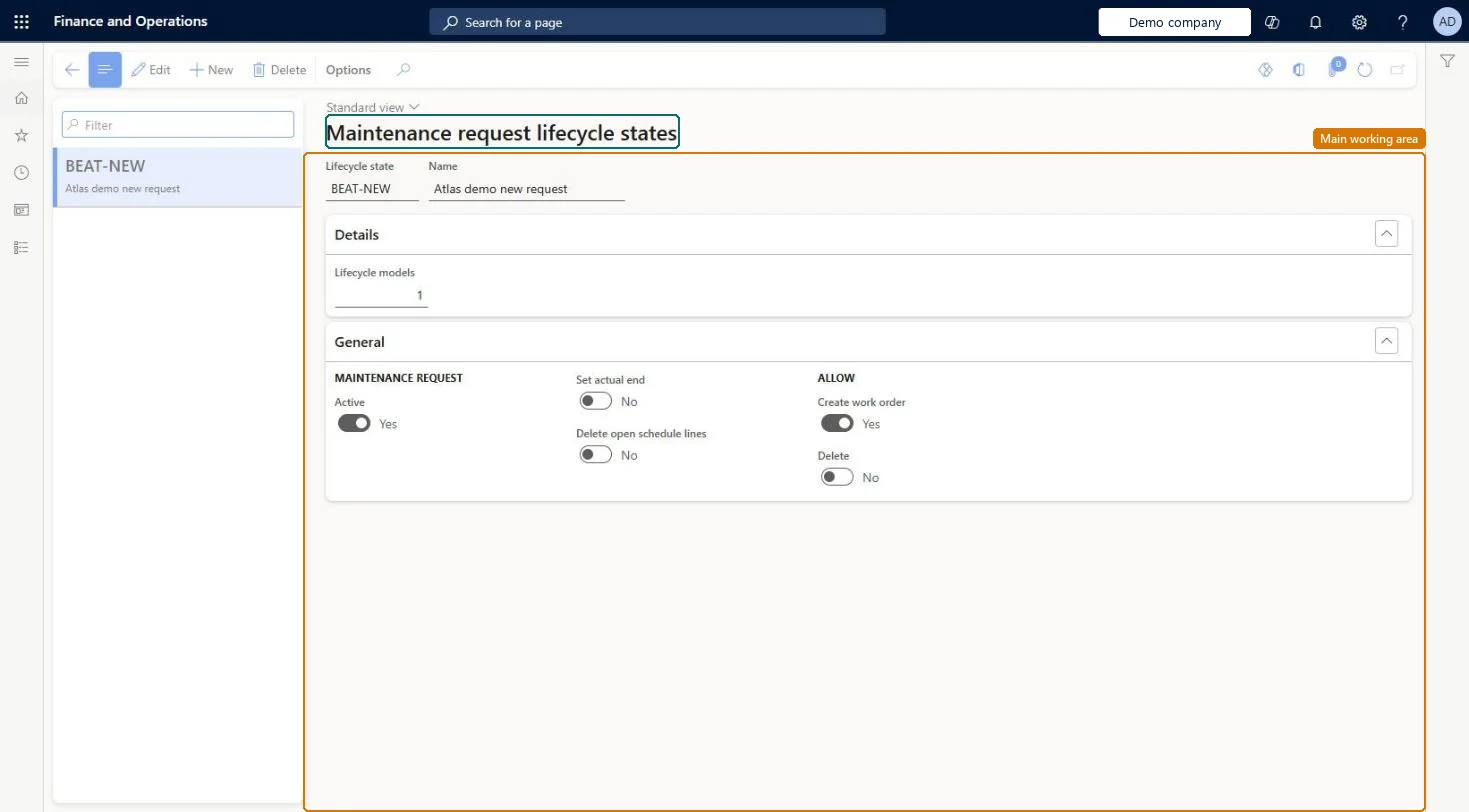
What you do hereUse this page to set, for each state, whether a request is active, whether a work order can be created from it, and whether it can be deleted.
ExampleFor example, when a maintenance request is converted to a work order, its state is set to Ended or Closed to show that it is no longer active.
Lifecycle states page in Dynamics 365
The page in Dynamics 365. page title tab to open what to set or check
Functional consultant · Solution architect

2Where it fits

End user · Functional consultant

3How to do it

About the examples: Examples and screenshots in this guide use BEAT, a demo company in a Dynamics 365 test environment. Use your own company's codes and values instead of copying them.

Setup steps on this page

Set up Maintenance request lifecycle states

Use this page to set, for each state, whether a request is active, whether a work order can be created from it, and whether it can be deleted.

Steps from Microsoft

  1. Go to Asset management > Setup > Maintenance requests > Lifecycle states.
  2. Use the buttons on the Action Pane to add or edit a lifecycle state.
  3. Enter the Lifecycle state ID and the Name.
  4. On the General FastTab, set Active, Set actual end, Delete open schedule lines, Create work order, and Delete.
  5. If you use depot repair, set Inbound and Outbound on the Update FastTab.

Source: Microsoft Learn

Fields on the page

FieldWhat it meansTable column
ActiveWhether a request is active while it is in this state.Microsoft Learn RequestActive
Set actual endEnters the actual end date and time automatically on a request in this state.Microsoft Learn RequestSetActualEnd
Delete open schedule linesDeletes maintenance schedule lines without a work order for a request in this state.Microsoft Learn DeleteOpenObjectCalendar
Create work orderWhether a work order can be created from a request in this state.Microsoft Learn AllowCreateWorkOrder
DeleteWhether a request can be deleted in this state.Microsoft Learn AllowDelete
Inbound and OutboundFor depot repair, update the asset's lifecycle state to Inbound or Outbound with the request.Microsoft Learn

Test checklist

  1. Create a request in a state with Create work order = Yes and create a work order from it.
  2. Update the request to Ended (Active = No, Set actual end = Yes) and check the actual end is set.
  3. Try to create another work order from it and check it isn't allowed.
  4. Try to delete a request in a state with Delete = No and check it is refused.

Source: Microsoft Learn

Functional consultant

4Setup decisions

Setup stepRecommended value and whyDecision, common mistake and test
Set up Maintenance request lifecycle statesCreated and Active states with Create work order = Yes, and an Ended or Closed state with Active = No for requests that have been converted to work ordersLearn says a request should be updated to Ended or Closed when it is converted to a work order, to show it is no longer active.Setting Delete open schedule lines = Yes on a state used mid-process: maintenance schedule lines without a work order reference are deleted when the request reaches it.

Feature management and licence

Licence or add-inConfiguration key Asset management > Inbound/outbound (shows the Inbound and Outbound options for depot repair; enable in maintenance mode)

Microsoft Learn

Solution architect

5Design impact

Can it be undoneHard to reverse: Settings can be changed, but schedule lines deleted by a state with Delete open schedule lines = Yes are gone, and Set actual end stamps requests that reach the state. Microsoft Learn
Technical architect

6Technical

Menu itemEntAssetRequestLifecycleState Checked in Dynamics 365
FormEntAssetRequestLifecycleState Checked in Dynamics 365
TableEntAssetRequestLifecycleStateShown as “MAINTENANCE REQUEST LIFECYCLE STATES” in Record infoKey field: RequestLifecycleStateIdChecked in Dynamics 365
Data entitiesEntAssetMaintenanceRequestLifecycleStateEntityAsset management maintenance request lifecycle states Checked in Dynamics 365
Who can open itPrivileges EntAssetMobileSetupViewMaintain maintenance management setup EntAssetSetupMaintainView maintenance management setup EntAssetSetupViewDutiesMaintain Asset Management setup EntAssetSetupMaintainView Enterprise Asset Management setup EntAssetSetupView
4 security rolesMaintenance clerk EntAssetMaintenanceClerkMaintenance manager EntAssetMaintenanceManagerMaintenance requester EntAssetMaintenanceRequesterMaintenance worker EntAssetMaintenanceWorker
Checked in Dynamics 365
Roles to set it up and use itTo set it up or change itMaintenance manager EntAssetMaintenanceManagerTo use itMaintenance clerk EntAssetMaintenanceClerkMaintenance worker EntAssetMaintenanceWorkerMaintenance requester EntAssetMaintenanceRequesterGive people one of these roles. On this system, 4 roles can open this page.Checked in Dynamics 365
Developer

7Developer

Open it by URLhttps://<your-environment>/?mi=EntAssetRequestLifecycleState
Integrate withEntAssetMaintenanceRequestLifecycleStateEntity data entity Checked in Dynamics 365
Everyone

8Sources