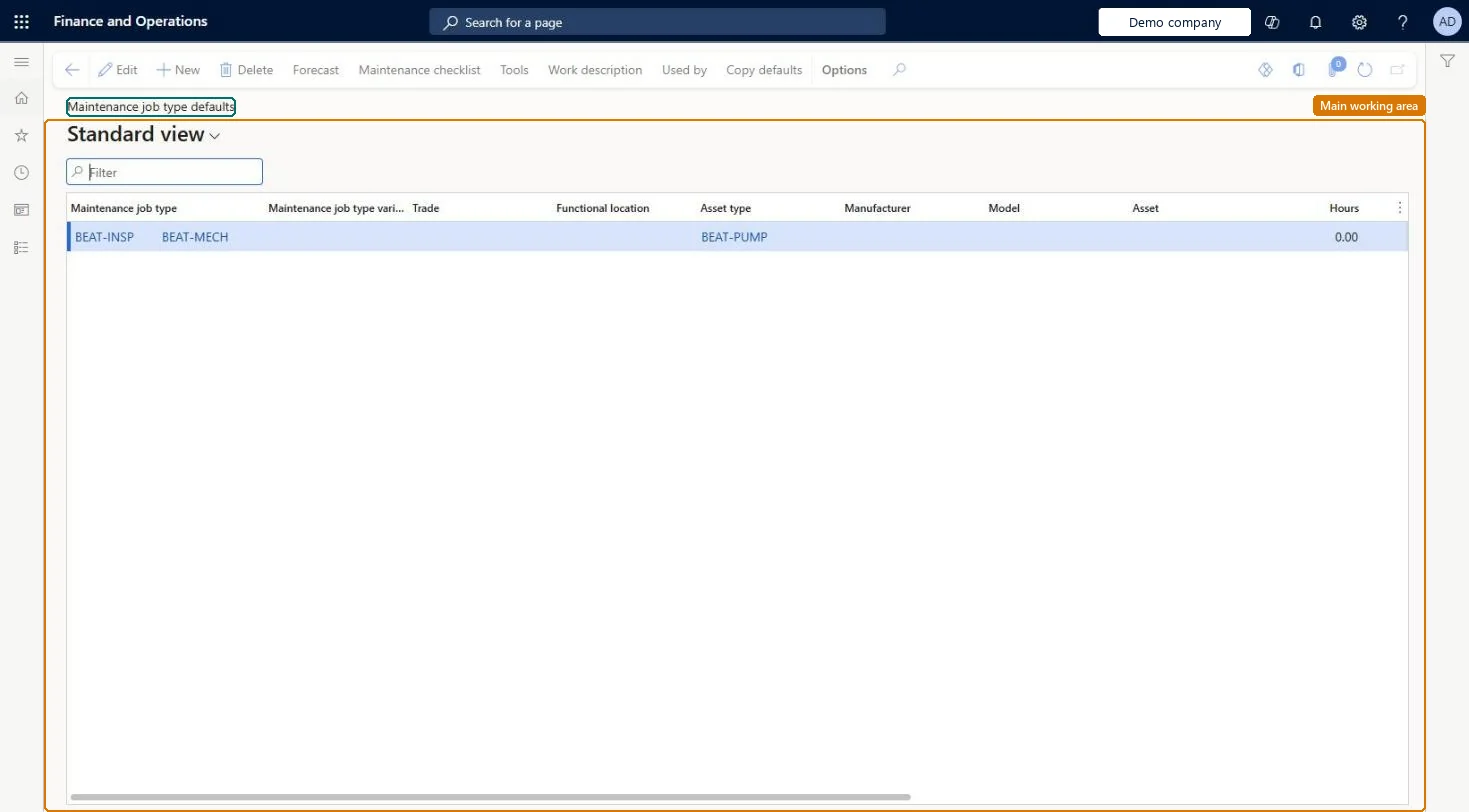
Setup step on the Maintenance job type defaults page · Asset management
Set up Maintenance job type defaults
Use this page to set up the hours, items, expenses, maintenance checklists, tools, and work descriptions that work orders copy for each combination of job type and equipment.
SETUP GUIDEHow to set it up8 sections. Choose a role to highlight what matters to you.
Everyone
1What it is and why
What it is
A setup page where you create the variations of maintenance job types for your equipment, with their forecasts, checklists, tools, and descriptions.
What you do here
Use this page to set up the hours, items, expenses, maintenance checklists, tools, and work descriptions that work orders copy for each combination of job type and equipment.
Example
For example, a maintenance job type named Service can have variations such as Trucks 30,000 km, Cars 30,000 km, and Vans 30,000 km.
The page in Dynamics 365. page title tab to open what to set or check
About the examples: Examples and screenshots in this guide use BEAT, a demo company in a Dynamics 365 test environment. Use your own company's codes and values instead of copying them.
Setup steps on this page
Set up Maintenance job type defaults
Use this page to set up the hours, items, expenses, maintenance checklists, tools, and work descriptions that work orders copy for each combination of job type and equipment.
Steps from Microsoft
Go to Asset management > Setup > Jobs > Maintenance job type defaults.
Select New.
Select values in the Functional location, Asset type, Manufacturer, Model, and Asset fields, as specific as you need.
Select the Maintenance job type, and a Maintenance job type variant and Trade if required.
Select Forecast and add the hours, items, and expenses.
Select Maintenance checklist and add the checklist lines.
Select Tools and add the tools.
Select Work description and add a description if required.
A general line with only the job type as the fallback, plus more specific lines (asset type, manufacturer, model, asset, variant, trade) only where hours, items, checklists or tools differLearn says the system matches the most specific combination first and, if nothing matches, uses the default record where only the job type is selected.
Changing default lines while Real time update is No in Asset management parameters. Plans and rounds aren't updated automatically until Update maintenance job type default references runs.
Solution architect
5Design impact
Can it be undone
Reversible: Lines can be changed or copied; work orders copy forecasts, checklists, tools and descriptions when the line is used, so existing work orders aren't changed.
If you change it later
Forecasts, descriptions, and attachments set up here are copied to new work order lines that use the default. Microsoft Learn
Technical architect
6Technical
Menu item
EntAssetJobTypeDefaultChecked in Dynamics 365
Form
EntAssetJobTypeDefaultChecked in Dynamics 365
Table
EntAssetJobTypeDefaultShown as “MAINTENANCE JOB TYPE DEFAULTS” in Record infoKey field: JobType_JobTypeID, JobVariant_JobVariantID, JobTrade_JobTradeID, FunctionalLocation_FunctionalLocationId, ObjectType_ObjectTypeID, Product_ProductID, Model_ModelID, Object_ObjectIDChecked in Dynamics 365
Data entities
EntAssetMaintenanceJobTypeDefaultEntityAsset management maintenance job type defaults Checked in Dynamics 365
To set it up or change itMaintenance manager EntAssetMaintenanceManagerTo use itMaintenance clerk EntAssetMaintenanceClerkGive people one of these roles. On this system, 2 roles can open this page.Checked in Dynamics 365
Actions on the page
(Action Pane without tabs): Forecast, Maintenance checklist, Tools, Work description, Used by, Copy defaultsChecked in Dynamics 365
Checked in a working Dynamics 365 system, version 10.0.49: the menu item, form, table and security, the page.
To cite this step: AM-JOB-050, Set up Maintenance job type defaults. Beyond ERP Atlas Hub, 2026-11-11. https://www.beyonderp.cloud/atlas/step/AM-JOB-050