BeyondERP.Newsletter
Menu

Setup step on the Lifecycle models page · Asset management

Set up Functional location lifecycle models

Use this page to define the flow of lifecycle states that different types of functional locations follow.

Used by
Maintenance clerk, Maintenance manager
Business process
Classify assets
Menu item
EntAssetFunctionalLocationLifecycleModel
Main table
EntAssetFunctionalLocationLifecycleModel
Data entity
EntAssetMaintenanceFunctionalLocationLifecycleModelEntity
Setup steps
1 on this page
Show what matters for
SETUP GUIDEHow to set it up8 sections. Choose a role to highlight what matters to you.
Everyone

1What it is and why

What it isA setup page where you group functional location lifecycle states into lifecycle models.
What you do hereUse this page to define the flow of lifecycle states that different types of functional locations follow.
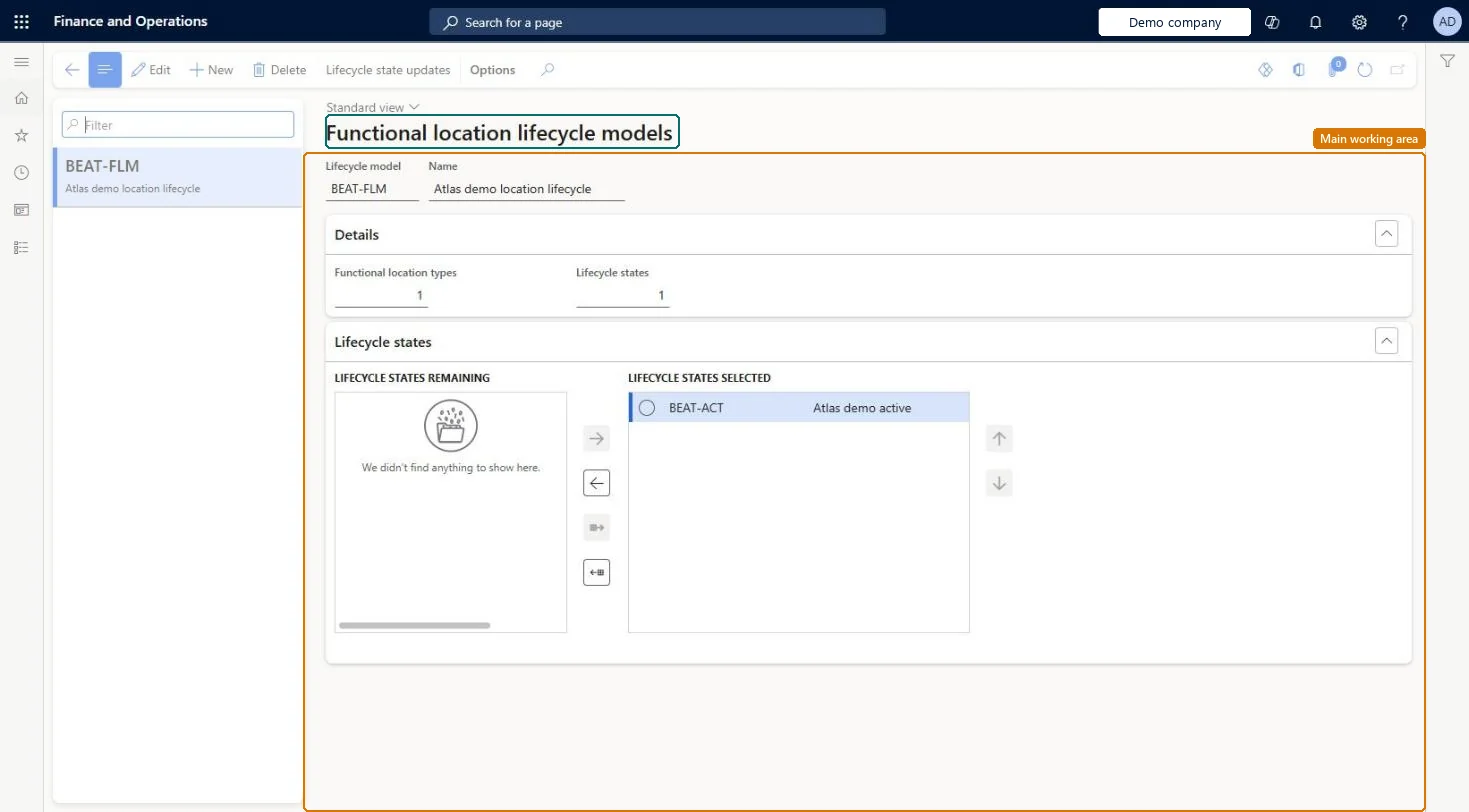
Lifecycle models page in Dynamics 365
The page in Dynamics 365. page title tab to open what to set or check
Functional consultant · Solution architect

2Where it fits

Business processDefine asset strategy › Classify assets
Menu pathAsset management › Setup › Functional locations › Lifecycle models
Set up firstLifecycle states Microsoft Learn
Used next byFunctional location types Microsoft Learn
In this process Set up Spare parts item groups · Set up Asset type defaults
End user · Functional consultant

3How to do it

About the examples: Examples and screenshots in this guide use BEAT, a demo company in a Dynamics 365 test environment. Use your own company's codes and values instead of copying them.

Setup steps on this page

Set up Functional location lifecycle models

Use this page to define the flow of lifecycle states that different types of functional locations follow.

Steps from Microsoft

  1. Go to Asset management > Setup > Functional locations > Lifecycle models.
  2. Select New.
  3. Enter an ID in the Lifecycle model field and a name in the Name field.
  4. On the Lifecycle states FastTab, move the states to include from Lifecycle states remaining to Lifecycle states selected.
  5. Select Lifecycle state updates to define which states can follow each state.

Source: Microsoft Learn

Fields on the page

FieldWhat it meansTable column
Lifecycle modelID of the lifecycle model.Microsoft Learn FunctionalLocationLifecycleModelId
Functional location types / Lifecycle statesCounts of the functional location types that use the model and the states selected in it.Microsoft Learn
Lifecycle state updatesDefines which lifecycle states can follow a selected state.Microsoft Learn

Test checklist

  1. Create a model and move Created, Active and Ended into Lifecycle states selected.
  2. Use Lifecycle state updates to allow Created > Active and Active > Ended.
  3. Assign the model to a functional location type and create a location of that type.
  4. Use Update functional location state and check only the allowed next states are offered.

Source: Microsoft Learn

Functional consultant

4Setup decisions

Setup stepRecommended value and whyDecision, common mistake and test
Set up Functional location lifecycle modelsAt least one standard functional location lifecycle model, with Lifecycle state updates defined for each stateLearn says a minimum of one standard model should be created, and Lifecycle state updates define which states can follow a selected state.Leaving Lifecycle state updates undefined, so the model doesn't control which state can follow which and locations can be moved to the wrong state.
Solution architect

5Design impact

Can it be undoneReversible: States can be added to or removed from the model; the Functional location types count shows which types use it.
Technical architect

6Technical

Menu itemEntAssetFunctionalLocationLifecycleModel Checked in Dynamics 365
FormEntAssetFunctionalLocationLifecycleModel Checked in Dynamics 365
TableEntAssetFunctionalLocationLifecycleModelShown as “FUNCTIONAL LOCATION LIFECYCLE MODELS” in Record infoKey field: FunctionalLocationLifecycleModelIdChecked in Dynamics 365
Data entitiesEntAssetMaintenanceFunctionalLocationLifecycleModelEntityAsset management functional location lifecycle models Checked in Dynamics 365
Who can open itPrivilegesMaintain maintenance management setup EntAssetSetupMaintainView maintenance management setup EntAssetSetupViewDutiesMaintain Asset Management setup EntAssetSetupMaintainView Enterprise Asset Management setup EntAssetSetupView
2 security rolesMaintenance clerk EntAssetMaintenanceClerkMaintenance manager EntAssetMaintenanceManager
Checked in Dynamics 365
Roles to set it up and use itTo set it up or change itMaintenance manager EntAssetMaintenanceManagerTo use itMaintenance clerk EntAssetMaintenanceClerkGive people one of these roles. On this system, 2 roles can open this page.Checked in Dynamics 365
Actions on the page(Action Pane without tabs): Lifecycle state updatesChecked in Dynamics 365
Developer

7Developer

Open it by URLhttps://<your-environment>/?mi=EntAssetFunctionalLocationLifecycleModel
Integrate withEntAssetMaintenanceFunctionalLocationLifecycleModelEntity data entity Checked in Dynamics 365
Everyone

8Sources

To cite this step: AM-FL-020, Set up Functional location lifecycle models. Beyond ERP Atlas Hub, 2026-11-11. https://www.beyonderp.cloud/atlas/step/AM-FL-020