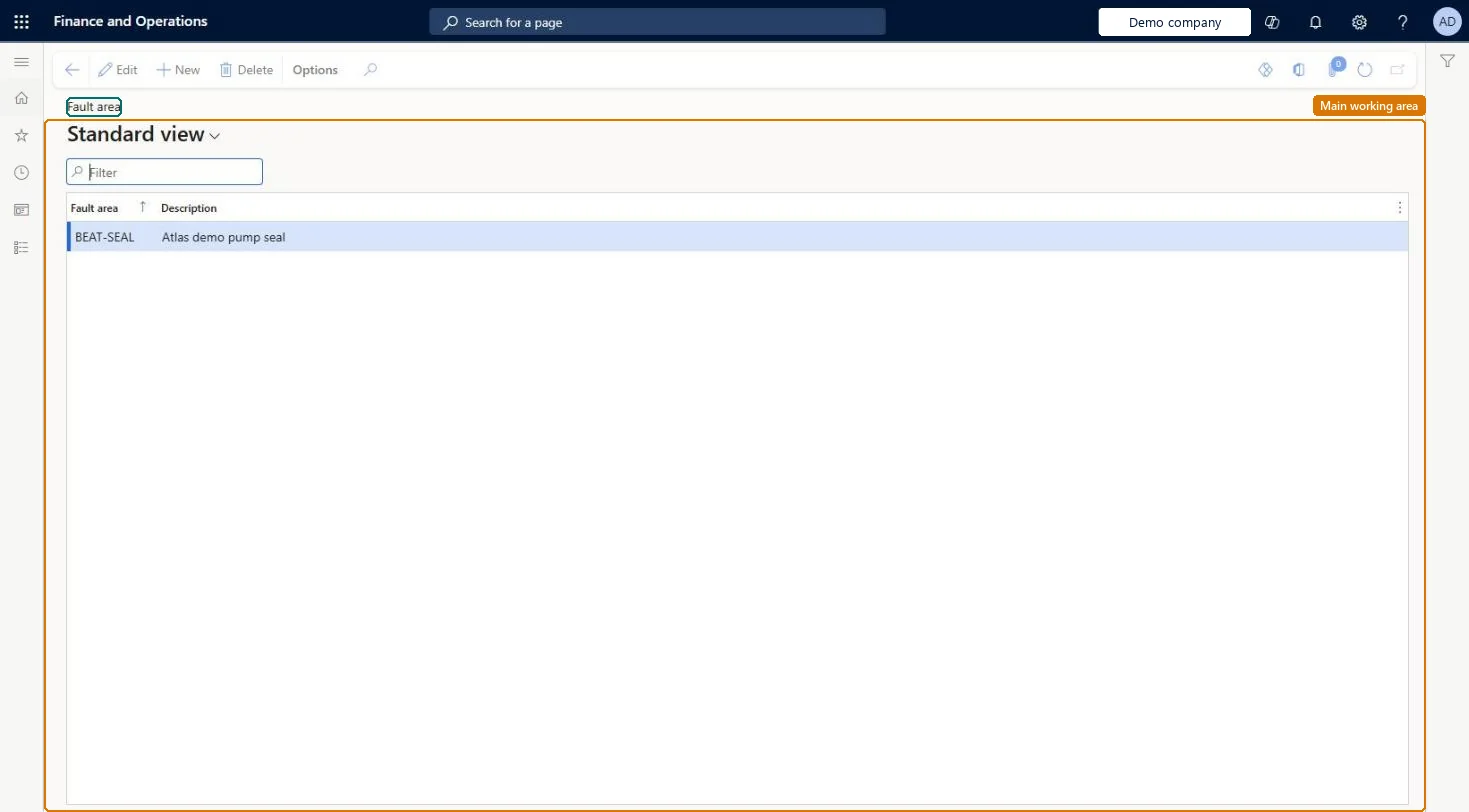
About the examples: Examples and screenshots in this guide use BEAT, a demo company in a Dynamics 365 test environment. Use your own company's codes and values instead of copying them.
Setup steps on this page
Set up Fault areas
Use this page to create the fault areas that you then connect to asset types in the fault designer and select on fault registrations.
Steps from Microsoft
Go to Asset management > Setup > Fault > Fault areas.
Select New.
In the Fault area field, enter a name for the fault area.
Broad technical areas such as Electrical, Mechanical, Hydraulic, PneumaticLearn gives these as fault area examples; a short list keeps fault analysis by area meaningful.
Renaming an area to reuse it, which changes the name on all existing fault registrations.
Solution architect
5Design impact
Can it be undone
Reversible: Names can be changed; the change shows on related registrations.
If you change it later
You can rename a fault area at any time; the new name shows on existing fault registrations. Microsoft Learn
Technical architect
6Technical
Menu item
EntAssetFaultAreaChecked in Dynamics 365
Form
EntAssetFaultAreaChecked in Dynamics 365
Table
EntAssetFaultAreaShown as “FAULT AREA” in Record infoKey field: FaultAreaIdChecked in Dynamics 365
Data entities
EntAssetMaintenanceFaultAreaEntityAsset management fault area Checked in Dynamics 365
To set it up or change itMaintenance manager EntAssetMaintenanceManagerTo use itMaintenance clerk EntAssetMaintenanceClerkGive people one of these roles. On this system, 2 roles can open this page.Checked in Dynamics 365
Developer
7Developer
Open it by URL
https://<your-environment>/?mi=EntAssetFaultArea
Integrate with
EntAssetMaintenanceFaultAreaEntity data entity Checked in Dynamics 365