About the examples: Examples and screenshots in this guide use BEAT, a demo company in a Dynamics 365 test environment. Use your own company's codes and values instead of copying them.
When to run it
When to run it
After the staged lease data is imported through Data management, validated and compared, and the Differences report has been reviewed.
How often
On demand, once for each import ID that is ready to bring into Asset leasing.
Batch settings
Run it in the background for large imports with Process all set to Yes, so all leases of the import ID are migrated without blocking your session.
What the output shows
Leases created, updated or adjusted in Asset leasing according to each staged record's process type. Added and adjusted leases have a new payment schedule that is not yet confirmed and no posted journal entry. A field that didn't change on an Update record lease usually means it isn't in the Selected fields list on Update field selection.
Apply the process type of many staged imports at once.
Steps from Microsoft
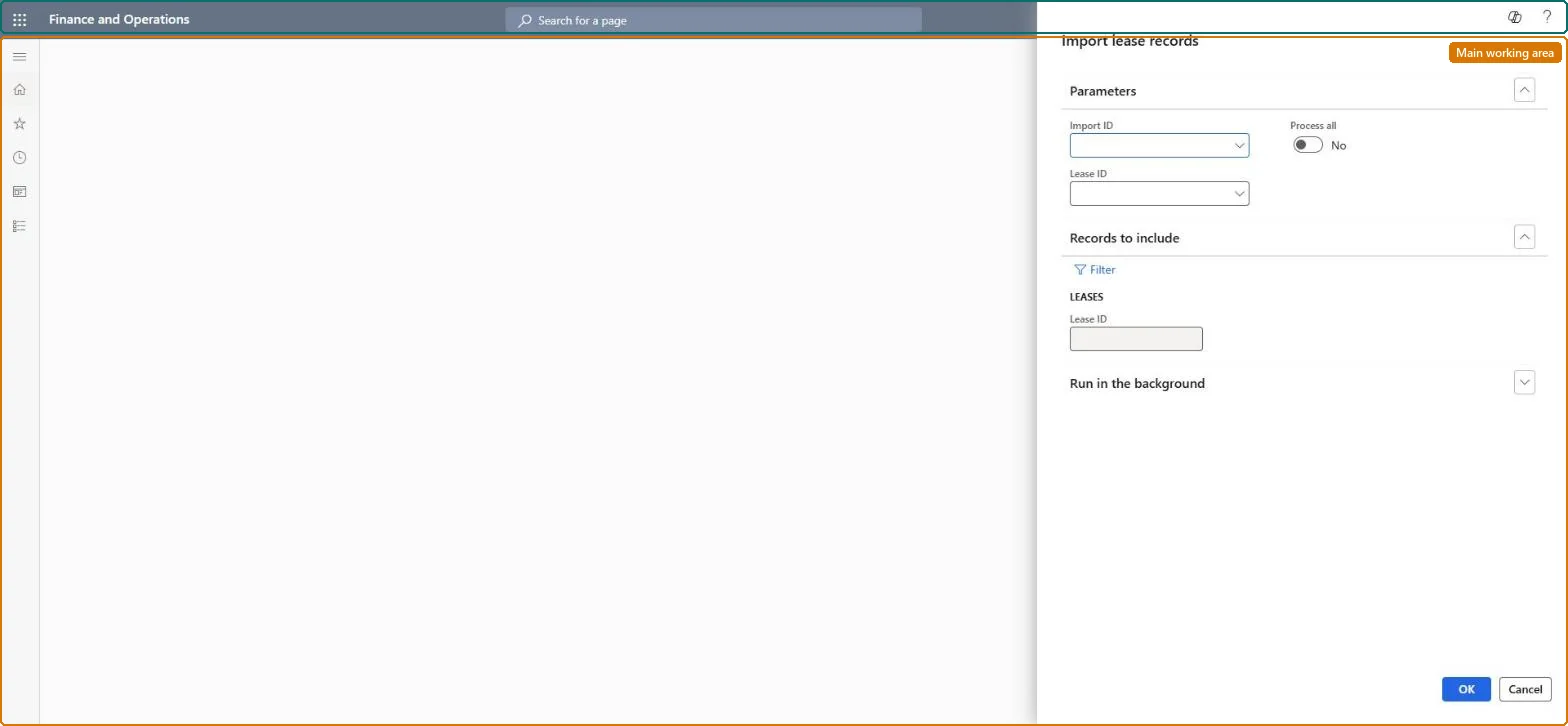
Go to Asset leasing > Lease import framework > Periodic > Migrate lease records.
Select the Import ID, or set Process all to Yes.
Optionally filter on Lease ID under Records to include.
Select OK, or run it in the background for a large import.
For Add record, confirm each payment schedule and post initial recognition; for Adjust record, confirm the new schedule and post the adjustment journal.
Migrate one import at a time after Validate is clean, then run Confirmation batch and Batch journal creation for the new leases.Migration performs the process type: Add record creates leases, Update record overwrites the selected fields, Adjust record creates an unconfirmed new schedule. Nothing posts until you confirm and create journals.
Asset leasing must be turned on in Feature management (feature Asset leasing). Microsoft Learn describes three Asset leasing roles: Maintain lease (add, edit and post leases), View lease (view leases and schedules and run reports) and Lease clerk (create new leases only). Maintain lease users run it.
Per company: leases with their books, schedules and journals belong to the legal entity you are working in, and Lease ID numbers come from a number sequence set per company. Turn on Cross entity batch in Asset leasing parameters to create journals for other legal entities from the current one. Microsoft Learn
Can it be undone
Hard to reverse: Migrated changes are on the leases. A confirmed lease can be deleted only with Allow deletion of confirmed leases and no transactions, and a deleted lease can't be restored.
If you change it later
Migration changes leases: Add record creates them, Update record overwrites the selected fields without adjusting, Adjust record creates a new payment schedule that isn't confirmed and an adjustment journal that isn't posted. Microsoft Learn
Technical architect
6Technical
Menu item
AssetLeaseLeaseDataMigrationChecked in Dynamics 365
Form
DialogChecked in Dynamics 365
Roles to set it up and use it
To use itLease accountant AssetLeaseLeaseMaintainAccountant LedgerAccountantGive people one of these roles. On this system, 2 roles can run this page.Checked in Dynamics 365
Load order: This job has no data entity in Data management, so it can't be loaded from a file or a configuration template. It processes imports already staged through the Lease staging, Payment contract staging and Executory contract staging entities.Microsoft Learn