BeyondERP.Newsletter
Menu

Setup step on the Validate page · Asset leasing

Validate staged leases

Run the lease validations on many staged imports before migrating them.

Business process
Lease assets
Menu item
AssetLeaseLeaseDataValidation
Setup steps
1 on this page
Show what matters for
SETUP GUIDEHow to set it up8 sections. Choose a role to highlight what matters to you.
Everyone

1What it is and why

What it isA periodic dialog that validates many staged lease records at the same time.
What you do hereUse this dialog to check that imported leases can be brought into the system without introducing errors.
ExampleFor example, validate the leases in an import before you migrate them.
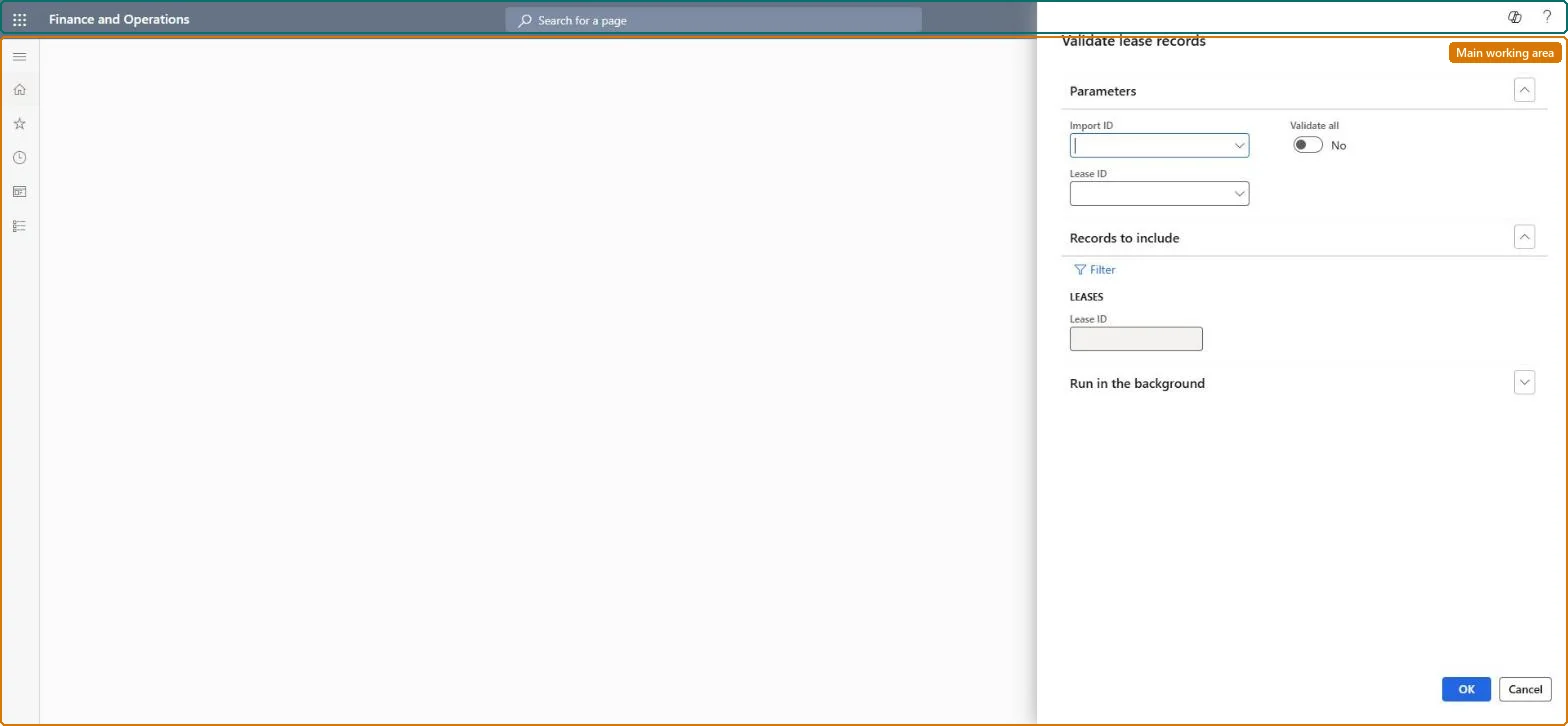
Validate page in Dynamics 365
The page in Dynamics 365. page title tab to open what to set or check
Functional consultant · Solution architect

2Where it fits

Business processAcquire assets › Lease assets
Menu pathAsset leasing › Lease import framework › Periodic › Validate
Set up firstCompare Microsoft Learn
Used next byMigrate lease records Microsoft Learn
Related pagesImport error log Microsoft Learn
In this process Compare staged leases with the system · Migrate staged leases
End user · Functional consultant

3How to do it

About the examples: Examples and screenshots in this guide use BEAT, a demo company in a Dynamics 365 test environment. Use your own company's codes and values instead of copying them.

When to run it

When to run itAfter the lease staging data is imported through Data management and before you migrate it.
How oftenOn demand, for each import ID, and again after every correction of the staging data.
Batch settingsRun it in the background with Validate all set to Yes for large import IDs.
What the output showsValidation messages for the staged leases of the import ID. Leases without errors can be migrated; an error points to staging data that must be corrected before Migrate lease records can bring the lease in.

Source: Microsoft Learn

Setup steps on this page

Validate staged leases

Run the lease validations on many staged imports before migrating them.

Steps from Microsoft

  1. Go to Asset leasing > Lease import framework > Periodic > Validate.
  2. Select the Import ID, or set Process all to Yes.
  3. Optionally filter on Lease ID under Records to include.
  4. Select OK.
  5. Open Inquiries and reports > Import error log for the import's process ID and correct the staged rows.

Source: Microsoft Learn

Fields on the page

FieldWhat it meansExample
Import IDThe import, as listed on Import header.Microsoft Learn
Lease IDOne lease of the import, to run it for that lease only.Microsoft Learn
Process allYes runs every lease of the selected import.Checked in Dynamics 365No
Records to include (Leases: Lease ID)A filter on the leases to process.Checked in Dynamics 365

Common errors and fixes

MessageWhat to do
Errors after ValidateOpen Import error log for the import's process ID, correct the staged values (Update staging) and validate again. Microsoft Learn

Test checklist

  1. Run Validate for the import.
  2. Open Import error log.
  3. Check: The import's process ID shows an error for that lease.

Source: Microsoft Learn

Functional consultant

4Setup decisions

Setup stepRecommended value and whyDecision, common mistake and test
Validate staged leasesValidate every import and clear its errors before Migrate lease records.Validation runs the lease checks before any lease changes, so errors are fixed in staging rather than on posted leases.Can an import be migrated with validation errors on some leases?Migrating without validating, then correcting each lease by hand.Test: Validation stops a bad row

Feature management and licence

Feature to turn onAsset leasing (Must be on)
Licence or add-inAsset leasing must be turned on in Feature management (feature Asset leasing). Microsoft Learn describes three Asset leasing roles: Maintain lease (add, edit and post leases), View lease (view leases and schedules and run reports) and Lease clerk (create new leases only). Maintain lease users run it.

Microsoft Learn

Solution architect

5Design impact

Shared or per companyPer company: leases with their books, schedules and journals belong to the legal entity you are working in, and Lease ID numbers come from a number sequence set per company. Turn on Cross entity batch in Asset leasing parameters to create journals for other legal entities from the current one. Microsoft Learn
Can it be undoneReversible: Validate changes no lease.
If you change it laterValidate changes no lease; it records the errors that Migrate lease records would otherwise meet. Microsoft Learn
Technical architect

6Technical

Menu itemAssetLeaseLeaseDataValidation Checked in Dynamics 365
FormDialog Checked in Dynamics 365
Roles to set it up and use itTo use itLease accountant AssetLeaseLeaseMaintainAccountant LedgerAccountantGive people one of these roles. On this system, 2 roles can run this page.Checked in Dynamics 365
Developer

7Developer

Open it by URLhttps://<your-environment>/?mi=AssetLeaseLeaseDataValidation
Data migrationLoad order: This job has no data entity in Data management, so it can't be loaded from a file or a configuration template. It processes imports already staged through the Lease staging, Payment contract staging and Executory contract staging entities.Microsoft Learn
Everyone

8Sources

To cite this step: AL-IMPORT-050, Validate staged leases. Beyond ERP Atlas Hub, 2026-11-11. https://www.beyonderp.cloud/atlas/step/AL-IMPORT-050