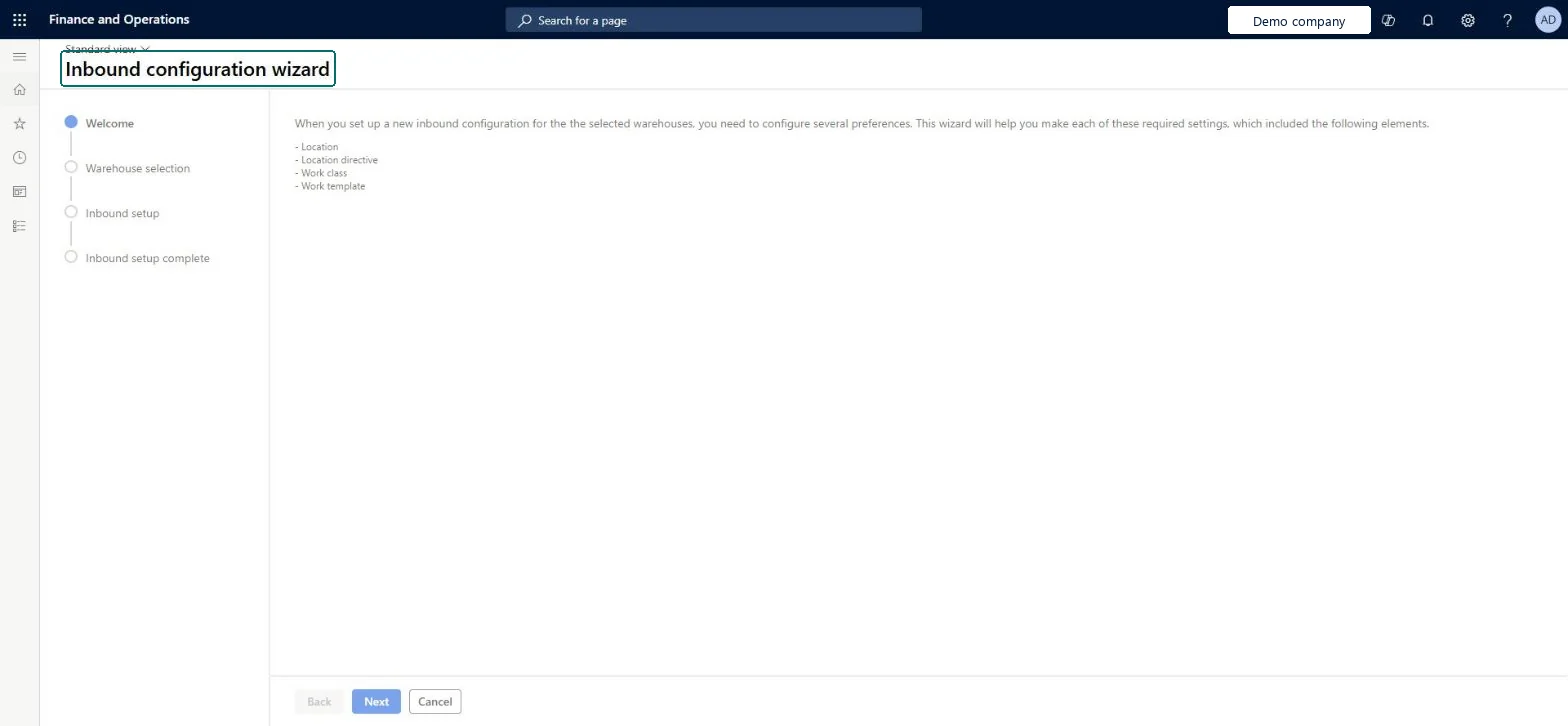
A wizard that sets up inbound operations for one or more warehouses by creating a receiving location, a work class, a put location directive and a work template.
PAGE GUIDEWhat the page does and how to use it8 sections. Choose a role to highlight what matters to you.
Everyone
1What it is and why
What it is
A wizard that sets up inbound operations for one or more warehouses by creating a receiving location, a work class, a put location directive and a work template.
What you do here
Use this wizard to put the basic settings in place so that you can receive purchase orders and inbound shipment orders in the selected warehouses.
Example
For example, run it for a new warehouse where you must configure basic inbound flows.
The page in Dynamics 365. page title tab to open what to set or check
About the examples: Examples and screenshots in this guide use BEAT, a demo company in a Dynamics 365 test environment. Use your own company's codes and values instead of copying them.
Setup steps on this page
Set up Inbound configuration wizard
Use this wizard to put the basic settings in place so that you can receive purchase orders and inbound shipment orders in the selected warehouses.
Steps from Microsoft
Go to Warehouse management > Setup > Wizards > Inbound configuration wizard.
Make sure that each warehouse already exists and has Use warehouse management processes set to Yes.
On the Welcome page, read the summary and select Next.
On the Warehouse selection page, choose All, Warehouse group or Warehouse, and select Next.
On the Inbound setup page, enter the names for the work class, work template, put location directive and receiving location, and select the location profile.
Select Next, then on the Inbound setup complete page review the summary and select Finish.
Run after the initiation wizard (or manual parameter setup), for warehouses that already have Use warehouse management processes set to YesLearn lists the basic Warehouse management parameters setup and WMS-enabled warehouses assigned to a site as prerequisites; only warehouses with Use warehouse management processes set to Yes appear in the selection.
Expecting a warehouse to appear in the selection grid when Use warehouse management processes isn't set to Yes on it.
Solution architect
5Design impact
Can it be undone
Hard to reverse: There is no undo for the wizard. Remove or edit the created location, work class, location directives and work template on their own setup pages. Microsoft Learn
Technical architect
6Technical
Menu item
WHSInboundConfigurationWizardChecked in Dynamics 365
Form
WHSInboundConfigurationWizardChecked in Dynamics 365
Roles to set it up and use it
To set it up or change itWarehouse manager WMSWarehouseManagerProcess engineer RouteProcessEngineerGive people one of these roles. On this system, 2 roles can open this page.Checked in Dynamics 365