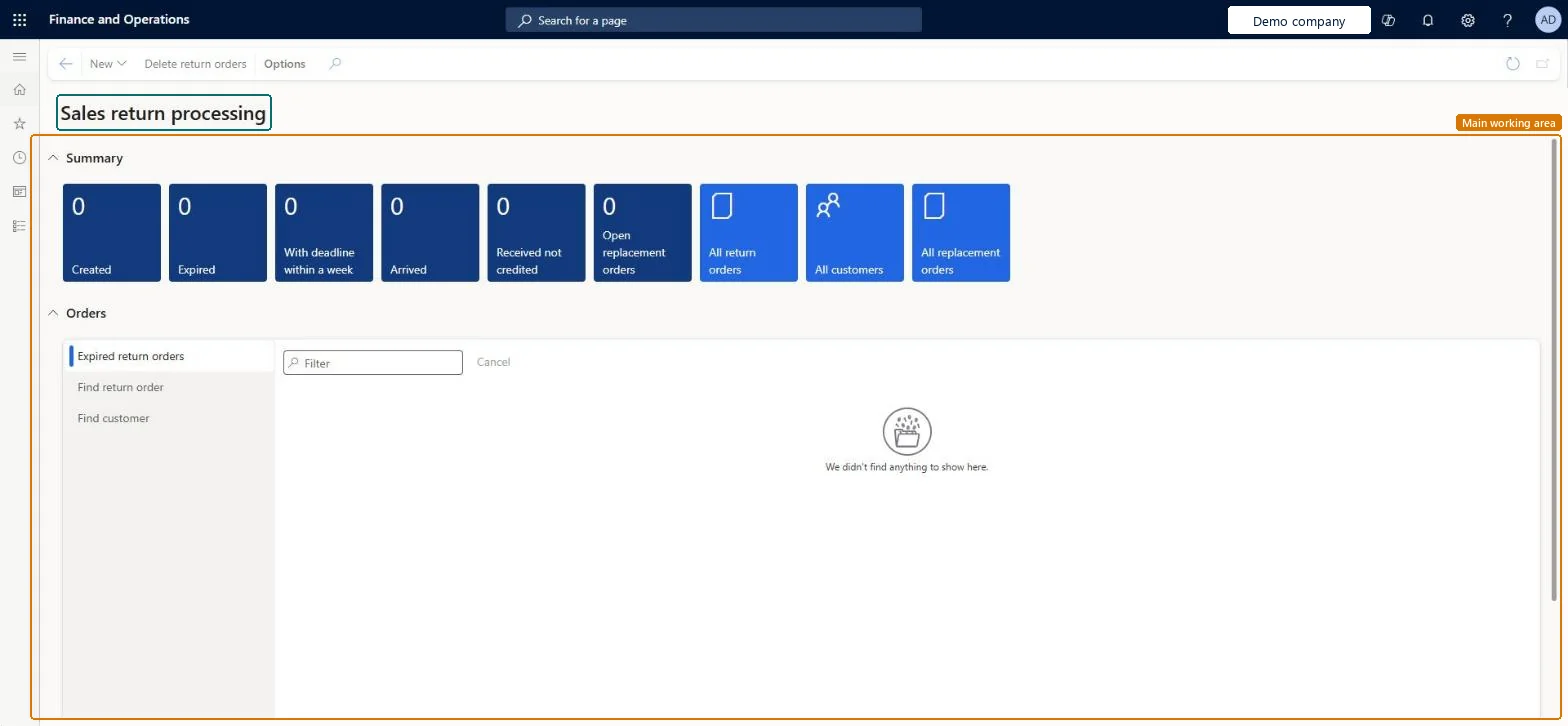
A workspace for customer return orders (RMAs): summary tiles count return orders by stage, and links open the full lists of return orders, customers and replacement orders.
Retail service, Retail store manager, Customer service manager and 4 more roles
Business process
Process customer returns and exchanges
Menu item
SalesReturnWorkspace
Setup steps
1 on this page
Show what matters for
PAGE GUIDEWhat the page does and how to use it8 sections. Choose a role to highlight what matters to you.
Everyone
1What it is and why
What it is
A workspace for customer return orders (RMAs): summary tiles count return orders by stage, and links open the full lists of return orders, customers and replacement orders.
What you do here
Use this workspace to see at a glance how many return orders are created, expired, due within a week, arrived, received but not credited, or waiting on open replacement orders, and to open the orders behind each count.
Example
For example, BEAT's customer service manager sees 6 return orders under Received not credited on Monday, opens the list, finds RMA-000045 for BEAT-000123 (2.00 pcs at 149.00) and passes it to the clerk who invoices the credit note.
The page in Dynamics 365. page title tab to open what to set or check
About the examples: Examples and screenshots in this guide use BEAT, a demo company in a Dynamics 365 test environment. Use your own company's codes and values instead of copying them.
Setup steps on this page
Use the Sales return processing workspace
Follow return orders by stage and act on the ones that are late or not credited.
Steps from Microsoft
Go to Sales and marketing > Workspaces > Sales return processing.
Under Summary, read the tiles Created, Expired, With deadline within a week, Arrived, Received not credited and Open replacement orders.
Select a tile, for example Received not credited, to open the return orders behind the count.
Select All return orders, All customers or All replacement orders to open the full list.
Open the return order and invoice it from its sales order to credit the customer and close the return.
Summary tile with the return orders that are created and not yet open. Only these can still be canceled.Microsoft Learn
3
Expired
Summary tile with return orders whose return deadline has passed. The deadline is the creation date plus the period of validity from the Accounts receivable parameters.Microsoft Learn
1
With deadline within a week
Summary tile with return orders whose deadline falls in the next seven days.Checked in Dynamics 365
2
Arrived
Summary tile with return orders whose items arrived at the warehouse and are waiting for inspection or disposition.Microsoft Learn
4
Received not credited
Summary tile with return orders that are received but not yet invoiced; the credit note is created when the return order is invoiced.Microsoft Learn
6
Open replacement orders
Summary tile with return orders linked to a replacement sales order that is still open.Microsoft Learn
1
Common errors and fixes
Message
What to do
The packing slip can't be generated for the return line.
A return packing slip can be generated only for lines with Return status Registered and only for the full line quantity. Register the arrival (and disposition code) first, or split the line. Microsoft Learn
Test checklist
Note the count on the Created tile.
Create a return order for BEAT-000123 with one line of 1.00 pcs.
Refresh the workspace and check that Created went up by 1.
Cancel the return order on Created return orders and check that the Created count is back to the first number.
Give customer service this workspace and review Expired and Received not credited first each day.Expired returns are past the deadline from the validity period, and received but uncredited returns mean the customer is still waiting for the credit note.
On the live system, Sales clerk, Sales manager, Sales representative and Customer service representative use this page.
Checked in Dynamics 365
Solution architect
5Design impact
Shared or per company
Per company: the tiles count the return orders of the legal entity you are signed in to. Microsoft Learn
Can it be undone
Reversible: Reading the tiles changes no data. Checked in Dynamics 365
If you change it later
The workspace only reads return orders. Counts change when return orders move on: arrival registration, packing slip and invoice of the return order. Microsoft Learn
Technical architect
6Technical
Menu item
SalesReturnWorkspaceChecked in Dynamics 365
Form
SalesReturnWorkspaceChecked in Dynamics 365
Who can open it
PrivilegesView manage sales returns workspace SalesReturnWorkspaceViewDutiesInquire into sales return order progress ReturnSalesReturnOrderProgressInquire8 security rolesMCRTestUserRoleRetail service RetailServiceRetail store manager RetailStoreManagerCustomer service manager TradeCustomerServiceManagerCustomer service representative TradeCustomerServiceRepresentativeSales clerk TradeSalesClerkSales manager TradeSalesManagerSales representative TradeSalesRepresentativeChecked in Dynamics 365
Roles to set it up and use it
To use itSales manager TradeSalesManagerSales clerk TradeSalesClerkSales representative TradeSalesRepresentativeRetail service RetailServiceCustomer service representative TradeCustomerServiceRepresentativeGive people one of these roles. On this system, 7 roles can open this page.Checked in Dynamics 365
Actions on the page
Options: Personalize, Page options, ShareChecked in Dynamics 365
Load order: The workspace has no data entity in Data management. A workspace has no table of its own; open return orders are migrated through Return order headers (ReturnOrderHeaderEntity) and Return order lines (ReturnOrderLineEntity).Checked in Dynamics 365