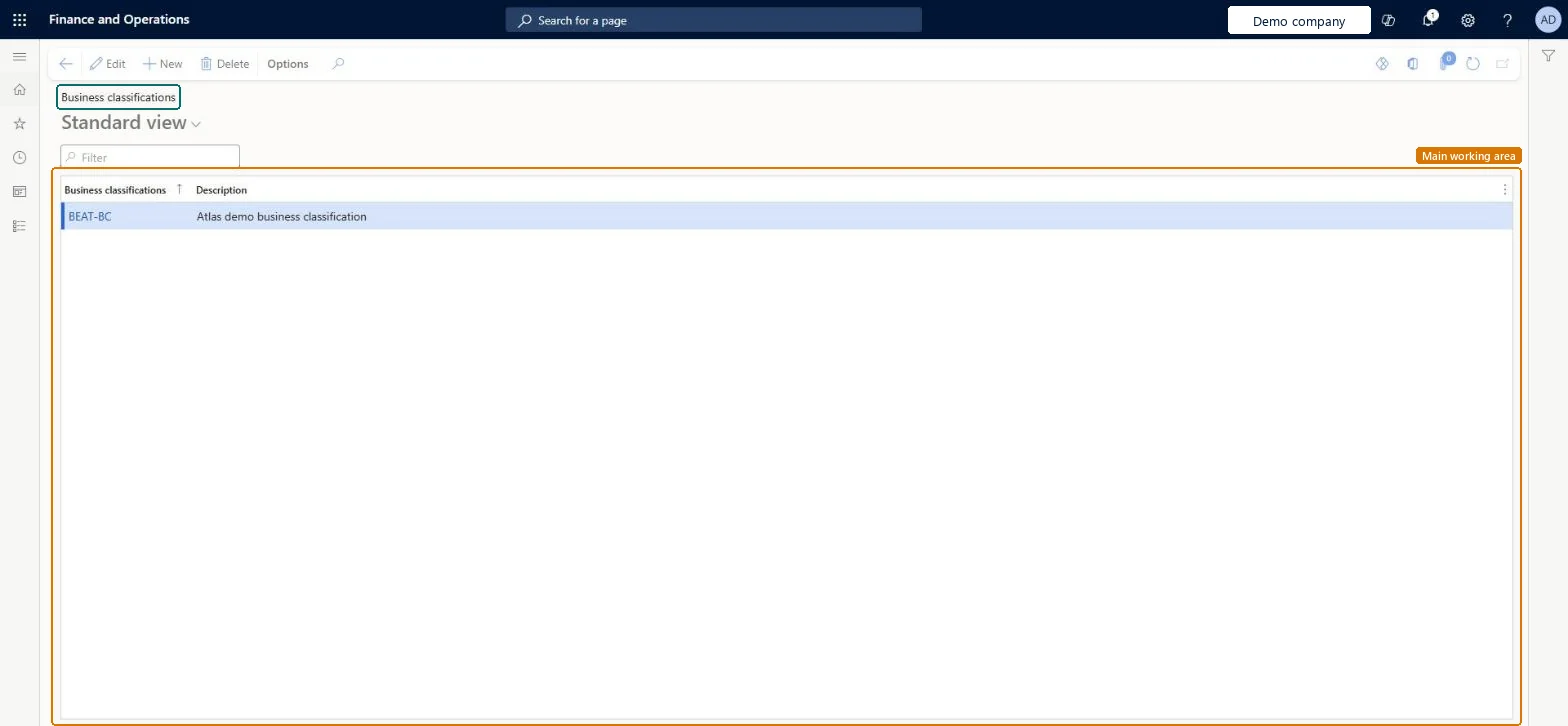
A setup page where you create the business classifications, a code and a description, that you assign to prospects and other parties to show which line of trade they are in.
PAGE GUIDEWhat the page does and how to use it8 sections. Choose a role to highlight what matters to you.
Everyone
1What it is and why
What it is
A setup page where you create the business classifications, a code and a description, that you assign to prospects and other parties to show which line of trade they are in.
What you do here
Use this page to create and maintain the business classifications that are available for prospects; a prospect can carry more than one classification.
Example
BEAT creates the business classifications MFG, RETAIL and HEALTH. Prospect PRO-000154, a hospital group that also runs pharmacies, gets both HEALTH and RETAIL, and the marketing manager selects all 86 HEALTH prospects for a campaign.
The page in Dynamics 365. page title tab to open what to set or check
About the examples: Examples and screenshots in this guide use BEAT, a demo company in a Dynamics 365 test environment. Use your own company's codes and values instead of copying them.
Step by step, with screenshots
Set up Business classifications1 screen
Screen 1
Create a business classification
Go to Sales and marketing > Setup > Prospects > Business classifications
Select New
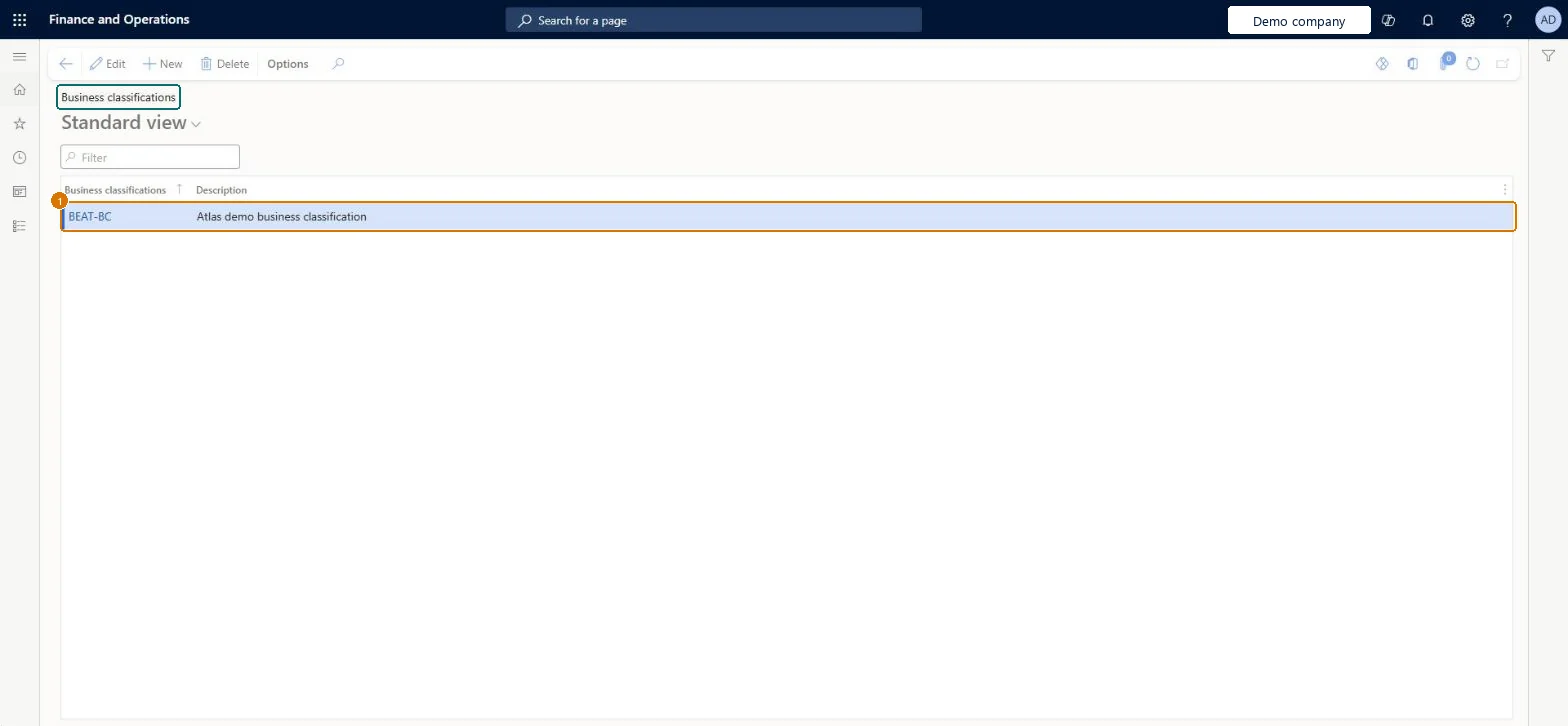
Enter the classification code and description
Select Save
1Business classifications
BEAT-BC
Description
Business classification
Show the full screen page title tab to open what to set or check
How to use it
Go to Sales and marketing > Setup > Prospects > Business classifications.
Select New and enter the Business classifications code, such as MFG, and a Description.
Add the other lines of trade that marketing selects on, such as RETAIL and HEALTH.
Open a prospect on All prospects and add the classification to it.
Source: Checked in Dynamics 365
Fields on the page
Field
What it means
Example
Table column
Business classifications
The code of the business classification, for example MFG. Assignments to parties are stored in a separate table (smmBusRelSectorTable), so one party can have several classifications.Microsoft data model
MFG
BusinessSectorId
Description
A short description of the classification.Checked in Dynamics 365
Manufacturing
Description
Common errors and fixes
Message
What to do
A prospect fits two lines of trade but only one can be recorded in a single field.
Use business classifications for this: assignments are stored per party in their own table, so add both classifications to the prospect. Microsoft data model
Test checklist
Create the classifications HEALTH and RETAIL.
Assign both to one prospect.
Open the prospect's business classifications.
Check that 2 classifications are listed for the prospect.
One list of business classifications for the lines of trade that marketing selects on, agreed before prospects and customers are loaded.A party can carry several classifications, so the list works as tags for targeting rather than as one mandatory field.
On the live system, Sales manager, Rental manager, Marketing manager, Accounts receivable manager and Information technology manager can maintain this page.
Reversible: Codes can be added or edited at any time; check the parties that use a code before you delete it. Microsoft data model
If you change it later
Classifications are assigned to parties through smmBusRelSectorTable, which links to prospects, customers and vendors. A new code is available at once; renaming a description changes only the text shown. Microsoft data model
Technical architect
6Technical
Menu item
smmBusSectorGroupChecked in Dynamics 365
Form
smmBusSectorGroupChecked in Dynamics 365
Table
smmBusSectorGroupShown as “Business classification table” in Record infoChecked in Dynamics 365
To set it up or change itSales manager TradeSalesManagerRental manager RentalManagerMarketing manager CRMMarketingManagerAccounts receivable manager CustInvoiceAccountsReceivableManagerInformation technology manager SysServerITManagerTo use itRental coordinator agent RentalCoordinatorAgentAccounts receivable clerk CustInvoiceAccountsReceivableClerkRental representative RentalRepresentativeAccounting manager LedgerAccountingManagerRental clerk RentalClerkGive people one of these roles. On this system, 18 roles can open this page.Checked in Dynamics 365
Actions on the page
Options: Personalize, Page options, ShareChecked in Dynamics 365
smmBusinessClassificationEntity (Business classifications): loaded for each company, in Microsoft's default template 330 - Sales and marketing.Load order: Microsoft's default template 330 - Sales and marketing loads Business classifications at execution unit 1, level 30, sequence 10. Lower levels load first, and entities at the same level load in sequence order.Load first: the default templates at lower levels (System setup to General ledger)Microsoft Learn
Checked in a working Dynamics 365 system, version 10.0.49: the menu item, form, table and security, the page, the demo records and the values in the screenshots.