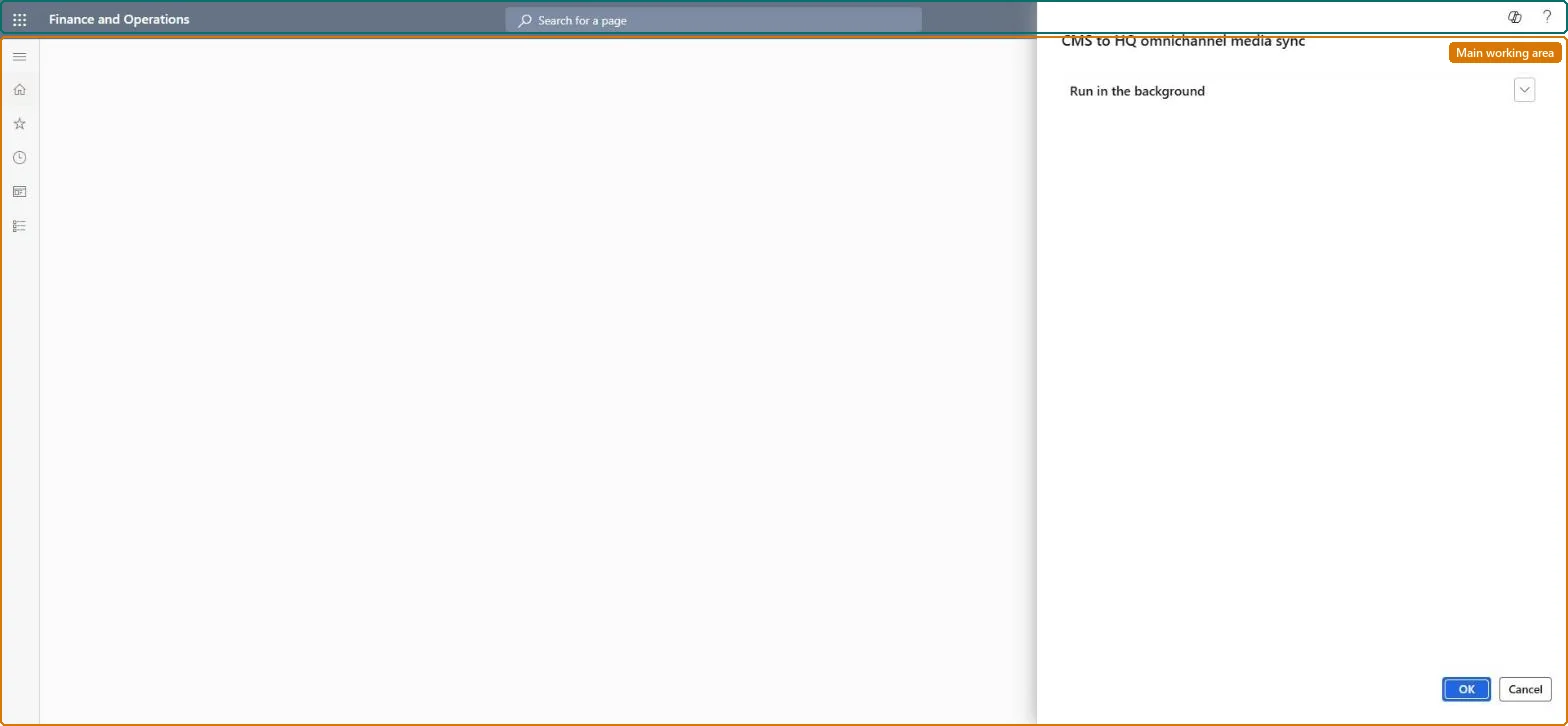
A batch job page that copies product media assignments made in the site builder omnichannel content workspace (CMS) into the Commerce headquarters database, from where Commerce Data Exchange jobs push them to channel databases.
Retail and CommerceHeadquarters setupCommerce scheduler
RetailSyncCms
Business process
Create B2C eCommerce sales channel in Dynamics 365 Commerce
Menu item
RetailSyncCms
Show what matters for
PAGE GUIDEWhat the page does and how to use it7 sections. Choose a role to highlight what matters to you.
Everyone
1What it is and why
What it is
A batch job page that copies product media assignments made in the site builder omnichannel content workspace (CMS) into the Commerce headquarters database, from where Commerce Data Exchange jobs push them to channel databases.
What you do here
Use this page to schedule the recurring media sync (typically once per hour) with batch processing on, as one of the steps for enabling omnichannel media management.
Example
For example, after merchandisers assign images to a shirt's colour and style combinations in site builder, this job brings those assignments into headquarters.
The page in Dynamics 365. page title tab to open what to set or check
About the examples: Examples and screenshots in this guide use BEAT, a demo company in a Dynamics 365 test environment. Use your own company's codes and values instead of copying them.
When to run it
When to run it
When you enable omnichannel media management, after media assignments are staged in site builder, and afterwards to keep publishing them.
How often
Typically once per hour.
Batch settings
Recurring batch job, typically hourly.
What the output shows
Product media assignments copied from the CMS into the headquarters database, from where the data sync jobs push them to channel databases. Media that doesn't appear in channels can also be held up by the CSU's two-hour cache.
Schedule on which the media sync repeats, typically hourly.Microsoft Learn
Solution architect
4Design impact
Can it be undone
Nothing to undo: The job copies published media assignments; change the assignments in site builder and let the next run copy them. Microsoft Learn
If you change it later
Until this job runs, media assignments staged in site builder do not reach headquarters, channel databases or end clients. Microsoft Learn
Technical architect
5Technical
Menu item
RetailSyncCmsChecked in Dynamics 365
Form
DialogChecked in Dynamics 365
Roles to set it up and use it
To use itRetail service RetailServiceRetail operations manager RetailOperationsManagerGive people one of these roles. On this system, 2 roles can run this page.Checked in Dynamics 365