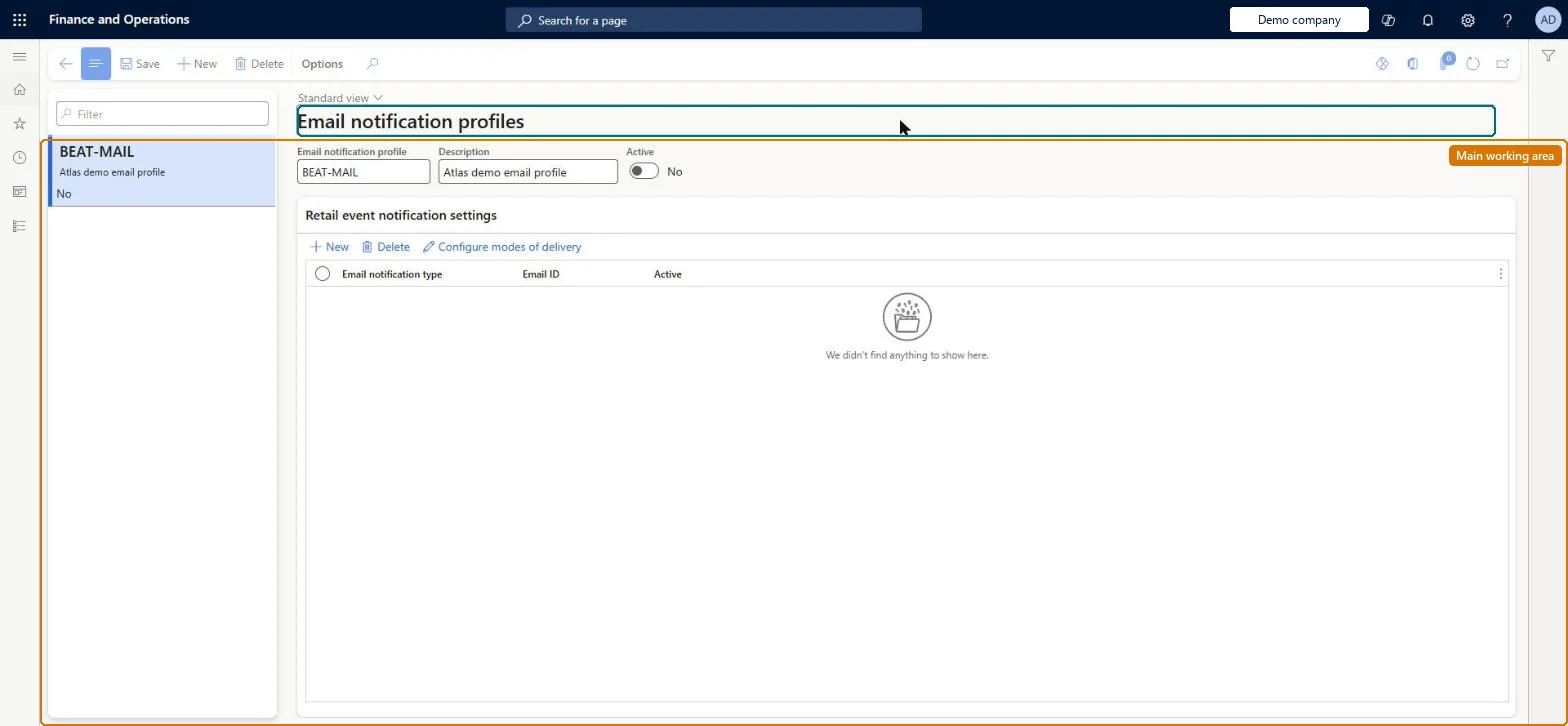
A setup page where you create email notification profiles that list the sales transaction events (such as order created or order invoiced) for which customers are emailed, and link each event to an organization email template.
PAGE GUIDEWhat the page does and how to use it8 sections. Choose a role to highlight what matters to you.
Everyone
1What it is and why
What it is
A setup page where you create email notification profiles that list the sales transaction events (such as order created or order invoiced) for which customers are emailed, and link each event to an organization email template.
What you do here
Use this page to create a profile, add a notification type for each event, choose the email template it uses and mark it active; the profile is then assigned to stores, online channels or call centers.
Example
For example, an online store can send customers an email when an order is created and another when it is invoiced.
The page in Dynamics 365. page title tab to open what to set or check
About the examples: Examples and screenshots in this guide use BEAT, a demo company in a Dynamics 365 test environment. Use your own company's codes and values instead of copying them.
Setup steps on this page
Set up Commerce email notification profile
Use this page to create a profile, add a notification type for each event, choose the email template it uses and mark it active; the profile is then assigned to stores, online channels or call centers.
Steps from Microsoft
Go to Retail and Commerce > Headquarters setup > Commerce email notification profile.
On the action pane, select New.
In the Email notification profile field, enter a name, and in the Description field enter a description.
Set the Active switch to Yes.
Under Retail email notification settings, select New and choose the Email notification type.
Select the email template in the Email ID field and select the Active checkbox.
One profile assigned on each channel (store, online channel or call center) rather than in Commerce parameters, with an active notification type per event and an organization email template for eachMicrosoft recommends defining the email notification profile at the individual channel level, even though it can also be set in Commerce parameters > General. Each notification type needs an organization email template before it can be enabled.
Setting up the profile but not scheduling the Process retail order email notification batch job. Without that job running, no notification emails are sent.
Feature management and licence
Feature to turn on
Optimized order notifications processing (Optional)
Reversible: Set the profile or a notification type to inactive, or change the template. Emails for events processed afterwards follow the new setup. Microsoft Learn
Technical architect
6Technical
Menu item
RetailEventNotificationProfileChecked in Dynamics 365
Form
RetailEventNotificationProfileChecked in Dynamics 365
Table
RetailEventNotificationProfileShown as “RETAIL EVENT NOTIFICATION PROFILE” in Record infoChecked in Dynamics 365
Data entities
RetailEventNotificationProfileEntityRetail event notification profile Microsoft data model
Who can open it
PrivilegesView Email notification forms RetailEventNotificationDutiesView Email notification forms RetailEventNotification2 security rolesRetail operations manager RetailOperationsManagerRetail service RetailServiceChecked in Dynamics 365
Roles to set it up and use it
To use itRetail service RetailServiceRetail operations manager RetailOperationsManagerGive people one of these roles. On this system, 2 roles can open this page.Checked in Dynamics 365
RetailEventNotificationProfileEntity (Retail event notification profile): loaded for each company, in Microsoft's default template 500 - Retail.Load order: Microsoft's default template 500 - Retail loads Retail event notification profile at execution unit 1, level 30, sequence 10. Lower levels load first, and entities at the same level load in sequence order.Load first: the default templates at lower levels (System setup to General ledger)Microsoft Learn