BeyondERP.Newsletter
Menu

Job page · Retail and Commerce

Clean up email notification logs

A batch job that deletes email notification log records older than a set number of retention days.

Business process
Create B2C eCommerce sales channel in Dynamics 365 Commerce
Menu item
RetailEventNotificationLogCleanUp
Show what matters for
PAGE GUIDEWhat the page does and how to use it7 sections. Choose a role to highlight what matters to you.
Everyone

1What it is and why

What it isA batch job that deletes email notification log records older than a set number of retention days.
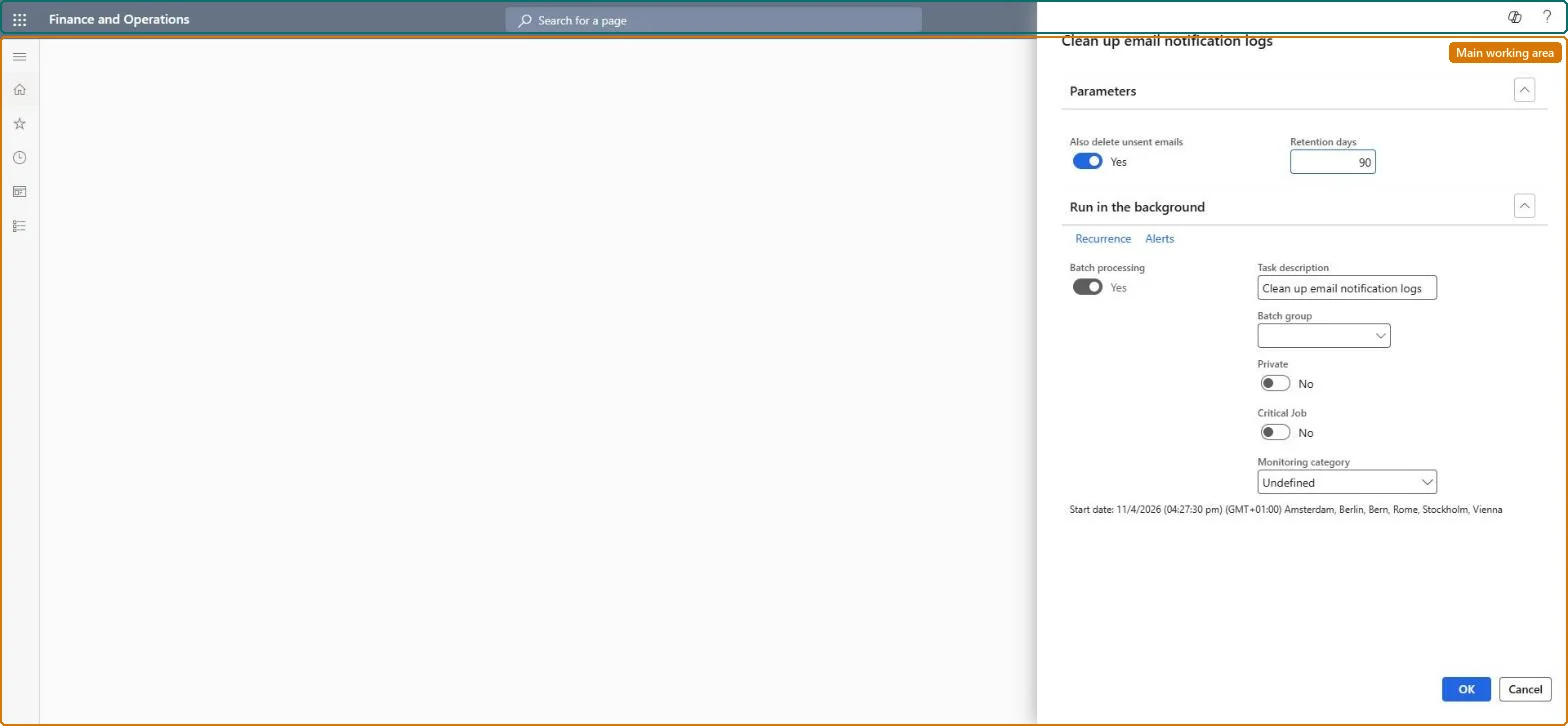
What you do hereUse this page to schedule regular removal of old email notification logs, optionally including emails that were never sent.
ExampleFor example, set a three-month recurrence with no end date so logs are cleaned up automatically.
Clean up email notification logs page in Dynamics 365
The page in Dynamics 365. page title tab to open what to set or check
Functional consultant · Solution architect

2Where it fits

Business processDevelop sales policies › Manage sales channels › Create B2C eCommerce sales channel in Dynamics 365 Commerce
Menu pathRetail and Commerce › Retail and Commerce IT › Email and notifications › Clean up email notification logs
Related pagesCommerce shared parameters Microsoft Learn
End user · Functional consultant

3How to do it

About the examples: Examples and screenshots in this guide use BEAT, a demo company in a Dynamics 365 test environment. Use your own company's codes and values instead of copying them.

When to run it

When to run itOnce order email notifications are running and the email notification logs keep growing; set it up together with the email notification job.
How oftenRecurring with no end date; Learn's example runs it every three months.
Batch settingsA recurring batch job with no end date. Each run keeps creating subtasks of up to 2,000 logs each until no qualifying logs are left.
What the output showsFewer email notification log records: logs older than Retention days are gone, and so are unsent emails when that option is Yes. If old entries remain, they are usually unsent emails kept because Also delete unsent emails is No.

Source: Microsoft Learn

Steps from Microsoft

  1. Go to Retail and Commerce > Retail and Commerce IT > Email and notifications > Clean up email notification logs.
  2. In Retention days, enter how many days email logs are kept. The job deletes only emails older than that.
  3. Set Also delete unsent emails to Yes if emails that weren't sent successfully should be deleted too; leave it No to keep them in the log.
  4. Select Recurrence and set the pattern, for example Months with Count 3 to clean up every three months, and select No end date to keep the job running.
  5. If each subtask should delete more or fewer than 2,000 logs, change NotificationLog_NumOfRowsToBeCleaned in Commerce shared parameters > Configuration parameters.
  6. After a run, open the email notification logs and check that no entries older than the retention days are left (apart from unsent emails, if you kept them).
Source: Microsoft Learn

Fields on the page

FieldWhat it means
Also delete unsent emailsWhen Yes, the job also deletes emails that were not sent successfully.Microsoft Learn
Retention daysHow many days emails are kept before the job deletes them.Microsoft Learn

Test checklist

  1. No email log older than Retention days remains.
  2. Unsent emails are kept or deleted as set in Also delete unsent emails.
  3. The batch job history shows the subtasks finished without errors.

Source: Microsoft Learn

Solution architect

4Design impact

Can it be undoneNo: Deleted email logs can't be restored. Set Retention days long enough to answer customer questions about emails you sent. Microsoft Learn
If you change it laterThe job keeps creating subtasks, each deleting up to 2,000 logs by default, until no qualifying logs remain. Microsoft Learn
Technical architect

5Technical

Menu itemRetailEventNotificationLogCleanUp Checked in Dynamics 365
FormSysOperationTemplateForm Checked in Dynamics 365
Developer

6Developer

Open it by URLhttps://<your-environment>/?mi=RetailEventNotificationLogCleanUp
Everyone

7Sources