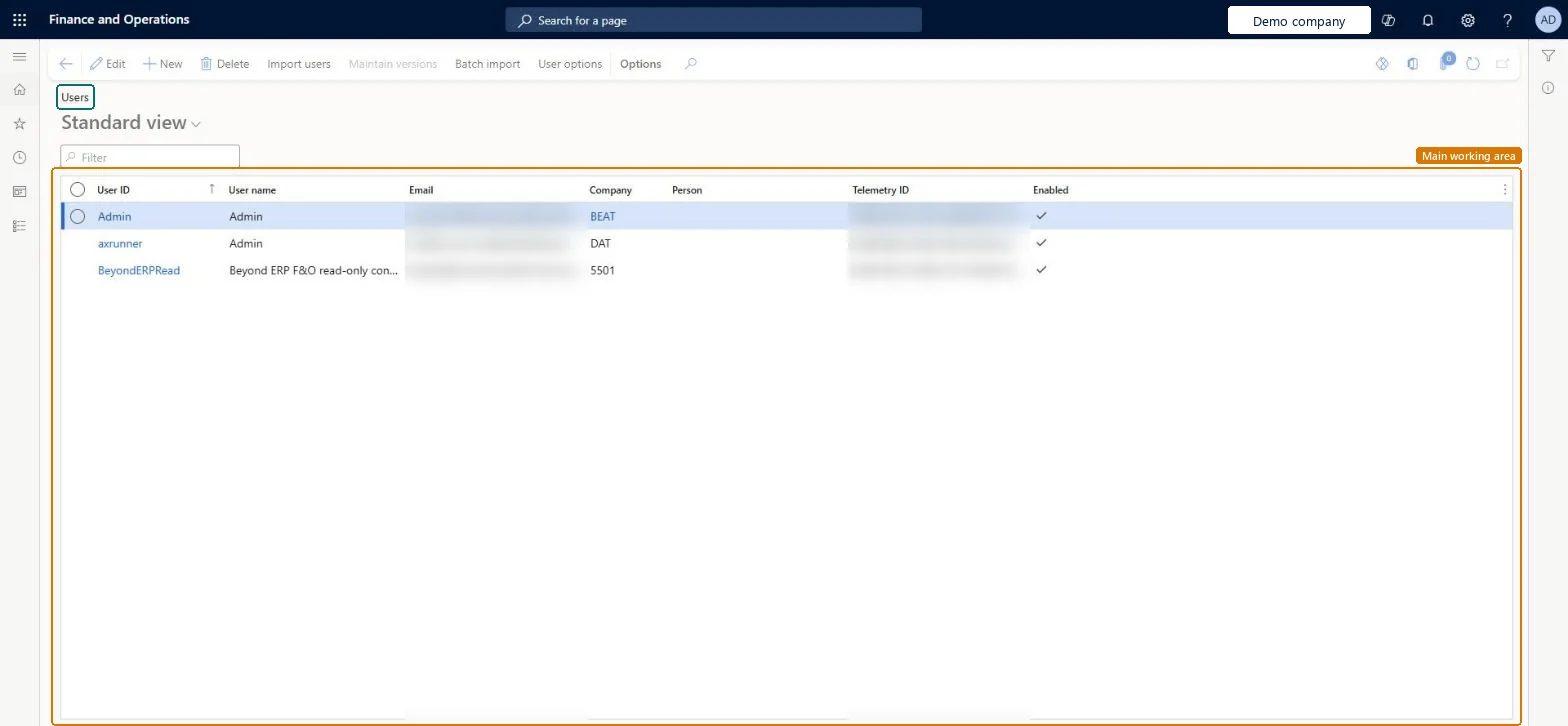
About the examples: Examples and screenshots in this guide use BEAT, a demo company in a Dynamics 365 test environment. Use your own company's codes and values instead of copying them.
Setup steps on this page
Set up Users
Use this page to import users from Microsoft Entra ID or add them by hand, and to keep their details such as email and default company up to date.
Steps from Microsoft
Go to Retail and Commerce > Employees > Users.
Select New.
In the User ID field, enter a unique ID for the user.
In the User name field, enter the user's name.
In the Provider field, keep the default value for internal users, or add the guest user's Entra ID tenant name for external users.
In the Email field, enter the user's full email or user principal name.
In the Company field, select the company the user starts in.
Select Save, and then assign roles and organizations.
Import users from Microsoft Entra ID with Import users; when you add a user by hand, keep the default Provider for internal users and enter the full email or user principal nameEvery user must exist in your Microsoft Entra ID tenant: since March 2024 users who aren't in Entra ID can't be onboarded or sign in. On save, the Telemetry ID is filled from the user's Entra object ID, which sign-in depends on.
How are users created?Importing users while the administrator is in the wrong company. The admin's current session company becomes each imported user's Company, so users start in the wrong legal entity until it's corrected.Test: A new user can sign in
Solution architect
5Design impact
Can it be undone
Hard to reverse: A User ID can be renamed (Record info > Rename), which updates every reference and can take time. If the Telemetry ID doesn't match the Microsoft Entra object ID, the user must be deleted and reimported, so note the roles first. Microsoft Learn
If you change it later
Changing a user ID renames the key in the database and updates every reference to it, which can take some time for existing users. Microsoft Learn
Technical architect
6Technical
Menu item
SysUserInfoPageChecked in Dynamics 365
Form
SysUserManagementChecked in Dynamics 365
Table
UserInfoShown as “User Information” in Record infoChecked in Dynamics 365
Data entities
SystemSecurityRoleEntitySystem Security Role Checked in Dynamics 365
Who can open it
PrivilegesMaintain users SysUserInfoMaintainDutiesCopilot service operations AppCopilotServiceDutyMaintain security settings SysSecSecurityMaintain2 security rolesCopilot service role AppCopilotServiceRoleSecurity administrator SysSecSecurityAdministratorChecked in Dynamics 365
Roles to set it up and use it
To set it up or change itCopilot service role AppCopilotServiceRoleSecurity administrator SysSecSecurityAdministratorGive people one of these roles. On this system, 2 roles can open this page.Checked in Dynamics 365
Actions on the page
Options: Personalize, Page options, ShareChecked in Dynamics 365
Developer
7Developer
Open it by URL
https://<your-environment>/?mi=SysUserInfoPage
Integrate with
SystemSecurityRoleEntity data entity Checked in Dynamics 365