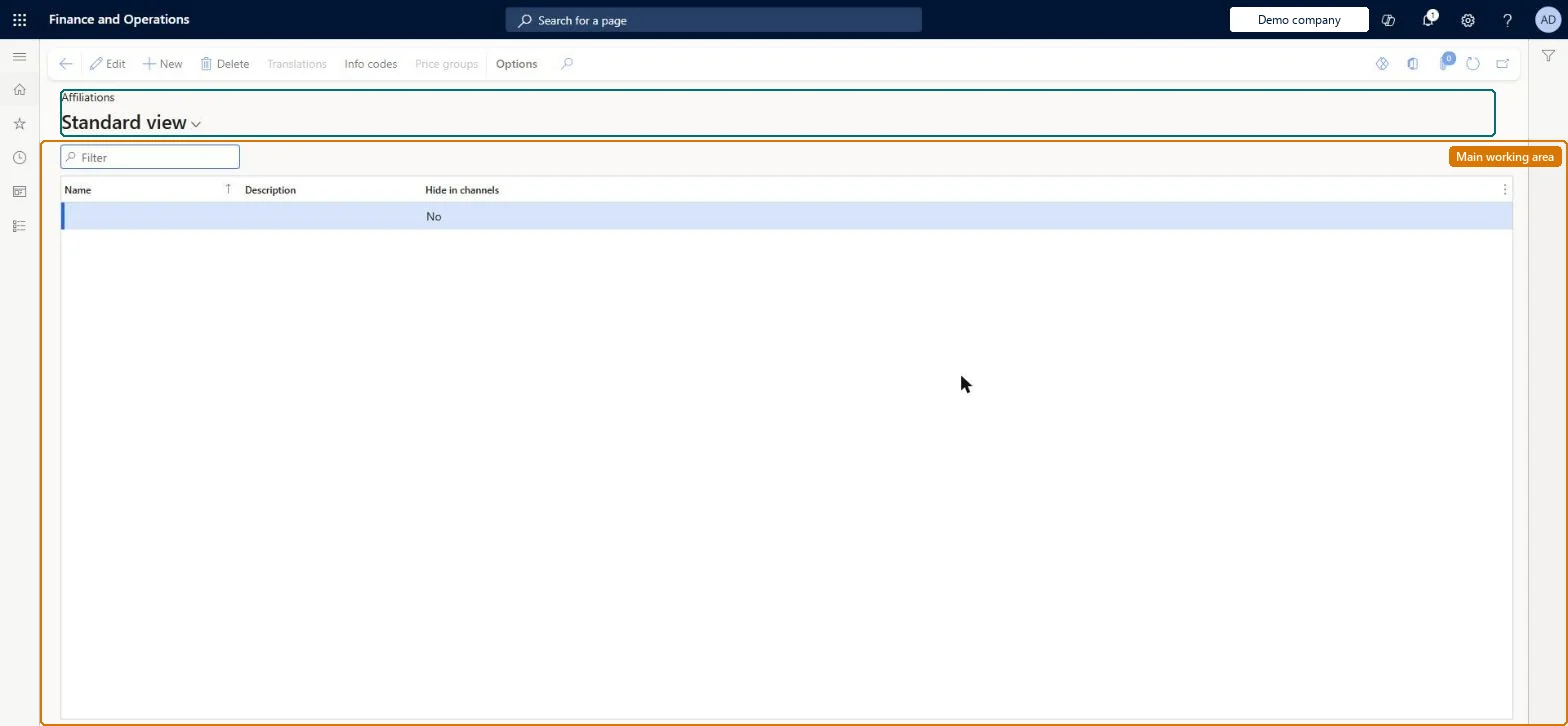
A setup page where you define affiliations: named groups of customers (such as students, seniors or employees) that receive specific prices and discounts through price groups.
Use affiliations to create pricing and discounts in Dynamics 365 Commerce
Menu item
RetailAffiliations
Main table
RetailAffiliation
Data entity
RetailAffiliationEntity
Show what matters for
PAGE GUIDEWhat the page does and how to use it7 sections. Choose a role to highlight what matters to you.
Everyone
1What it is and why
What it is
A setup page where you define affiliations: named groups of customers (such as students, seniors or employees) that receive specific prices and discounts through price groups.
What you do here
Use this page to create affiliations and link price groups to them, so that customers who belong to the affiliation, or anonymous shoppers who present a membership card, get the associated pricing and discounts.
Example
For example, a retailer creates a Student affiliation with a 10 percent discount price group; a cashier adds it to a transaction when the shopper shows a student card.
The page in Dynamics 365. page title tab to open what to set or check
About the examples: Examples and screenshots in this guide use BEAT, a demo company in a Dynamics 365 test environment. Use your own company's codes and values instead of copying them.
Steps from Microsoft
Go to Retail and Commerce > Customers > Affiliations.
Select New.
Enter a name and a description for the affiliation.
Select Price groups.
Select Add and choose the price group that carries the affiliation's prices and discounts.
Close the price groups page and save.
Link the same price group to the discounts or trade agreements the affiliation should receive.
Reversible: Affiliations and their price groups can be changed any time. Hide in channels only stops cashiers seeing, adding or removing the affiliation in POS; its prices and discounts still apply. Microsoft Learn
If you change it later
Hiding an affiliation in channels stops cashiers seeing or changing it but does not stop its prices and discounts applying; a customer can belong to several affiliations at once. Microsoft Learn
Technical architect
5Technical
Menu item
RetailAffiliationsChecked in Dynamics 365
Form
RetailAffiliationsChecked in Dynamics 365
Table
RetailAffiliationShown as “LOYALTY PROGRAM” in Record infoKey field: NameChecked in Dynamics 365
To set it up or change itRetail service RetailServiceRetail operations manager RetailOperationsManagerGive people one of these roles. On this system, 2 roles can open this page.Checked in Dynamics 365
Actions on the page
(Action Pane without tabs): Translations, Info codes, Price groupsChecked in Dynamics 365
RetailAffiliationEntity (Retail affiliations): shared by all companies, in Microsoft's default template 500 - Retail.RetailLoyaltyEntity (Loyalty program): shared by all companies.Load order: Microsoft's default template 500 - Retail loads Retail affiliations at execution unit 1, level 30, sequence 10. Lower levels load first, and entities at the same level load in sequence order.Load first: the default templates at lower levels (System setup to General ledger)Microsoft Learn