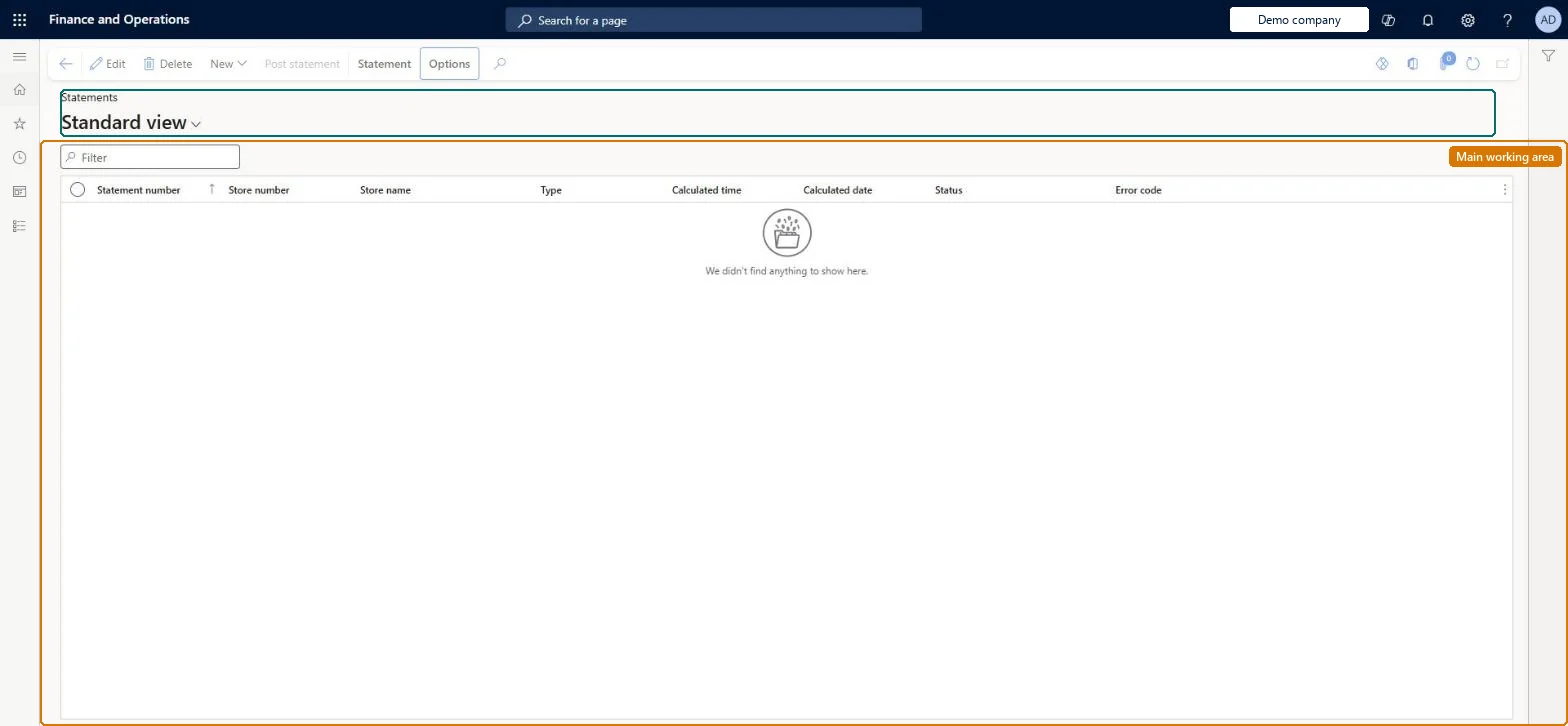
A processing page where you manually create, calculate and post store statements, which turn POS transactions pulled into headquarters into sales orders, invoices, payment journals and inventory updates; it also shows statements that failed during batch posting.
Retail operations manager, Retail service, Retail store manager
Business process
Post store end-of-day financial statements in Dynamics 365 Commerce
Menu item
RetailEodTrickleFeedStatementListPage
Main table
RetailStatementTable
Data entity
RetailTransactionEntity
Show what matters for
PAGE GUIDEWhat the page does and how to use it8 sections. Choose a role to highlight what matters to you.
Everyone
1What it is and why
What it is
A processing page where you manually create, calculate and post store statements, which turn POS transactions pulled into headquarters into sales orders, invoices, payment journals and inventory updates; it also shows statements that failed during batch posting.
What you do here
Use this page to create a statement for a store, calculate it (marking transactions and building lines per payment method), review the difference between tendered and counted amounts, and post it. Use the Execution details buttons to check status, event logs, aggregated transactions and vouchers when a statement fails.
Example
For example, after a store closes its shifts for the day, a finance clerk creates and calculates the statement here and posts it so that the day's sales become invoiced sales orders.
The page in Dynamics 365. page title tab to open what to set or check
About the examples: Examples and screenshots in this guide use BEAT, a demo company in a Dynamics 365 test environment. Use your own company's codes and values instead of copying them.
Steps from Microsoft
Go to Retail and Commerce > Channels > Stores > Statements.
Select New and identify the store the statement is for.
Calculate the statement to mark the transactions and build the statement lines.
Check the counted amount against the transaction amount (tender declarations are used, or enter the counted amount manually).
Post the statement.
If posting fails, use Status details, Event logs and Aggregated transactions under Execution details to find and fix the error, then post again.
Hard to reverse: Only one of the Statements and Statements (legacy) configuration keys can be on, and a statement must be created, calculated and posted under the same key. Posting creates sales orders, invoices and payment journals and updates store inventory. Microsoft Learn
If you change it later
Posting is blocked when the gap between counted and transaction amounts exceeds the store's maximum posting difference; posting creates sales orders, invoices and payment journals and updates store inventory, so a wrongly calculated statement affects the ledger and stock. Microsoft Learn
Technical architect
6Technical
Menu item
RetailEodTrickleFeedStatementListPageChecked in Dynamics 365
Form
RetailEodTrickleFeedStatementTableChecked in Dynamics 365
Table
RetailStatementTableShown as “STATEMENTS” in Record infoKey field: statementIdChecked in Dynamics 365
PrivilegesMaintain retail statements RetailEodStatementsMaintainDutiesMaintain retail statements RetailStatementsMaintainRetail Store Manager Statements Posting RetailStoreManagerStatementsPosting3 security rolesRetail operations manager RetailOperationsManagerRetail service RetailServiceRetail store manager RetailStoreManagerChecked in Dynamics 365
Roles to set it up and use it
To set it up or change itRetail service RetailServiceRetail operations manager RetailOperationsManagerRetail store manager RetailStoreManagerGive people one of these roles. On this system, 3 roles can open this page.Checked in Dynamics 365
Actions on the page
Statement(Action Pane without tabs): New, Post statementChecked in Dynamics 365