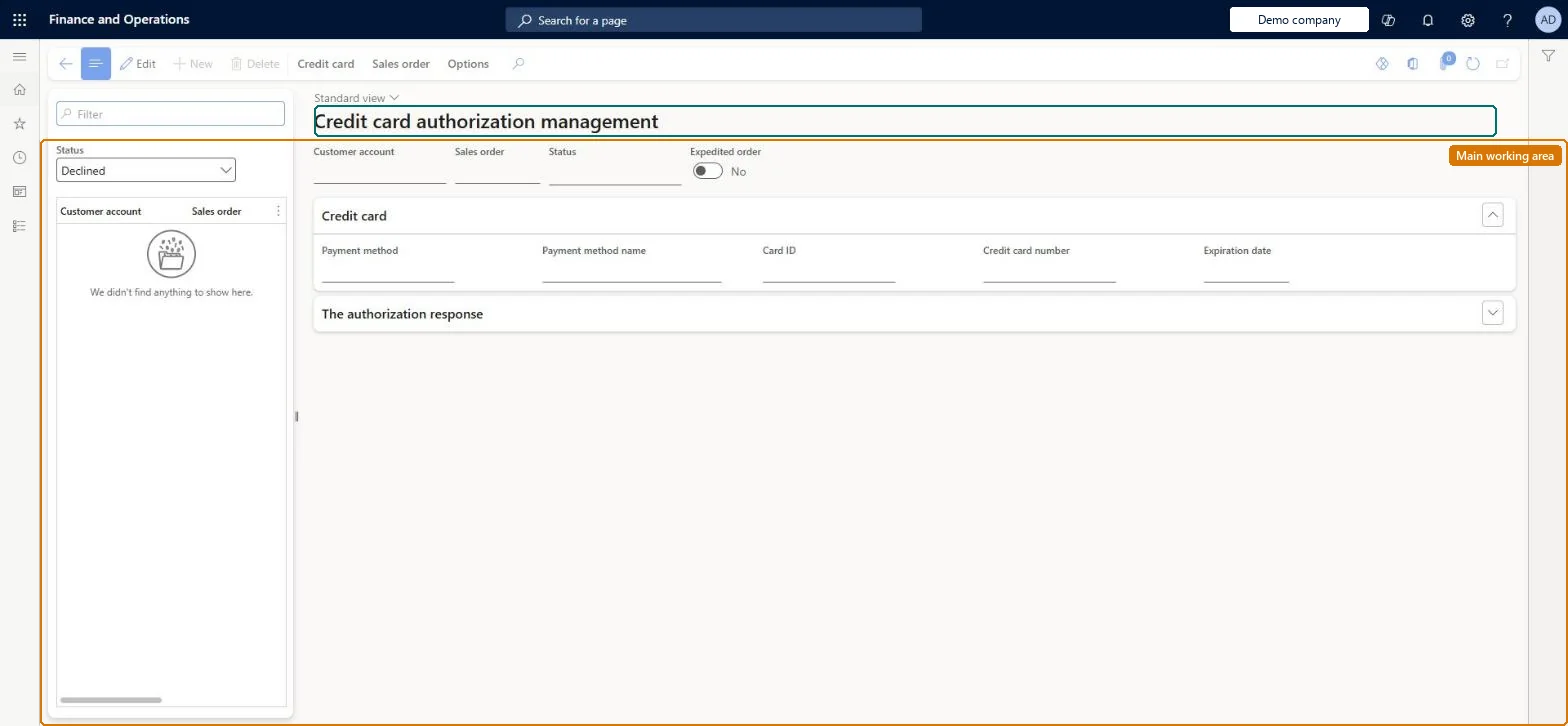
A work-queue page listing installment-billing credit card payments that the processor could not authorize, including those that hit the reauthorization limit, so that a sales manager can manually authorize, resubmit or decline them.
Retail and CommerceChannelsCall centersCall center credit cards
MCRCCAuthManagement_Installment
Used by
Sales clerk
Business process
Record credit or debit card payments on call center orders in Dynamics 365 Commerce
Menu item
MCRCCAuthManagement_Installment
Main table
MCRCustPaymTable
Data entity
MCRSalesOrderCustomerPaymentEntity
Show what matters for
PAGE GUIDEWhat the page does and how to use it7 sections. Choose a role to highlight what matters to you.
Everyone
1What it is and why
What it is
A work-queue page listing installment-billing credit card payments that the processor could not authorize, including those that hit the reauthorization limit, so that a sales manager can manually authorize, resubmit or decline them.
What you do here
Use this page to handle installment payments on the Pending authorization and Declined tabs: enter an authorization code obtained from the payment service, resubmit the payment with Process, or decline it with a reason code, and open the sales order to correct card details.
Example
For example, when the monthly installment on a 12-payment plan is declined three times and the reauthorization limit is 3, the payment appears here for a manager to call the customer and re-process with a new card.
The page in Dynamics 365. page title tab to open what to set or check
About the examples: Examples and screenshots in this guide use BEAT, a demo company in a Dynamics 365 test environment. Use your own company's codes and values instead of copying them.
Steps from Microsoft
Go to Retail and Commerce > Channels > Call centers > Call center credit cards > Installment payments authorization.
On the Pending authorization tab, select the payment.
Select Manually authorize and enter the authorization code, or Process to resubmit, or Manually decline and enter a decline reason code.
On the Declined tab, select Process to resubmit or Manually decline.
If the card details were wrong, select Sales order to change the payment information.
Manually authorizing or processing an installment payment settles that installment; if Accelerate payments is on, reaching the reauthorization limit makes the whole remaining balance due. Microsoft Learn
Technical architect
5Technical
Menu item
MCRCCAuthManagement_InstallmentChecked in Dynamics 365
Form
MCRCCAuthManagementChecked in Dynamics 365
Table
MCRCustPaymTableShown as “CUSTOMER PAYMENTS” in Record infoChecked in Dynamics 365
Data entities
MCRSalesOrderCustomerPaymentEntityCustomer payments Checked in Dynamics 365