About the examples: Examples and screenshots in this guide use BEAT, a demo company in a Dynamics 365 test environment. Use your own company's codes and values instead of copying them.
When to run it
When to run it
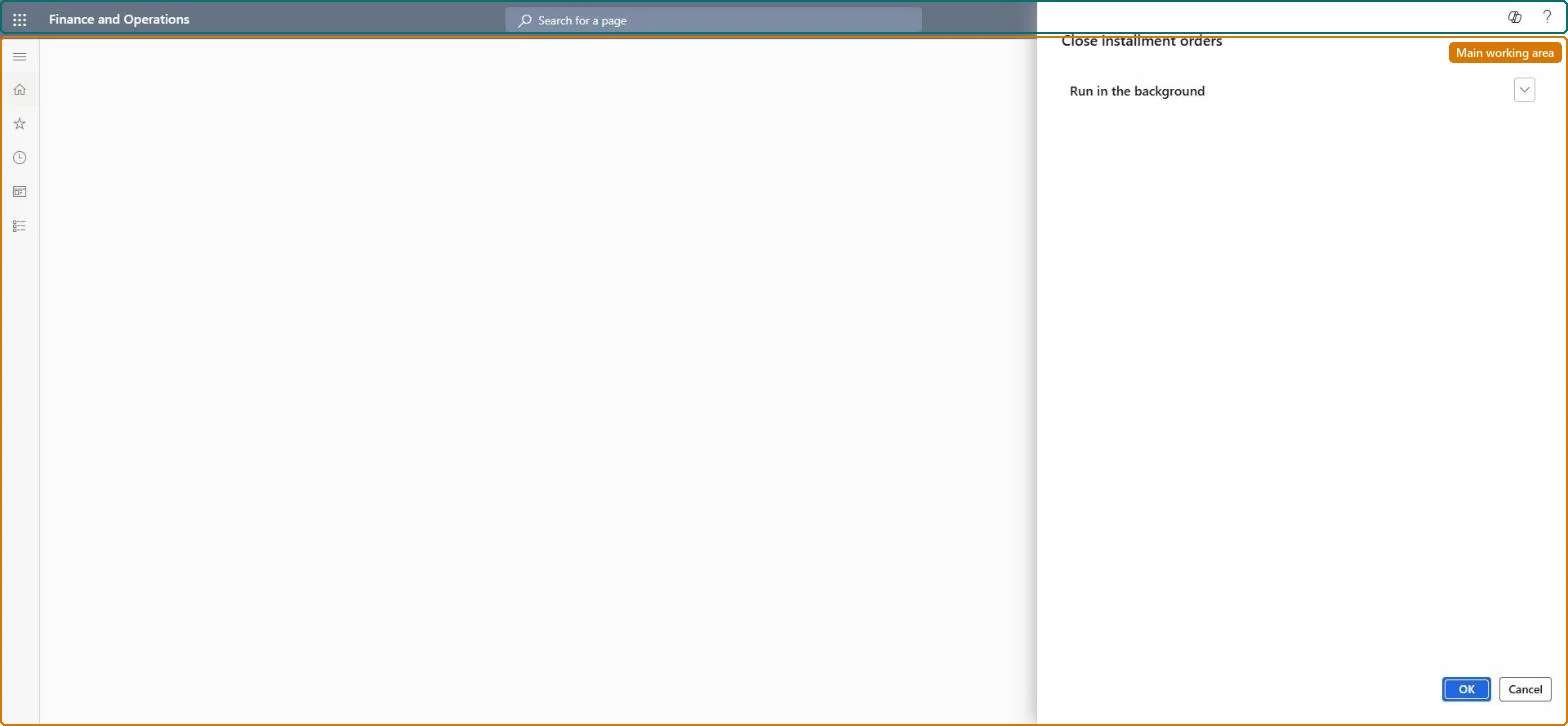
After installment payments have been processed, to close in one run every installment-billing sales order whose installments are all complete.
How often
On demand, after each run of Process installment payments.
Batch settings
Run it as a batch job after the installment payment run, so all completed installment orders are closed together.
What the output shows
Installment-billing sales orders whose installment payments are all processed are closed. An order that stays open usually still has an unprocessed installment.
Go to Retail and Commerce > Retail and Commerce IT > Installment > Close installment orders.
Make sure the installment payments of the orders have been processed first, for example with Process installment payments. Only orders where every installment payment is complete are closed.
Set the options for batch processing if the job should run unattended.
Run the job, then open a few installment-billing sales orders and check that fully paid ones are closed and orders with open installments are still open.
No: Closed installment orders aren't reopened by the job. Run it only after the installment payments are processed. Microsoft Learn
If you change it later
Closes installment-billing sales orders whose installment payments are all processed. Microsoft Learn
Technical architect
5Technical
Menu item
MCRCloseInstallmentPlansChecked in Dynamics 365
Form
DialogChecked in Dynamics 365
Roles to set it up and use it
To use itSales manager TradeSalesManagerSales clerk TradeSalesClerkGive people one of these roles. On this system, 2 roles can run this page.Checked in Dynamics 365