BeyondERP.Newsletter
Menu

Master data page · Procurement and sourcing

Category requests

A list page where procurement staff review requests from vendors to add procurement categories to their vendor account.

Used by
Purchasing agent, Purchasing Agent - Public Sector, Vendor account manager and 1 more role
Business process
Manage supplier relationships
Menu item
VendVendorRequestNewCategoryForm
Main table
VendVendorRequestNewCategory
Show what matters for
PAGE GUIDEWhat the page does and how to use it7 sections. Choose a role to highlight what matters to you.
Everyone

1What it is and why

What it isA list page where procurement staff review requests from vendors to add procurement categories to their vendor account.
What you do hereUse this page to approve, reject or delegate category requests that vendors submit.
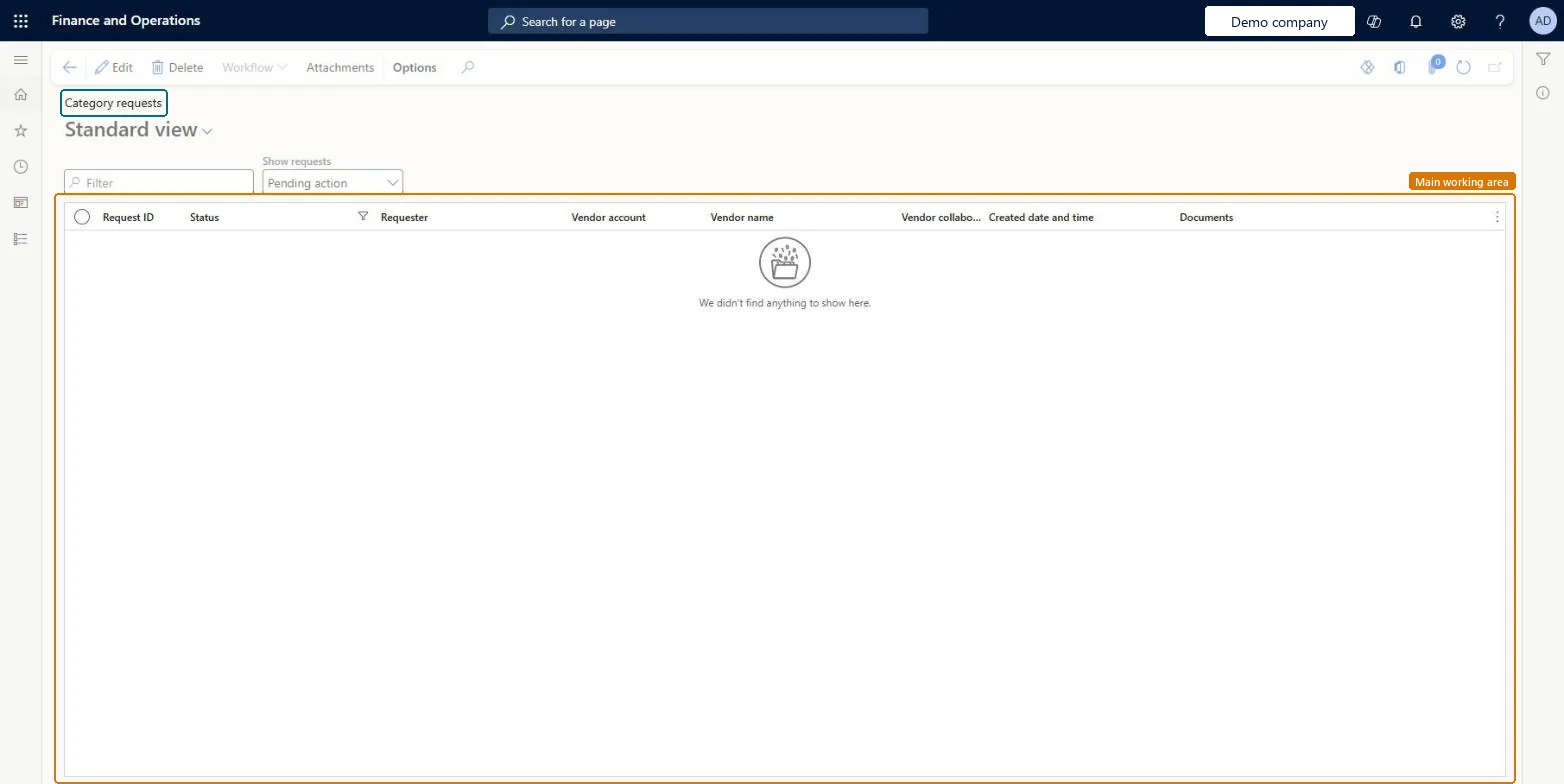
Category requests page in Dynamics 365
The page in Dynamics 365. page title tab to open what to set or check
Functional consultant · Solution architect

2Where it fits

Business processManage supplier relationships
Menu pathProcurement and sourcing › Vendors › Vendor collaboration requests › Category requests
Set up firstProcurement and sourcing workflows Microsoft Learn Vendor collaboration users Microsoft Learn
Used next byAll vendors Microsoft Learn
Related pagesProcurement categories Microsoft Learn
End user · Functional consultant

3How to do it

About the examples: Examples and screenshots in this guide use BEAT, a demo company in a Dynamics 365 test environment. Use your own company's codes and values instead of copying them.

Steps from Microsoft

  1. Go to Procurement and sourcing > Vendors > Vendor collaboration requests > Category requests.
  2. Select the pending request to approve.
  3. Review the requested categories and any attachments.
  4. Optionally, on the General FastTab, select a Reason code and enter a Reason comment.
  5. On the Action Pane, select Workflow, and then select Approve.
  6. Enter a comment and select Approve to complete the request.

Source: Microsoft Learn

Fields on the page

FieldWhat it means
Show requestsFilters the list; by default it shows requests with the status Pending action.Microsoft Learn
Reason codeA reason for approving or rejecting the request, with an optional comment.Microsoft Learn
Requested categoriesThe FastTab that lists the procurement categories in the request.Microsoft Learn

Test checklist

  1. Create and activate a Vendor category request workflow on Procurement and sourcing workflows.
  2. Sign in as a vendor user with the Vendor admin (external) role and submit a category request from the Vendor information workspace.
  3. On Category requests set Show requests to All, open the request, add a Reason code and approve it through the workflow.
  4. Check the status is Approved and the category now appears on the vendor's Categories page.

Source: Microsoft Learn

Solution architect

4Design impact

Can it be undoneReversible: Approving a request adds the procurement categories to the vendor account. You can change them afterwards on the Procurement FastTab of the vendor's Categories page, for example setting Vendor category status to Preferred. Microsoft Learn
Technical architect

5Technical

Menu itemVendVendorRequestNewCategoryForm Checked in Dynamics 365
FormVendRequestNewCategory Checked in Dynamics 365
TableVendVendorRequestNewCategoryShown as “New categories requested by vendors” in Record infoChecked in Dynamics 365
Who can open itPrivilegesMaintain privilege for vendor category requests VendVendorRequestNewCategoryMaintainDutiesMaintain vendor request VendVendorRequestMaintain
4 security rolesPurchasing manager TradePurchasingManagerPurchasing agent VendPurchasingAgentPurchasing Agent - Public Sector VendPurchasingAgent_PSNVendor account manager VendVendorAccountManager
Checked in Dynamics 365
Roles to set it up and use itTo set it up or change itPurchasing manager TradePurchasingManagerPurchasing agent VendPurchasingAgentPurchasing Agent - Public Sector VendPurchasingAgent_PSNVendor account manager VendVendorAccountManagerGive people one of these roles. On this system, 4 roles can open this page.Checked in Dynamics 365
Actions on the pageOptions: Personalize, Page options, ShareChecked in Dynamics 365
Developer

6Developer

Open it by URLhttps://<your-environment>/?mi=VendVendorRequestNewCategoryForm
Everyone

7Sources