Accounts payable manager, Vendor account manager, Accounting supervisor and 4 more roles
Business process
Define the review and approval process for purchase orders using workflow in Dynamics 365 Supply Chain Management
Menu item
WorkflowConfigurationPurch
Main table
WorkflowTable
Setup steps
1 on this page
Show what matters for
PAGE GUIDEWhat the page does and how to use it8 sections. Choose a role to highlight what matters to you.
Everyone
1What it is and why
What it is
A setup page where you create approval workflows for purchase requisitions, purchase orders and vendor requests.
What you do here
Use this page to make sure purchase documents are reviewed and approved by someone other than the person who entered them.
Example
For example, a requisition for posters and T-shirts for a marketing campaign can be routed line by line, so each department manager reviews only its own costs.
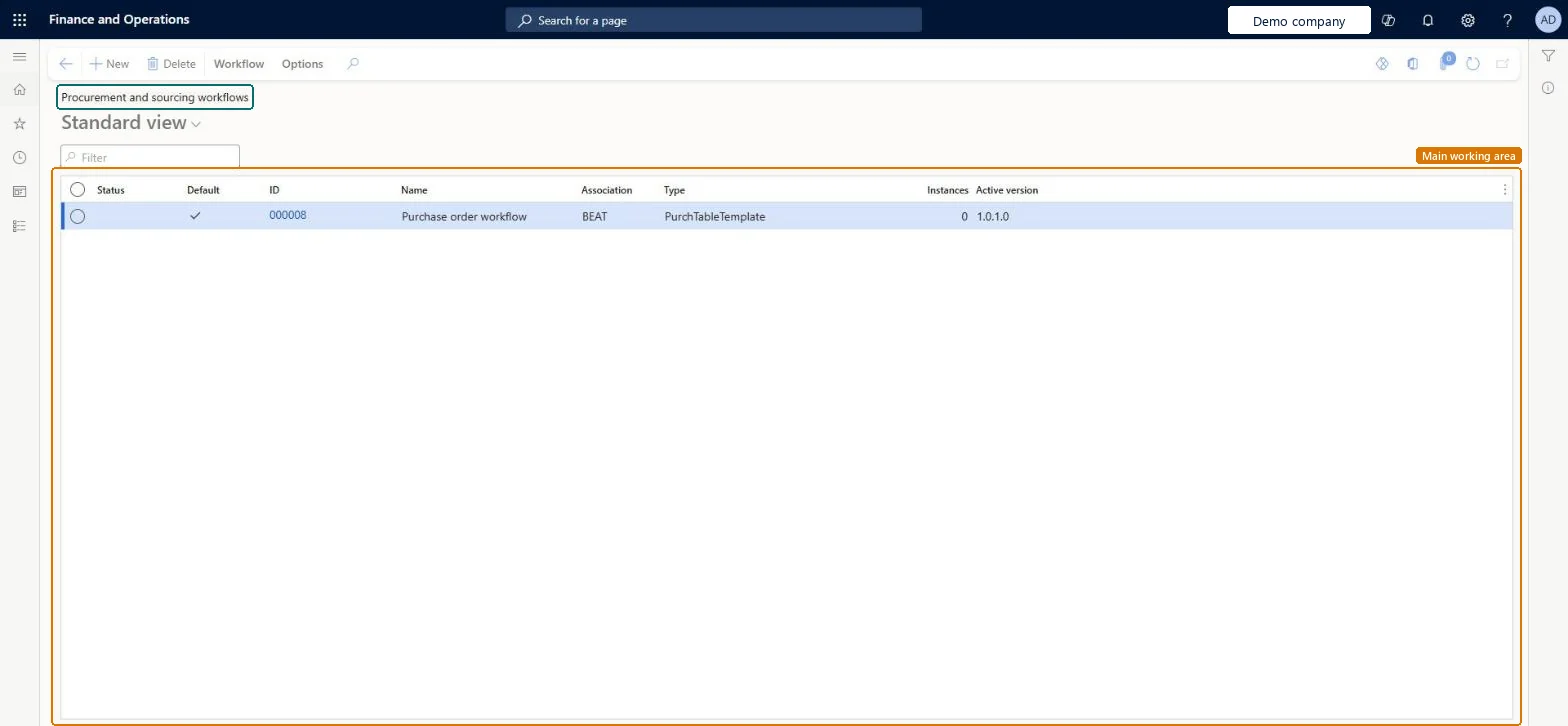
The page in Dynamics 365. page title tab to open what to set or check
About the examples: Examples and screenshots in this guide use BEAT, a demo company in a Dynamics 365 test environment. Use your own company's codes and values instead of copying them.
Setup steps on this page
Set up Procurement and sourcing workflows
Use this page to make sure purchase documents are reviewed and approved by someone other than the person who entered them.
Steps from Microsoft
Go to Procurement and sourcing > Setup > Procurement and sourcing workflows.
Create a new workflow and select the type of workflow you want.
In the workflow canvas, drag workflow elements into the designer and link them into a flow.
Configure each approval and task element, including which participants should take action.
Use only the supported types: Purchase requisition review, Purchase requisition line review, Purchase order workflow, Purchase order line workflow and Vendor add application workflowThese are the workflow types Learn lists for Procurement and sourcing, and approvals can be assigned by participant, hierarchy, workflow user, queue or user.
Picking one of the obsolete types that still show in the Create workflow dialog, such as Delivery due date notification workflow or Invoice received notification workflow. They belong to deprecated confirmation-of-receipt functionality and are unsupported.
Solution architect
5Design impact
Can it be undone
Reversible: You can create a new workflow version and activate it or not; documents are routed by the active version. Microsoft Learn
If you change it later
Some older workflow types still appear in the Create workflow dialog but are obsolete and not supported. Microsoft Learn
Technical architect
6Technical
Menu item
WorkflowConfigurationPurchChecked in Dynamics 365
Form
WorkflowTableListPageRnrChecked in Dynamics 365
Table
WorkflowTableShown as “Workflow configurations” in Record infoKey field: SequenceNumberChecked in Dynamics 365
Who can open it
PrivilegesMaintain purchase requisition process PurchReqPurchasingProcessEnableAuthor Purchasing workflows WorkflowAuthorPurchWorkflowsAuthor Vendor management workflows WorkflowAuthorVendWorkflowsDutiesEnable purchasing process ProcPurchasingProcessEnableRental purchasing manager workflow RentalPurchasingMgrWorkflowEnable invoice and payment process VendInvoiceInvoicePaymentProcessEnableEnable vendor process VendVendorProcessEnableMaintain workflow and alerts settings WorkflowAlertsSettingsMaintain7 security rolesAccounting supervisor LedgerAccountingSupervisorRental manager RentalManagerRental purchasing manager RentalPurchasingManagerInformation technology manager SysServerITManagerPurchasing manager TradePurchasingManagerAccounts payable manager VendInvoiceAccountsPayableManagerVendor account manager VendVendorAccountManagerChecked in Dynamics 365
Roles to set it up and use it
To set it up or change itPurchasing manager TradePurchasingManagerAccounts payable manager VendInvoiceAccountsPayableManagerRental manager RentalManagerRental purchasing manager RentalPurchasingManagerInformation technology manager SysServerITManagerGive people one of these roles. On this system, 7 roles can open this page.Checked in Dynamics 365
Actions on the page
Workflow: Manage, HierarchyOptions: Personalize, Page options, ShareChecked in Dynamics 365