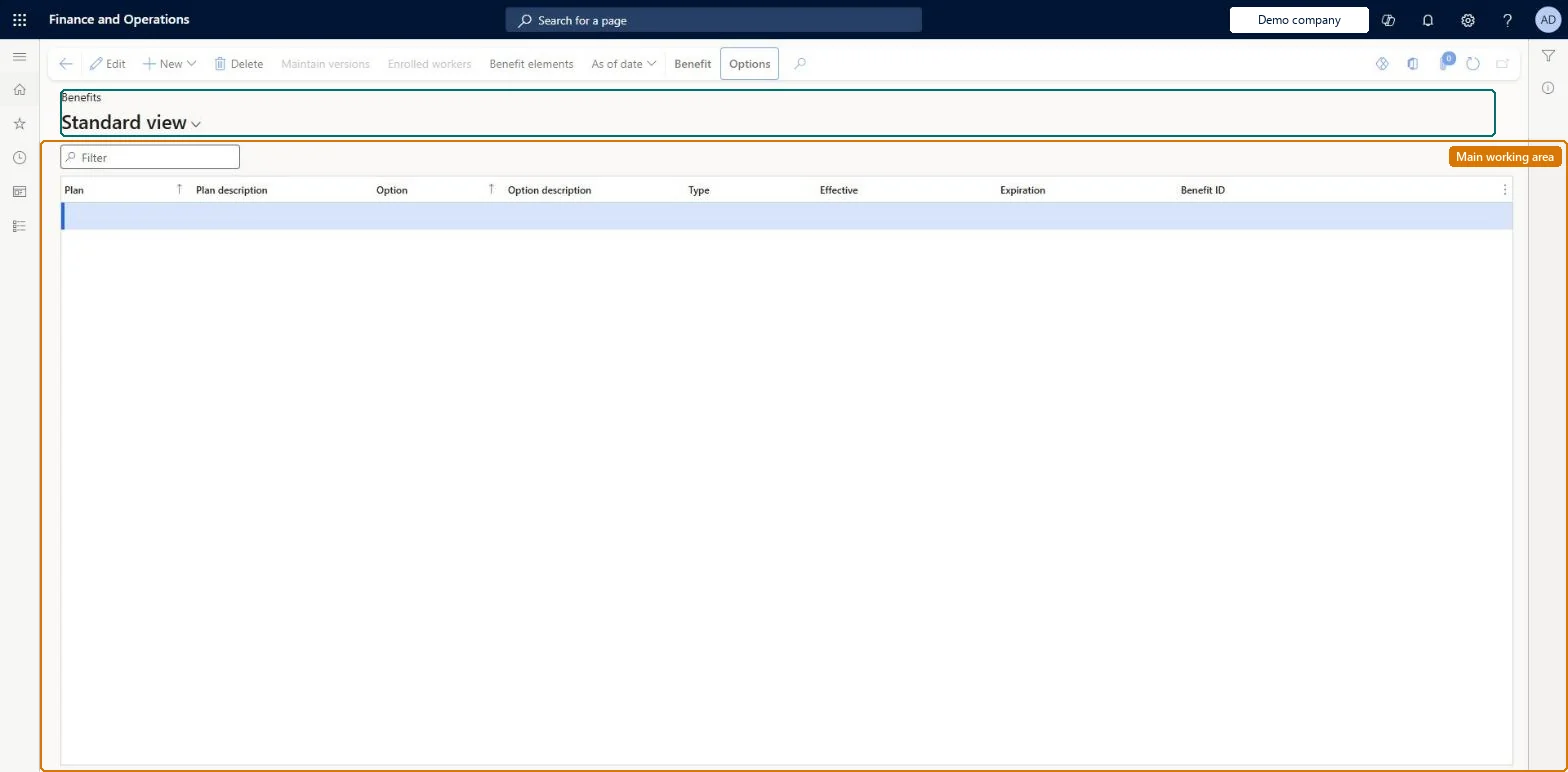
A list and details page where you keep the benefits your organisation offers, each one a combination of a benefit plan and a coverage option that workers can enrol in.
Compensation and benefits manager, Human resource assistant, Human resource manager and 3 more roles
Business process
Develop people strategy
Menu item
HcmBenefitList
Main table
HcmBenefit
Data entity
HcmBenefitEntity
Setup steps
1 on this page
Show what matters for
PAGE GUIDEWhat the page does and how to use it8 sections. Choose a role to highlight what matters to you.
Everyone
1What it is and why
What it is
A list and details page where you keep the benefits your organisation offers, each one a combination of a benefit plan and a coverage option that workers can enrol in.
What you do here
Use this page to create benefits from benefit plans and options, set the dates they are available, and decide how eligibility is determined, for example by assigning an eligibility rule type.
Example
For example, a company that offers parking passes to all employees can set the parking benefit's eligibility to All workers are eligible.
The page in Dynamics 365. page title tab to open what to set or check
About the examples: Examples and screenshots in this guide use BEAT, a demo company in a Dynamics 365 test environment. Use your own company's codes and values instead of copying them.
Setup steps on this page
Set up Benefits
Use this page to create benefits from benefit plans and options, set the dates they are available, and decide how eligibility is determined, for example by assigning an eligibility rule type.
Steps from Microsoft
Go to Payroll > Setup > Benefits > Benefits.
Find and select the benefit you want, and open it.
Expand the Eligibility rules section.
Select Edit.
In the Eligibility field, select the eligibility method.
In the Rule type field, select the rule type you created earlier.
Rule based eligibility for most benefits; All workers are eligible only for benefits everyone gets (for example parking); Bypass eligibility process only for garnishments and tax levies.Learn says Rule based is the method used for most benefits. All workers are eligible still limits enrollment to processed eligibility events, while Bypass eligibility process lets anyone be enrolled at any time.
Hard to reverse: Payroll FastTab values are only defaults for each worker's enrollment on Maintain benefits. Mass benefit expiration or extension changes the benefit and the enrolled workers' coverage dates together. Microsoft Learn
If you change it later
Changing a benefit's expiration date through mass benefit expiration also changes the coverage end dates of the workers enrolled in it. Microsoft Learn
Technical architect
6Technical
Menu item
HcmBenefitListChecked in Dynamics 365
Form
HcmBenefitChecked in Dynamics 365
Table
HcmBenefitShown as “BENEFIT” in Record infoKey field: BenefitIdChecked in Dynamics 365
Data entities
HcmBenefitEntityBenefit Checked in Dynamics 365
Who can open it
PrivilegesMaintain benefits HcmBenefitInquiryMaintainView a list of benefits HcmBenefitInquiryViewAccess benefits workspace HcmBenefitWorkspaceDutiesInquire into benefits process HcmBenefitInquireEnable benefits process HcmBenefitProcessEnableAccess benefits workspace HcmBenefitWorkspaceMaintain worker master HcmWorkerMaintainInquire into payroll master data PayrollMasterDataInquireSet up payroll master data PayrollMasterDataMaintainInquire into payroll position and worker setup PayrollPositionWorkerSetupInquireSet up payroll positions and workers PayrollPositionWorkerSetupMaintain6 security rolesCompensation and benefits manager HcmCompensationAndBenefitsManagerHuman resource assistant HcmHumanResourceAssistantHuman resource manager HcmHumanResourceManagerPayroll administrator HcmPayrollAdministratorPayroll manager HcmPayrollManagerRecruiter HcmRecruiterChecked in Dynamics 365
Roles to set it up and use it
To set it up or change itPayroll administrator HcmPayrollAdministratorCompensation and benefits manager HcmCompensationAndBenefitsManagerTo use itPayroll manager HcmPayrollManagerRecruiter HcmRecruiterHuman resource assistant HcmHumanResourceAssistantHuman resource manager HcmHumanResourceManagerGive people one of these roles. On this system, 6 roles can open this page.Checked in Dynamics 365
Actions on the page
Benefit: Personnel actions(Action Pane without tabs): New, Delete, Maintain versions, Enrolled workers, Benefit elements, As of dateChecked in Dynamics 365
Developer
7Developer
Open it by URL
https://<your-environment>/?mi=HcmBenefitList
Integrate with
HcmBenefitEntity data entity Checked in Dynamics 365