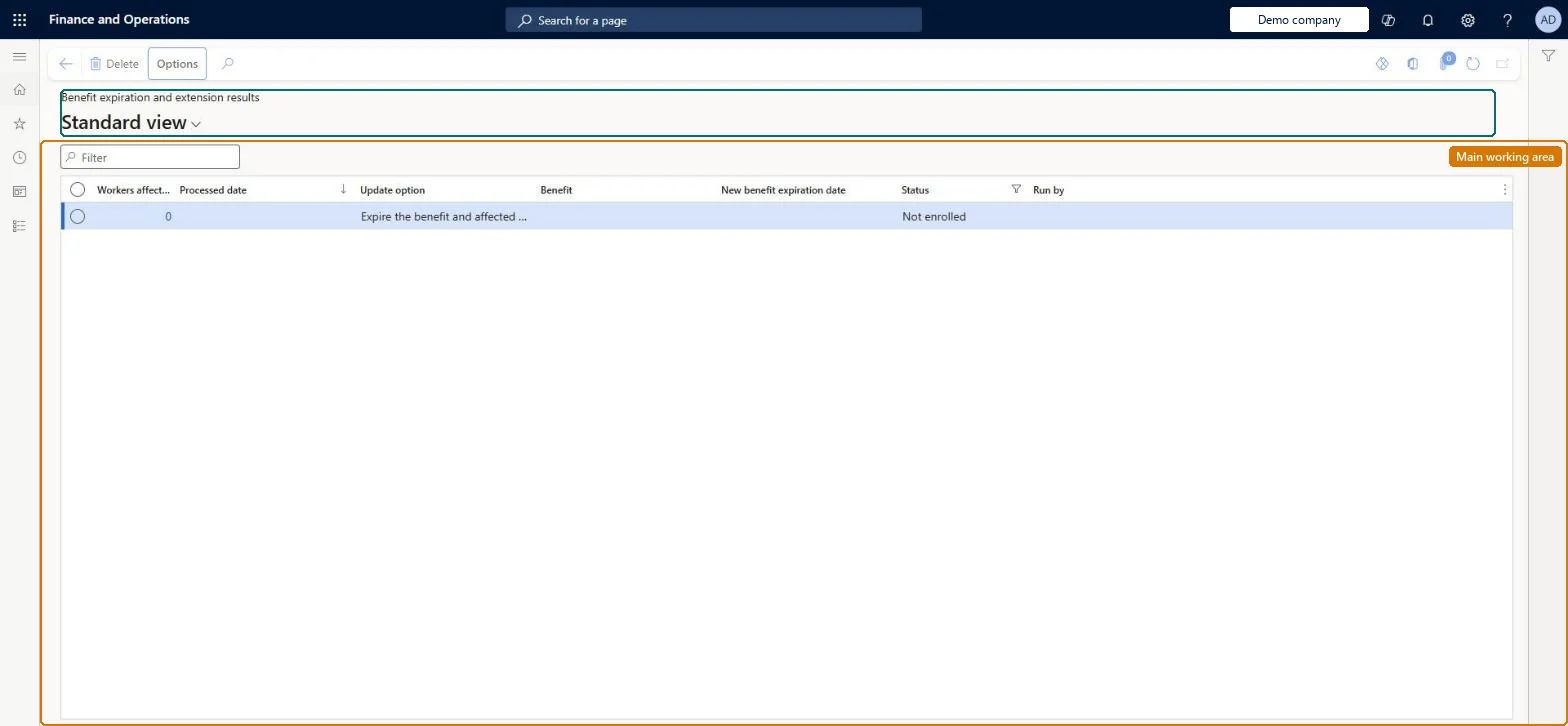
An inquiry page that shows the results of a mass benefit expiration or extension, which changes a benefit's expiration date and the related worker coverage end dates together.
Compensation and benefits manager, Payroll administrator
Business process
Manage benefits enrollment
Menu item
HcmMassBenefitExpirationResult
Main table
HcmBenefitExpirationGrou
Data entity
HcmBenefitExpirationGroupEntity
Setup steps
1 on this page
Show what matters for
PAGE GUIDEWhat the page does and how to use it8 sections. Choose a role to highlight what matters to you.
Everyone
1What it is and why
What it is
An inquiry page that shows the results of a mass benefit expiration or extension, which changes a benefit's expiration date and the related worker coverage end dates together.
What you do here
Use this page after a mass expiration or extension to check that all changes were made; the results can be exported to Excel.
Example
For example, BEAT stops offering Vision basic and expires it on 31 December 2026; the result row shows 22 workers affected, and the coverage end date on each of their Benefits pages is now 12/31/2026.
The page in Dynamics 365. page title tab to open what to set or check
About the examples: Examples and screenshots in this guide use BEAT, a demo company in a Dynamics 365 test environment. Use your own company's codes and values instead of copying them.
Setup steps on this page
Check every benefit expiration or extension
Confirm a mass expiration or extension reached every enrolled worker.
Steps from Microsoft
Go to Human resources > Benefits > Enrollment > Benefit expiration and extension results.
Use the Filter box to narrow the list.
Review the Workers affected, Processed date, Update option, Benefit, New benefit expiration date, Status and Run by columns.
The benefit the expiration or extension was run for.Microsoft Learn
Vision basic
New benefit expiration date
The expiration date entered in Expire or extend benefits; it becomes the benefit's expiration date and the enrolled workers' coverage end date.Microsoft Learn
12/31/2026
Workers affected
Opens the workers whose enrollments the run changed.Microsoft Learn
22
Processed date
The date the run was processed.Checked in Dynamics 365
11/9/2026
Run by
The user who ran the expiration or extension.Checked in Dynamics 365
Admin
Common errors and fixes
Message
What to do
A worker still shows the old coverage end date
Open Workers affected for the run and check the worker is listed. If not, change the coverage end date on the worker's Benefits page or run Expire or extend benefits again for the benefit. Microsoft Learn
The page opens read-only and Edit isn't available
Benefits management is turned on, which makes the legacy Benefits pages read-only. It can be turned off only in a Sandbox environment; in Production keep working in the Benefits management workspace. Microsoft Learn
Test checklist
On Benefits, select a benefit with enrolled workers and select Expire or extend benefits.
Enter a new benefit expiration date and select Expire.
Open Benefit expiration and extension results and select Workers affected.
Open one affected worker's Benefits and check the new coverage end date.
Filter on the benefit, open Workers affected for the latest run and compare the count with the benefit's Enrolled workers before the run.Mass expiration changes the benefit and its workers' enrollments together, so the worker list is the evidence of what changed.
This page is part of the legacy Benefits workspace. Turning on Benefits management in Feature management makes it read-only, and in a Production environment Benefits management can't be turned off again; Microsoft recommends enabling and testing it in a Sandbox first. Compensation and benefits managers and payroll administrators run expirations and read the results.
Shared: the results are not per company. Data management lists the Benefit expiration group entity as shared, like the benefits it changes. Checked in Dynamics 365
Can it be undone
Hard to reverse: Expiring a benefit changes the benefit's expiration date and enrolled workers' coverage end dates together. A mass extension can move the dates out again, but you should check each affected worker afterwards. Microsoft Learn
If you change it later
A mass expiration or extension changes the benefit's expiration date and the enrollments of its workers together; this page lists what each run changed, worker by worker. Microsoft Learn
Technical architect
6Technical
Menu item
HcmMassBenefitExpirationResultChecked in Dynamics 365
Form
HcmMassBenefitExpirationResultsChecked in Dynamics 365
Table
HcmBenefitExpirationGrouShown as “BENEFIT EXPIRATION GROUP” in Record infoChecked in Dynamics 365
Data entities
HcmBenefitExpirationGroupEntityBenefit expiration group HcmBenefitExpirationResultEntityBenefit expiration result (The workers affected by each run.)
Who can open it
PrivilegesMaintain the expiration date of benefits and worker enrollments HcmMassBenefitExpirationMaintainDutiesEnable benefits process HcmBenefitProcessEnable2 security rolesCompensation and benefits manager HcmCompensationAndBenefitsManagerPayroll administrator HcmPayrollAdministratorChecked in Dynamics 365
Roles to set it up and use it
To set it up or change itCompensation and benefits manager HcmCompensationAndBenefitsManagerPayroll administrator HcmPayrollAdministratorGive people one of these roles. On this system, 2 roles can open this page.Checked in Dynamics 365
Actions on the page
(Action Pane without tabs): DeleteChecked in Dynamics 365
HcmBenefitExpirationGroupEntity Benefit expiration group: one row per run. Shared by all companies.HcmBenefitExpirationResultEntity Benefit expiration result: the workers affected.HcmBenefitExpirationStatusEntity Benefit expiration status.Load order: Load in the order of the Legacy benefits template: Benefit expiration group, Benefit expiration result, Benefit expiration status, after the benefits and the worker enrollments.Load first: HcmBenefitEntityMicrosoft Learn