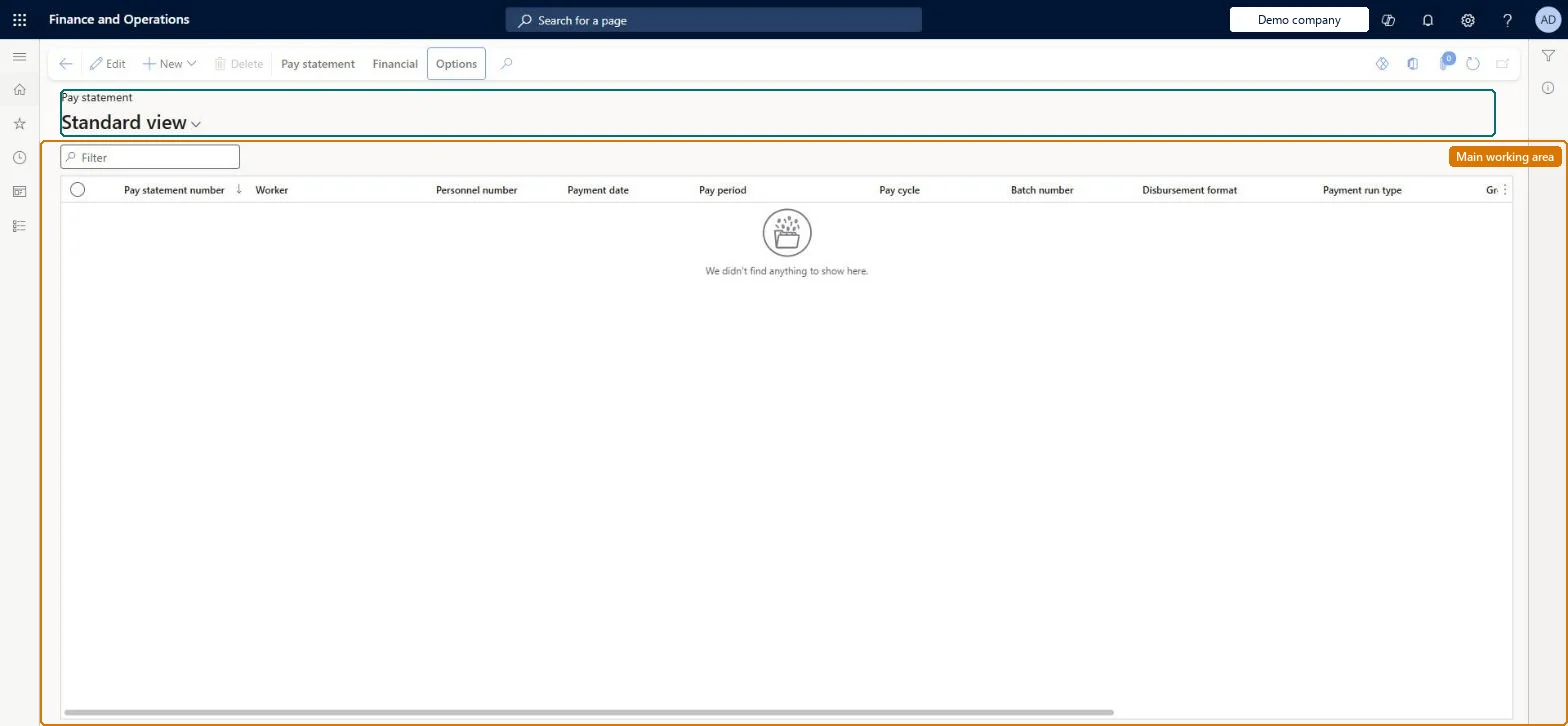
A list page that shows every pay statement, where each statement holds the earnings, benefit and tax calculations and net pay for a worker and pay period.
PAGE GUIDEWhat the page does and how to use it8 sections. Choose a role to highlight what matters to you.
Everyone
1What it is and why
What it is
A list page that shows every pay statement, where each statement holds the earnings, benefit and tax calculations and net pay for a worker and pay period.
What you do here
Use this page to review, change, recalculate, delete, reverse and print pay statements.
Example
For example, you open a pay statement, remove an earning line that belongs to the next period and recalculate it.
The page in Dynamics 365. page title tab to open what to set or check
About the examples: Examples and screenshots in this guide use BEAT, a demo company in a Dynamics 365 test environment. Use your own company's codes and values instead of copying them.
Steps from Microsoft
Go to Payroll > Pay statements > All pay statements.
Open the pay statement, and then select Edit.
Select the earning lines to remove, and then select Remove.
New records on this page take their Pay statement number from the PayrollPayStatementId reference; BEAT uses number sequence Payr_7. Checked in Dynamics 365
Hard to reverse: A pay statement can be deleted only while it is not posted, not submitted and not paid; deleting keeps its earnings lines and deletes the arrearages it created. After posting, submitting or payment it must be reversed. Earning lines cannot be added or changed on a pay statement: delete it, fix the earnings statement, and generate again. Microsoft Learn
If you change it later
A changed pay statement must be recalculated before it can be submitted or posted; deleting one keeps its earnings lines for a new pay statement. Microsoft Learn
Technical architect
6Technical
Menu item
PayrollPayStatementListPageChecked in Dynamics 365
Form
PayrollPayStatementChecked in Dynamics 365
Table
PayrollPayStatementShown as “PAY STATEMENTS” in Record infoKey field: DocumentNumberChecked in Dynamics 365
To set it up or change itPayroll administrator HcmPayrollAdministratorTo use itPayroll manager HcmPayrollManagerGive people one of these roles. On this system, 2 roles can open this page.Checked in Dynamics 365
Actions on the page
Pay statementFinancial: Accounting, Budget(Action Pane without tabs): New, DeleteChecked in Dynamics 365