BeyondERP.Newsletter
Menu

Transaction page · Master planning

Planned orders

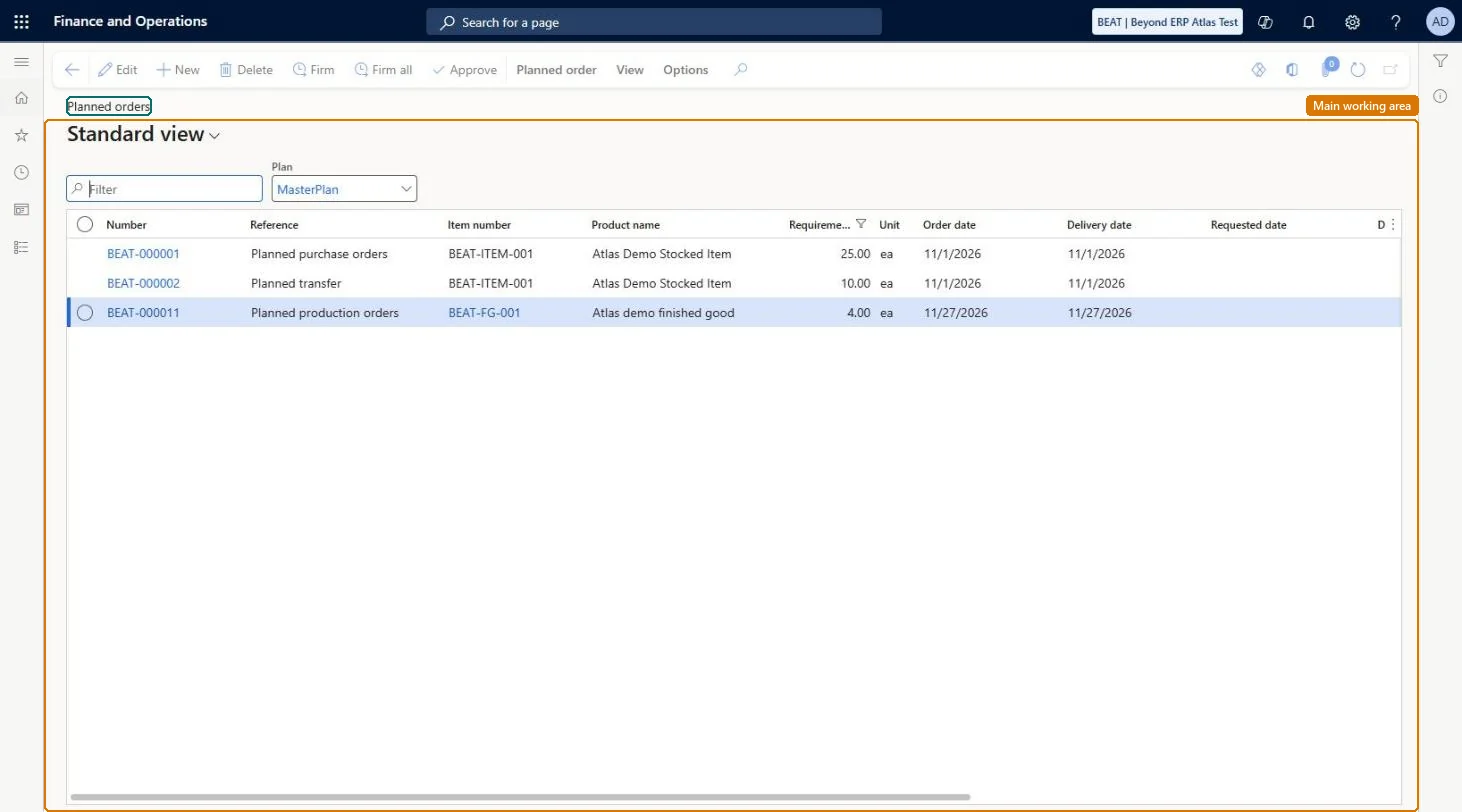
A list page that shows the planned purchase, production, and transfer orders that master planning suggests.

Used by
Materials manager, Production manager, Production supervisor and 2 more roles
Business process
Execute sales and operations
Menu item
ReqPOGridView
Main table
ReqPO
Data entity
ReqDynamicPlanProductionOrderScheduleEntity
Show what matters for
PAGE GUIDEWhat the page does and how to use it7 sections. Choose a role to highlight what matters to you.
Everyone

1What it is and why

What it isA list page that shows the planned purchase, production, and transfer orders that master planning suggests.
What you do hereUse this page to review planned orders, change their status, and firm them so that they become real purchase, transfer, or production orders.
ExampleFor example, a planner filters the list for one plan and selects Firm all to firm every planned order that the filter shows in one step.
Planned orders page in Dynamics 365
The page in Dynamics 365. page title tab to open what to set or check
Functional consultant · Solution architect

2Where it fits

Business processExecute sales and operations
Menu pathMaster planning › Master planning › Planned orders
Set up firstMaster plans Microsoft Learn Coverage groups Microsoft Learn
Used next byFirming history Microsoft Learn
Related pagesSupply schedule Microsoft Learn
End user · Functional consultant

3How to do it

About the examples: Examples and screenshots in this guide use BEAT, a demo company in a Dynamics 365 test environment. Use your own company's codes and values instead of copying them.

Steps from Microsoft

  1. Go to Master planning > Master planning > Planned orders.
  2. Use the Filter field, the Plan field, and the column headings to find the planned orders.
  3. Select the check box for each planned order to firm, or skip this step to firm every order in the list.
  4. On the Action Pane, select Firm or Firm all.
  5. In the Firming dialog box, set the marking and grouping options on the Parameters FastTab.
  6. Select OK.

Source: Microsoft Learn

Fields on the page

FieldWhat it meansTable column
StatusTracks where each planned order is in your process: Unprocessed, Completed, or Approved.Microsoft Learn ReqPOStatus
Approved (status)Approved planned orders are treated as fixed supply and are kept by later planning runs.Microsoft Learn
Update markingIn the Firming dialog box, sets the inventory marking policy used when orders are firmed.Microsoft Learn
Group by vendorIn the Firming dialog box, combines planned purchase orders into one purchase order per vendor.Microsoft Learn
Parallelize firmingIn the Firming dialog box, runs firming of two or more selected orders in parallel to save time.Microsoft Learn
Solution architect

4Design impact

Shared or per companyPer company: each legal entity has its own records. Microsoft data model
If you change it laterEdits to planned orders that are not approved are overwritten by the next planning run, so approve any planned order you change. Microsoft Learn
Technical architect

5Technical

Menu itemReqPOGridView Checked in Dynamics 365
FormReqTransPo Checked in Dynamics 365
TableReqPOShown as “PLANNED ORDER” in Record infoKey field: RefIdChecked in Dynamics 365
Data entitiesReqDynamicPlanProductionOrderScheduleEntityPlanned production orders schedule Microsoft data model
Who can open itPrivilegesMaintain planned orders ReqPOMaintainView planned orders ReqPOViewDutiesInquire into planned orders ReqPlannedOrderProgressInquireMaintain planned orders ReqPlannedOrdersMaintain
5 security rolesMaterials manager InventMaterialsManagerProduction manager ProdProductionManagerProduction supervisor ProdProductionSupervisorProduction planner ReqProductionPlannerPurchasing manager TradePurchasingManager
Checked in Dynamics 365
Roles to set it up and use itTo set it up or change itProduction planner ReqProductionPlannerTo use itProduction manager ProdProductionManagerMaterials manager InventMaterialsManagerPurchasing manager TradePurchasingManagerProduction supervisor ProdProductionSupervisorGive people one of these roles. On this system, 5 roles can open this page.Checked in Dynamics 365
Actions on the pagePlanned order: Maintain, Selection list, Column display, Process, Planned order detailsView: Display, Related information, View, Requirements(Action Pane without tabs): Firm, Firm all, ApproveChecked in Dynamics 365
Developer

6Developer

Open it by URLhttps://<your-environment>/?mi=ReqPOGridView
Integrate withReqDynamicPlanProductionOrderScheduleEntity data entity Microsoft data model
Table definitionReqPO columns and relations Microsoft data model
Everyone

7Sources