Plan inbound transportation loads in Dynamics 365 Supply Chain Management
Menu item
ITMContainerActivityTracking
Main table
ITMContainerActivityTable
Data entity
ITMContainerActivityEntity
Show what matters for
PAGE GUIDEWhat the page does and how to use it6 sections. Choose a role to highlight what matters to you.
Everyone
1What it is and why
What it is
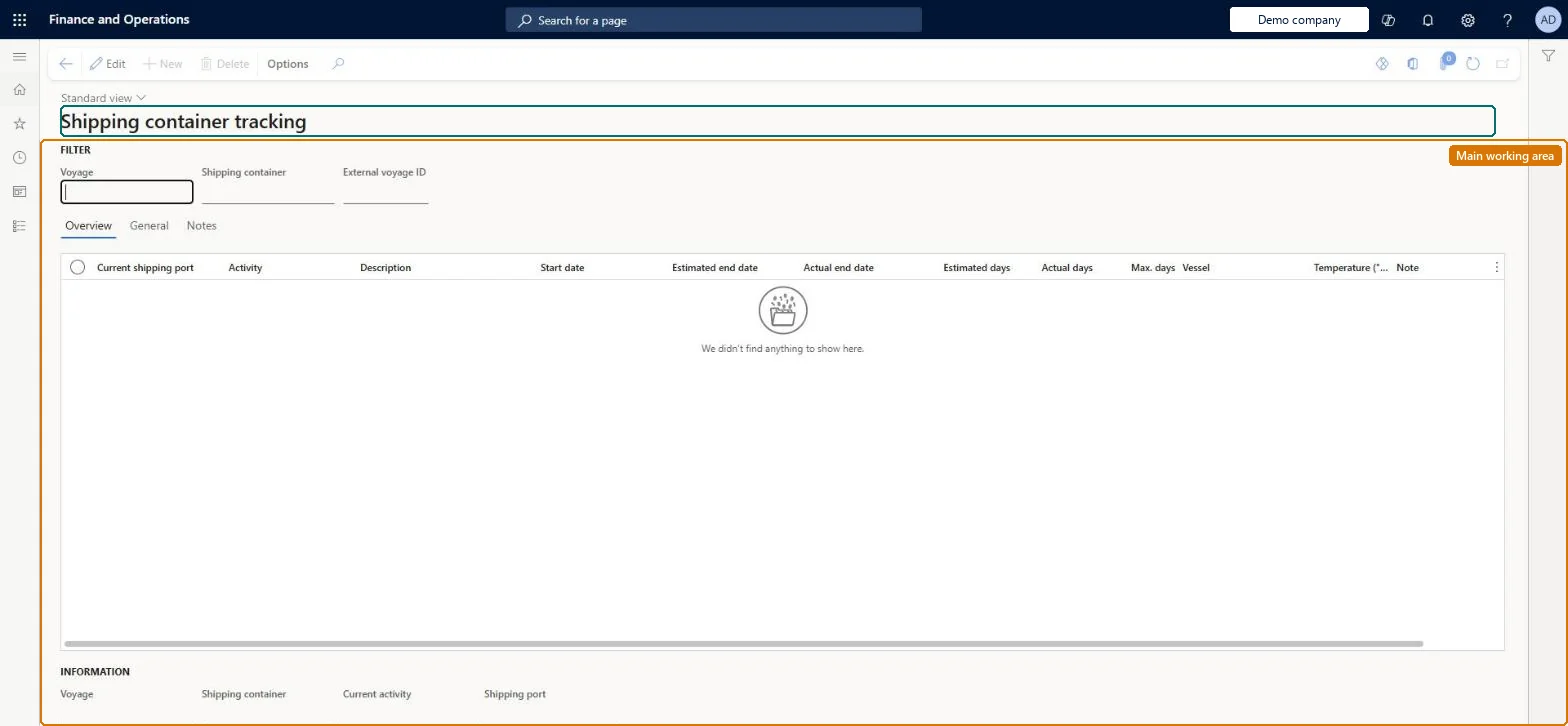
An inquiry where you find one shipping container, by voyage, container or external voyage ID, and follow its journey activity by activity.
What you do here
Use this page to see where a container is: each activity shows its port, start date, estimated and actual end dates, days and vessel, so you can tell whether each leg is on schedule.
Example
For example, when a buyer asks whether a container has left the port of loading, look it up here and compare the estimated and actual end dates of each activity.
The page in Dynamics 365. page title tab to open what to set or check
About the examples: Examples and screenshots in this guide use BEAT, a demo company in a Dynamics 365 test environment. Use your own company's codes and values instead of copying them.
How to use it
Go to Landed cost > Inquiries > Tracking > Individual shipping container tracking.
Under Filter, enter the Voyage, Shipping container or External voyage ID to look up.
Review the Overview grid: Current shipping port, Activity, Description, Start date, Estimated end date, Actual end date, Estimated days, Actual days, Max. days, Vessel, Temperature and Note for each activity of the journey of the container.
Open the General and Notes tabs for the details of the selected activity.
Read the Information section at the bottom: Voyage, Shipping container, Current activity and Shipping port.
Source: Checked in Dynamics 365
Technical architect
4Technical
Menu item
ITMContainerActivityTrackingChecked in Dynamics 365
Form
ITMContainerActivityTrackingChecked in Dynamics 365
Table
ITMContainerActivityTableShown as “SHIPPING CONTAINER ACTIVITIES” in Record infoKey field: ShipId, ShipContainerIdChecked in Dynamics 365
Data entities
ITMContainerActivityEntityShipping container activities Checked in Dynamics 365