Plan inbound transportation loads in Dynamics 365 Supply Chain Management
Menu item
ITMLine
Main table
ITMLine
Data entity
ITMPurchaseLinesEntity
Show what matters for
PAGE GUIDEWhat the page does and how to use it6 sections. Choose a role to highlight what matters to you.
Everyone
1What it is and why
What it is
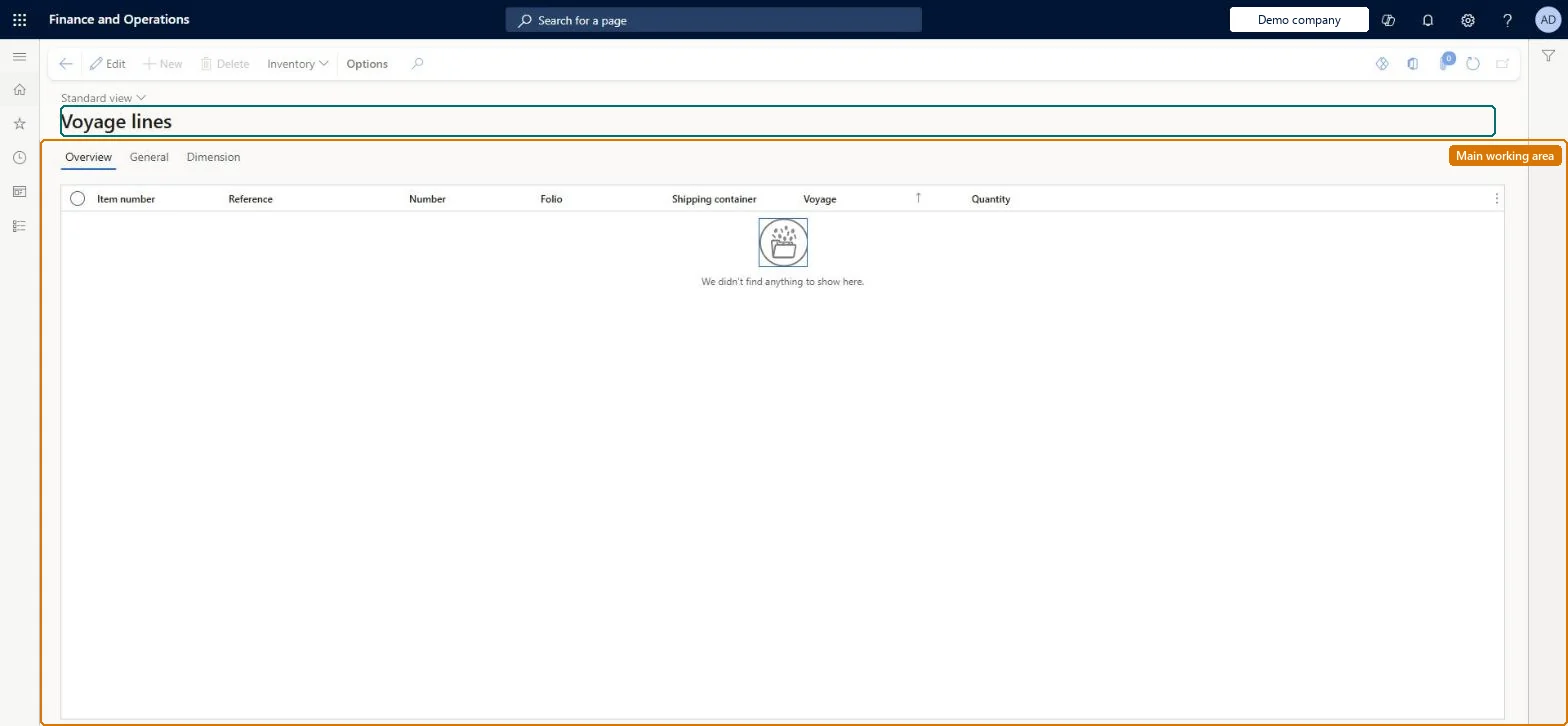
An inquiry page that lists every voyage line as it relates to inventory, showing the item, order, folio, shipping container, voyage, and quantity.
What you do here
Use this page to filter and find an item, purchase order, or other voyage detail, and to see the expected delivery date of an item that is on one or more voyages.
Example
For example, look up an item that is spread over several voyages to see when each quantity is expected so you can plan warehouse receiving.
The page in Dynamics 365. page title tab to open what to set or check
About the examples: Examples and screenshots in this guide use BEAT, a demo company in a Dynamics 365 test environment. Use your own company's codes and values instead of copying them.
Steps from Microsoft
Go to Landed cost > Inquiries > Voyage lines.
Select a voyage line in the grid.
Switch between the Overview, General, and Dimensions tabs to see details of the selected line.
Select Inventory > Display dimensions on the Action Pane to add dimension columns such as batch number, inventory status, or warehouse.
Select Costs inquiry on the Action Pane to review the cost details for the selected line.
To set it up or change itLanded cost agent ITMAgentTo use itLanded cost manager ITMManagerGive people one of these roles. On this system, 2 roles can open this page.Checked in Dynamics 365
Actions on the page
(Action Pane without tabs): InventoryChecked in Dynamics 365
Developer
5Developer
Open it by URL
https://<your-environment>/?mi=ITMLine
Integrate with
ITMPurchaseLinesEntity data entity Checked in Dynamics 365