BeyondERP.Newsletter
Menu

Setup step on the Zones page · Warehouse management

Set up Zones

Use this page to divide a warehouse into zones that warehouse processes can filter by.

Used by
Field Service Integration User, Production supervisor, Process engineer and 3 more roles
Business process
Manage warehouse operations
Menu item
WHSZone
Main table
WHSZone
Data entity
WHSWarehouseZoneEntity
Setup steps
1 on this page
Show what matters for
SETUP GUIDEHow to set it up8 sections. Choose a role to highlight what matters to you.
Everyone

1What it is and why

What it isA setup list where you define warehouse zones, which group locations within a warehouse and belong to a zone group.
What you do hereUse this page to divide a warehouse into zones that warehouse processes can filter by.
ExampleFor example, you can divide a warehouse into zones to accommodate storage needs such as temperature requirements or different turnover rates.
Zones page in Dynamics 365
The page in Dynamics 365. page title tab to open what to set or check
Functional consultant · Solution architect

2Where it fits

Business processManage warehouse operations
Menu pathWarehouse management › Setup › Warehouse › Zones
Set up firstWarehouse zone groups Microsoft Learn
Used next byWork templates Microsoft Learn
In this process Set up Carrier group · Set up Work processing policies
End user · Functional consultant

3How to do it

About the examples: Examples and screenshots in this guide use BEAT, a demo company in a Dynamics 365 test environment. Use your own company's codes and values instead of copying them.

Setup steps on this page

Set up Zones

Use this page to divide a warehouse into zones that warehouse processes can filter by.

Steps from Microsoft

  1. Go to Warehouse management > Setup > Warehouse > Zones.
  2. Select New.
  3. In the Zone ID field, enter an ID.
  4. In the Zone name field, enter a name.
  5. In the Zone group ID field, select the zone group the zone belongs to.

Source: Microsoft Learn

Test checklist

  1. Create a zone in a zone group.
  2. Assign it to locations through the Location setup wizard.
  3. Use the zone in a replenishment or work template query.
  4. Run the process and check only locations in the zone are used.

Source: Microsoft Learn

Functional consultant

4Setup decisions

Setup stepRecommended value and whyDecision, common mistake and test
Set up ZonesZones for physical areas with different storage needs, such as receiving, bulk, picking or temperature-controlled areas, with descriptive namesZones group locations for use in work template and replenishment queries, and descriptive names make them easy to pick out in those queries.Defining zones without thinking about the processes that will filter on them, which leads to complex template queries later.
Solution architect

5Design impact

Shared or per companyPer company: each legal entity has its own records. Microsoft data model
Can it be undoneReversible: Zones and their assignment to locations can be changed; queries using them follow the change.
Technical architect

6Technical

Menu itemWHSZone Checked in Dynamics 365
FormWHSZone Checked in Dynamics 365
TableWHSZoneShown as “WAREHOUSE ZONES” in Record infoKey field: ZoneIdChecked in Dynamics 365
Data entitiesWHSWarehouseZoneEntityWarehouse zones Microsoft data model
Who can open itPrivilegesMaintain zone information WHSZoneMaintainView zone information WHSZoneViewDutiesInquire into warehouse operation master WMSWarehouseOperationMasterInquireMaintain warehouse operation master WMSWarehouseOperationMasterMaintain
6 security rolesField Service Integration User FieldServiceIntegrationUserProduction supervisor ProdProductionSupervisorProcess engineer RouteProcessEngineerProcess engineering manager RouteProcessEngineeringManagerWarehouse planner WHSWarehousePlannerWarehouse manager WMSWarehouseManager
Checked in Dynamics 365
Roles to set it up and use itTo set it up or change itWarehouse manager WMSWarehouseManagerProcess engineer RouteProcessEngineerTo use itWarehouse planner WHSWarehousePlannerProduction supervisor ProdProductionSupervisorProcess engineering manager RouteProcessEngineeringManagerField Service Integration User FieldServiceIntegrationUserGive people one of these roles. On this system, 6 roles can open this page.Checked in Dynamics 365
Developer

7Developer

Open it by URLhttps://<your-environment>/?mi=WHSZone
Integrate withWHSWarehouseZoneEntity data entity Microsoft data model
Data migrationWHSWarehouseZoneEntity (Warehouse zones): loaded for each company, in Microsoft's default template 300 - Inventory.Load order: Microsoft's default template 300 - Inventory loads Warehouse zones at execution unit 1, level 30, sequence 20. Lower levels load first, and entities at the same level load in sequence order.Load first: Warehouse zone groups, the default templates at lower levels (System setup to General ledger)Microsoft Learn
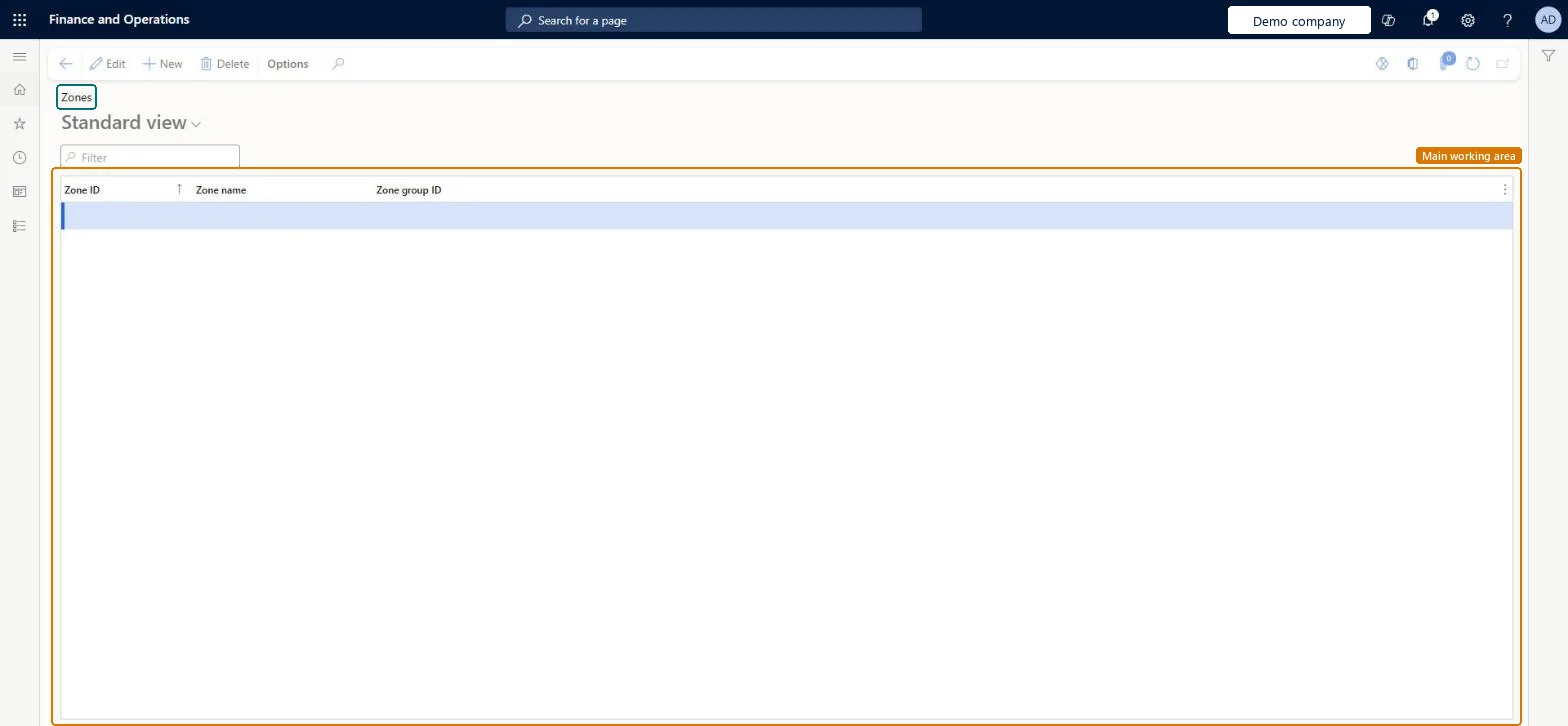
Table definitionWHSZone columns and relations Microsoft data model
Everyone

8Sources

To cite this step: WM-WHS-100, Set up Zones. Beyond ERP Atlas Hub, 2026-11-11. https://www.beyonderp.cloud/atlas/step/WM-WHS-100