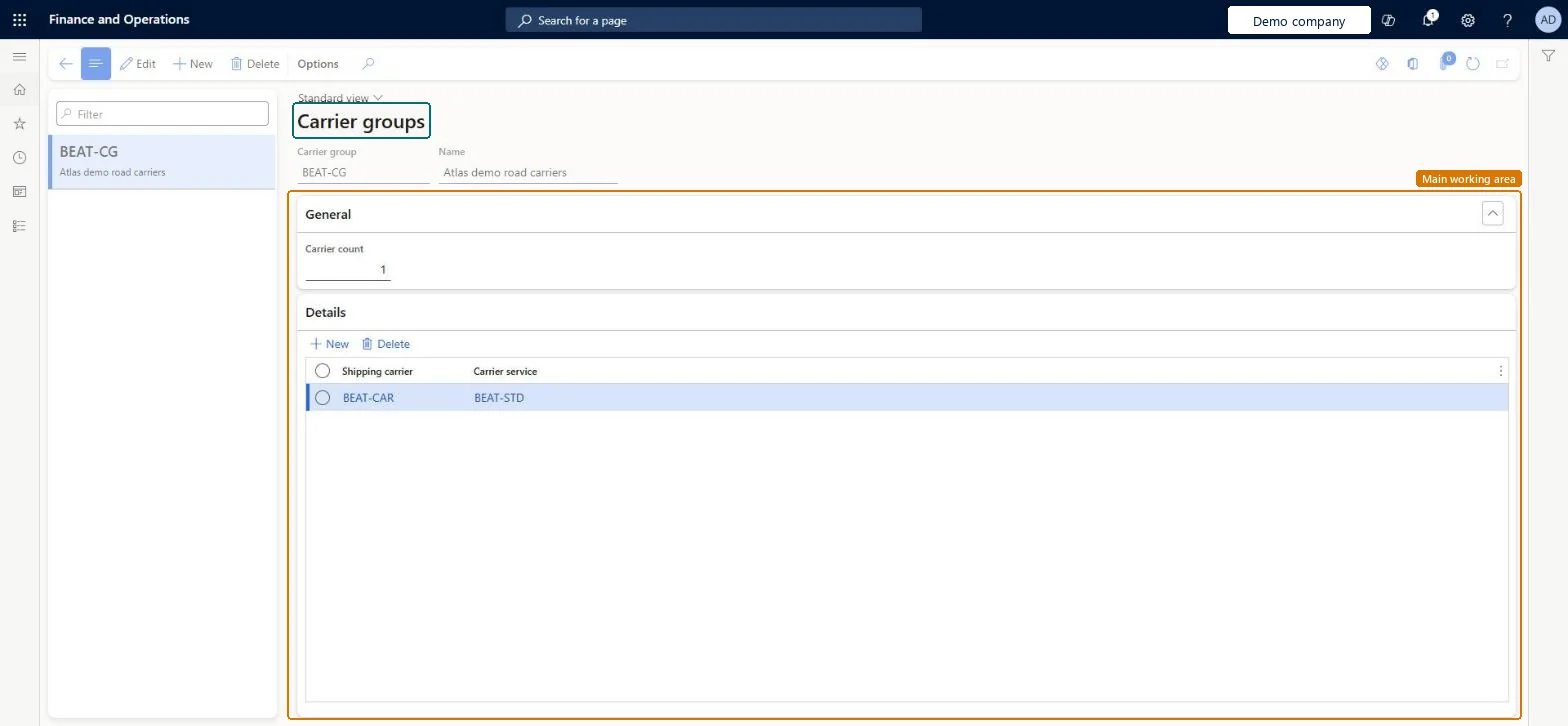
Setup step on the Carrier group page · Warehouse management
Set up Carrier group
Use this page to group the carriers and services that can serve the same route, in your preferred order, so that a route plan or route guide can name the group instead of one carrier.
SETUP GUIDEHow to set it up8 sections. Choose a role to highlight what matters to you.
Everyone
1What it is and why
What it is
A setup page where you define carrier groups, each a collection of shipping carriers and carrier services.
What you do here
Use this page to group the carriers and services that can serve the same route, in your preferred order, so that a route plan or route guide can name the group instead of one carrier.
Example
For example, a carrier group can be named in a route plan instead of a single carrier when several carriers serve the same route segment.
The page in Dynamics 365. page title tab to open what to set or check
About the examples: Examples and screenshots in this guide use BEAT, a demo company in a Dynamics 365 test environment. Use your own company's codes and values instead of copying them.
Setup steps on this page
Set up Carrier group
Use this page to group the carriers and services that can serve the same route, in your preferred order, so that a route plan or route guide can name the group instead of one carrier.
Steps from Microsoft
Go to Warehouse management > Setup > Shipping > Carrier group.
Select New.
In the Carrier group field, enter a unique identifier for the group, and enter a descriptive name in the Name field.
In the Details section, add a row and select a Shipping carrier and a Carrier service.
Repeat for each carrier you want in the group, then close the page.
One carrier group per route segment that several carriers can serve, with carriers and services listed in your preferred orderEach group sets the preferred sequence of its carriers and services, and a route plan or route guide can name the group instead of one carrier.
Adding carriers without thinking about the order. The sequence on the Details FastTab is the preference order.
Reversible: Members and their order can be changed at any time.
Technical architect
6Technical
Menu item
TMSCarrierGroupChecked in Dynamics 365
Form
TMSCarrierGroupChecked in Dynamics 365
Table
TMSCarrierGroupShown as “CARRIER GROUP” in Record infoKey field: CarrierGroupCodeChecked in Dynamics 365
Data entities
TMSShippingCarrierServiceGroupEntityShipping carrier service group Microsoft data model
Who can open it
PrivilegesMaintain carrier groups TMSCarrierGroupMaintainView carrier groups TMSCarrierGroupViewDutiesInquire into carrier master and network planning information TMSCarrierMasterInquireMaintain carrier and network planning master TMSCarrierMasterMaintain2 security rolesLogistics manager TMSLogisticsManagerTransportation coordinator TMSTransportationCoordinatorChecked in Dynamics 365
Roles to set it up and use it
To set it up or change itLogistics manager TMSLogisticsManagerTo use itTransportation coordinator TMSTransportationCoordinatorGive people one of these roles. On this system, 2 roles can open this page.Checked in Dynamics 365
TMSShippingCarrierServiceGroupEntity (Shipping carrier service group): loaded for each company, in Microsoft's default template 405 - Transportation management.Load order: Microsoft's default template 405 - Transportation management loads Shipping carrier service group at execution unit 1, level 405, sequence 30. Lower levels load first, and entities at the same level load in sequence order.Load first: the default templates at lower levels (System setup to Warehouse management)Microsoft Learn