About the examples: Examples and screenshots in this guide use BEAT, a demo company in a Dynamics 365 test environment. Use your own company's codes and values instead of copying them.
Setup steps on this page
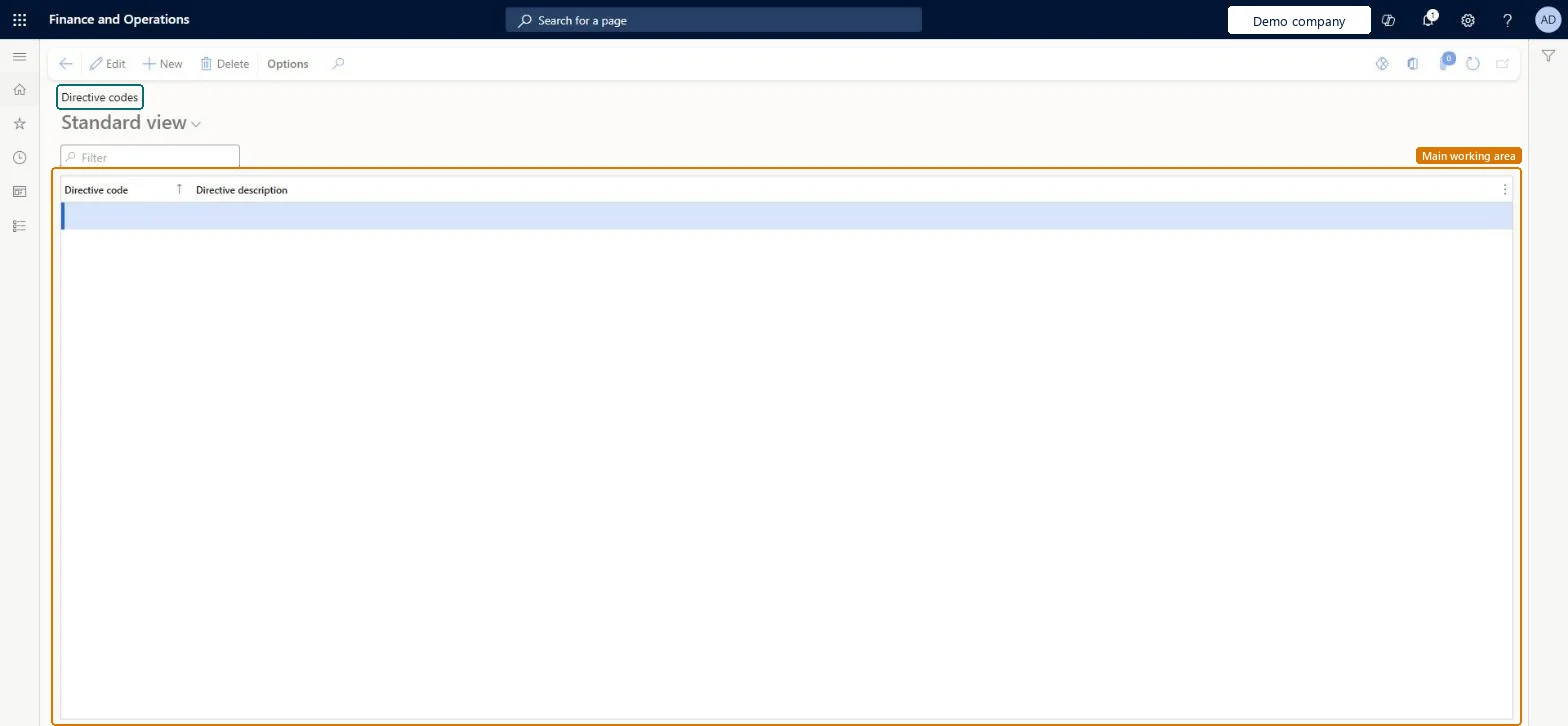
Set up Directive codes
Use this page to create the codes that connect work template lines and replenishment templates to location directives.
How to use it
Go to Warehouse management > Setup > Directive codes.
Select New to add a directive code.
Enter a Directive code and a Directive description.
Select Edit to change an existing code, or Delete to remove one.
Source: Checked in Dynamics 365
Test checklist
Create a directive code (for example STAGE) and set it on the put line to staging in a sales order work template.
Set the same code on a location directive for that warehouse whose action points to the staging locations.
Release a sales order and process the wave.
Open the work and check the put line uses the staging location from the coded directive.
One directive code for each work step that must land in a fixed area (for example staging or the bay door), set on both the work template line and the matching location directive headerWhen a directive code is set, the system finds the location directive by that code instead of by sequence number, so the step goes to exactly the directive you meant.
Leaving the code blank on a step that must go to a set area. The system then evaluates location directives by sequence number, and a broader directive earlier in the list can send the work elsewhere.
Reversible: Codes are only links between work template lines and location directives. Location directives are evaluated when work is generated, so a change affects work created after it.
Technical architect
6Technical
Menu item
WHSLocDirHintChecked in Dynamics 365
Form
WHSLocDirHintChecked in Dynamics 365
Table
WHSLocDirHintShown as “DIRECTIVE CODES” in Record infoKey field: LocDirHintCodeChecked in Dynamics 365
Data entities
WHSWarehouseLocationDirectiveCodeEntityWarehouse location directive codes Microsoft data model
Who can open it
PrivilegesMaintain location directive hints WHSLocDirHintMaintainView location directive hints WHSLocDirHintViewDutiesInquire into warehouse operation master WMSWarehouseOperationMasterInquireMaintain warehouse operation master WMSWarehouseOperationMasterMaintain6 security rolesField Service Integration User FieldServiceIntegrationUserProduction supervisor ProdProductionSupervisorProcess engineer RouteProcessEngineerProcess engineering manager RouteProcessEngineeringManagerWarehouse planner WHSWarehousePlannerWarehouse manager WMSWarehouseManagerChecked in Dynamics 365
Roles to set it up and use it
To set it up or change itWarehouse manager WMSWarehouseManagerProcess engineer RouteProcessEngineerTo use itWarehouse planner WHSWarehousePlannerProduction supervisor ProdProductionSupervisorProcess engineering manager RouteProcessEngineeringManagerField Service Integration User FieldServiceIntegrationUserGive people one of these roles. On this system, 6 roles can open this page.Checked in Dynamics 365
WHSWarehouseLocationDirectiveCodeEntity (Warehouse location directive codes): loaded for each company, in Microsoft's default template 400 - Warehouse management.Load order: Microsoft's default template 400 - Warehouse management loads Warehouse location directive codes at execution unit 1, level 30, sequence 10. Lower levels load first, and entities at the same level load in sequence order.Load first: the default templates at lower levels (System setup to General ledger)Microsoft Learn