Field Service Integration User, Production supervisor, Process engineer and 3 more roles
Business process
Manage warehouse operations
Menu item
WHSContainerLabelRouting
Main table
WHSContainerLabelRouting
Data entity
WHSContainerLabelRoutingEntity
Setup steps
1 on this page
Show what matters for
SETUP GUIDEHow to set it up8 sections. Choose a role to highlight what matters to you.
Everyone
1What it is and why
What it is
A setup page where you define routing records that decide which label layout prints on which printer for container labels, based on warehouse, location, worker, container and shipment criteria.
What you do here
Use this page to choose the label layout and the printer that are used when a container label prints.
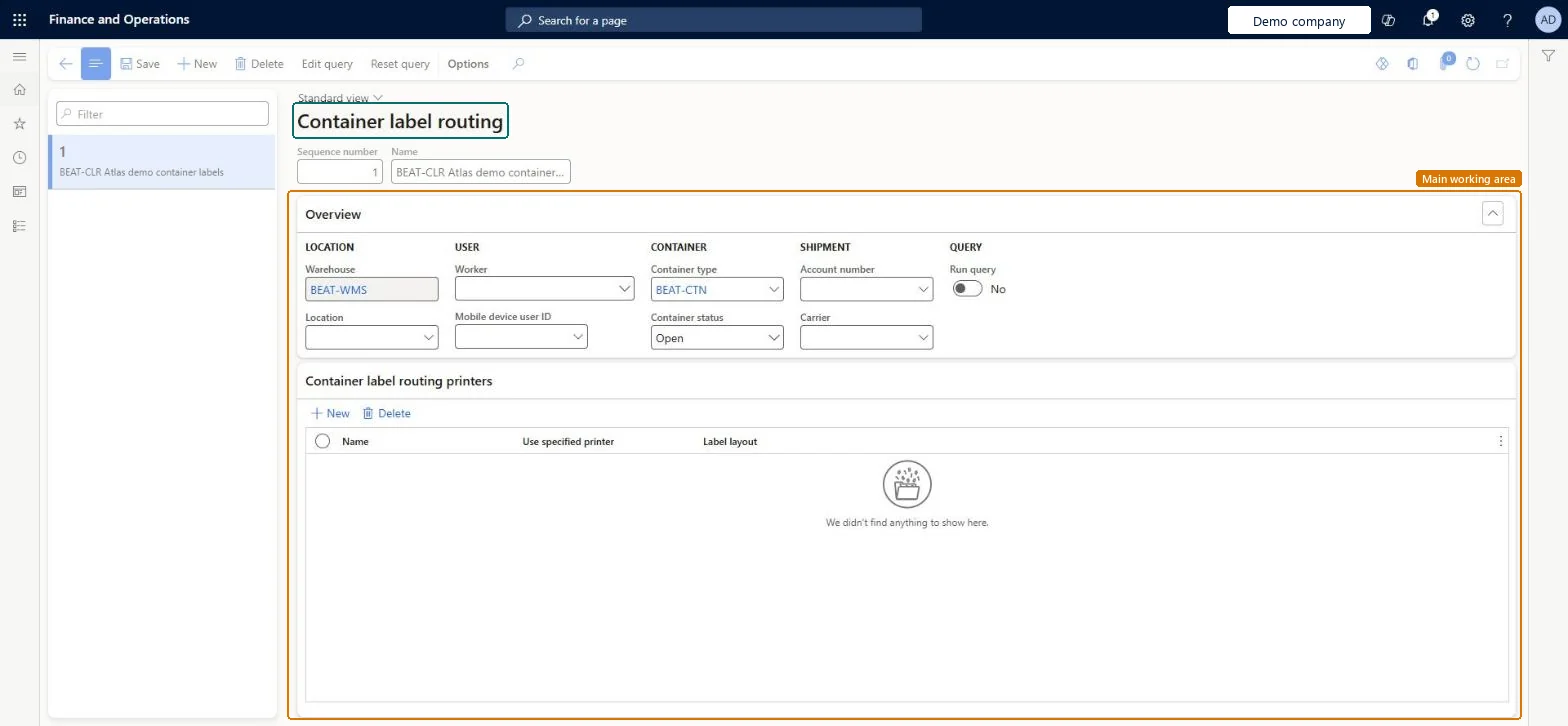
The page in Dynamics 365. page title tab to open what to set or check
About the examples: Examples and screenshots in this guide use BEAT, a demo company in a Dynamics 365 test environment. Use your own company's codes and values instead of copying them.
Setup steps on this page
Set up Container label routing
Use this page to choose the label layout and the printer that are used when a container label prints.
Steps from Microsoft
Go to Warehouse management > Setup > Document routing > Container label routing.
On the Action Pane, select New to create a routing record.
In the header, enter a unique Sequence number and a Name.
On the Overview FastTab, set the criteria that select the routing, such as Warehouse, Location, Worker, Mobile device user ID, Container type, Container status, Account number and Carrier.
On the Container label routing printers FastTab, select New and set the printer Name, Use specified printer and Label layout.
Routings that choose only the layout from container properties, with the printer left to dynamic printer selection by packing station location, user or deviceLearn suggests dynamic printer selection here so you don't duplicate routings when new packing stations and printers are added.
Setting Use specified printer = Always with a printer name. Dynamic printer selection is then disabled for that routing.
Solution architect
5Design impact
Can it be undone
Reversible: Routings are evaluated each time a container label prints.
Technical architect
6Technical
Menu item
WHSContainerLabelRoutingChecked in Dynamics 365
Form
WHSContainerLabelRoutingChecked in Dynamics 365
Table
WHSContainerLabelRoutingShown as “CONTAINER LABEL ROUTING” in Record infoKey field: InventLocationIdChecked in Dynamics 365
Data entities
WHSContainerLabelRoutingEntityContainer label routings Checked in Dynamics 365
Who can open it
PrivilegesMaintain container label routing WHSContainerLabelRoutingMaintainView container label routing WHSContainerLabelRoutingViewDutiesInquire into warehouse operation master WMSWarehouseOperationMasterInquireMaintain warehouse operation master WMSWarehouseOperationMasterMaintain6 security rolesField Service Integration User FieldServiceIntegrationUserProduction supervisor ProdProductionSupervisorProcess engineer RouteProcessEngineerProcess engineering manager RouteProcessEngineeringManagerWarehouse planner WHSWarehousePlannerWarehouse manager WMSWarehouseManagerChecked in Dynamics 365
Roles to set it up and use it
To set it up or change itWarehouse manager WMSWarehouseManagerProcess engineer RouteProcessEngineerTo use itWarehouse planner WHSWarehousePlannerProduction supervisor ProdProductionSupervisorProcess engineering manager RouteProcessEngineeringManagerField Service Integration User FieldServiceIntegrationUserGive people one of these roles. On this system, 6 roles can open this page.Checked in Dynamics 365
Actions on the page
(Action Pane without tabs): Edit query, Reset queryChecked in Dynamics 365