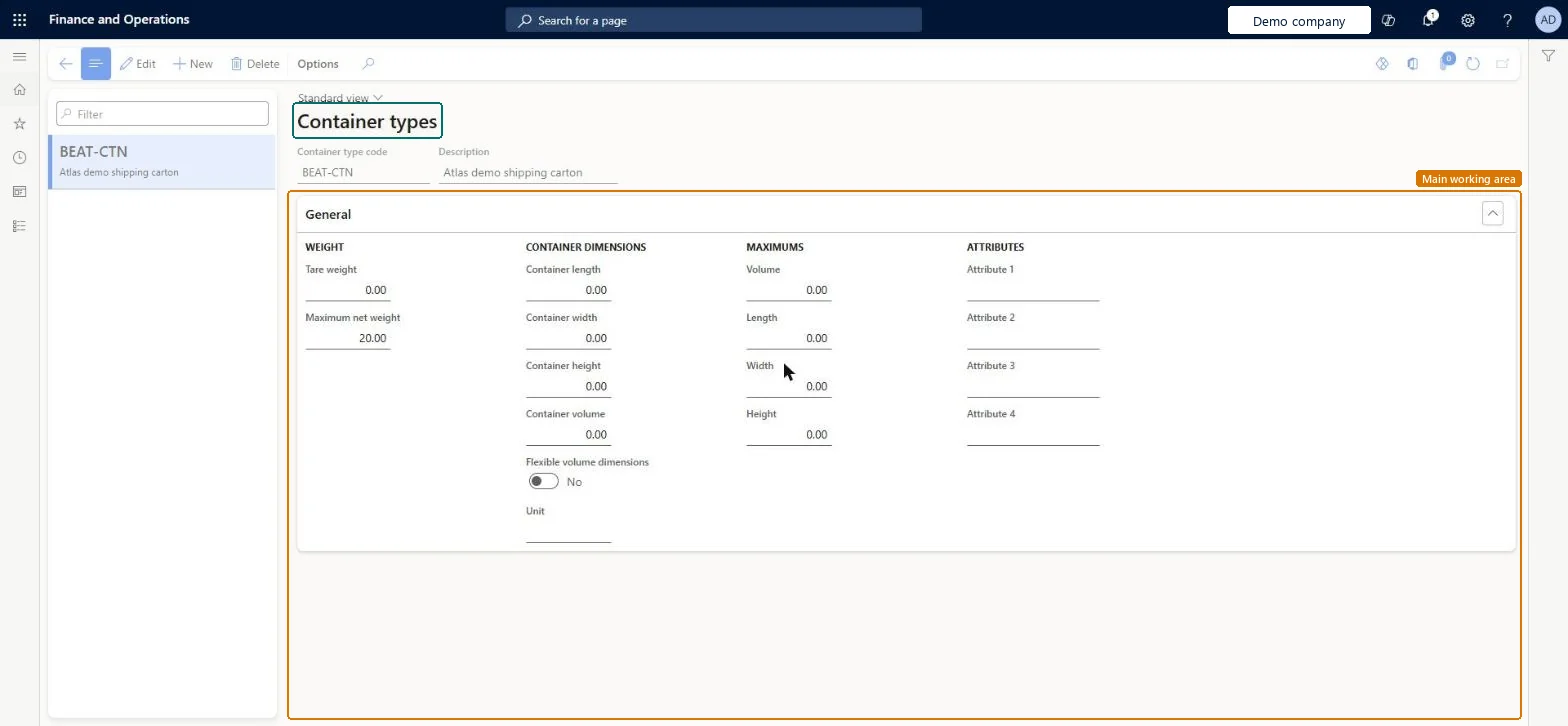
About the examples: Examples and screenshots in this guide use BEAT, a demo company in a Dynamics 365 test environment. Use your own company's codes and values instead of copying them.
Setup steps on this page
Set up Container types
Use this page to describe the physical characteristics and capacity of each container that packing and containerization can use.
Steps from Microsoft
Go to Warehouse management > Setup > Containers > Container types.
On the Action Pane, select New.
Enter a unique Container type code and a Description.
In the Weight section, enter the Tare weight and the Maximum net weight.
In the Maximums section, enter the Volume, Length, Width and Height the container can hold.
In the Container dimensions section, enter the outside measurements and the Unit.
In the Attributes section, select attribute values if you use them.
Fill Maximum net weight and the Maximums (volume, length, width, height) for every type used in packing; fill Container dimensions and Unit when the type is used for putaway or location stocking limitsPacking strategies use the Maximums and Maximum net weight to decide whether a line fits; Container dimensions describe the outside of the container. A Unit is required if the container type is used to calculate location stocking limits.
Entering the outside size in Maximums, or leaving Maximums empty. Containerization then over- or under-fills containers; Optimized 3D packing needs Maximum net weight and the Maximums length, width and height on every type in the group.
Reversible: Values can be edited at any time and apply to containers created afterwards. Changing Flexible volume dimensions doesn't affect existing containerization processes.
Technical architect
6Technical
Menu item
WHSContainerTypeChecked in Dynamics 365
Form
WHSContainerTypeChecked in Dynamics 365
Table
WHSContainerTypeShown as “CONTAINER TYPES” in Record infoKey field: ContainerTypeCodeChecked in Dynamics 365
PrivilegesMaintain container types WHSContainerTypeMaintainView container types WHSContainerTypeViewDutiesInquire into warehouse operation master WMSWarehouseOperationMasterInquireMaintain warehouse operation master WMSWarehouseOperationMasterMaintain6 security rolesField Service Integration User FieldServiceIntegrationUserProduction supervisor ProdProductionSupervisorProcess engineer RouteProcessEngineerProcess engineering manager RouteProcessEngineeringManagerWarehouse planner WHSWarehousePlannerWarehouse manager WMSWarehouseManagerChecked in Dynamics 365
Roles to set it up and use it
To set it up or change itWarehouse manager WMSWarehouseManagerProcess engineer RouteProcessEngineerTo use itWarehouse planner WHSWarehousePlannerProduction supervisor ProdProductionSupervisorProcess engineering manager RouteProcessEngineeringManagerField Service Integration User FieldServiceIntegrationUserGive people one of these roles. On this system, 6 roles can open this page.Checked in Dynamics 365
WHSContainerTypeV2Entity (Container types V2): loaded for each company, in Microsoft's default template 400 - Warehouse management.Load order: Microsoft's default template 400 - Warehouse management loads Container types V2 at execution unit 1, level 40, sequence 10. Lower levels load first, and entities at the same level load in sequence order.Load first: Units, First container attributes, Fourth container attributes, Second container attributes, Third container attributes, the default templates at lower levels (System setup to dependency bands 30 to 90)Microsoft Learn