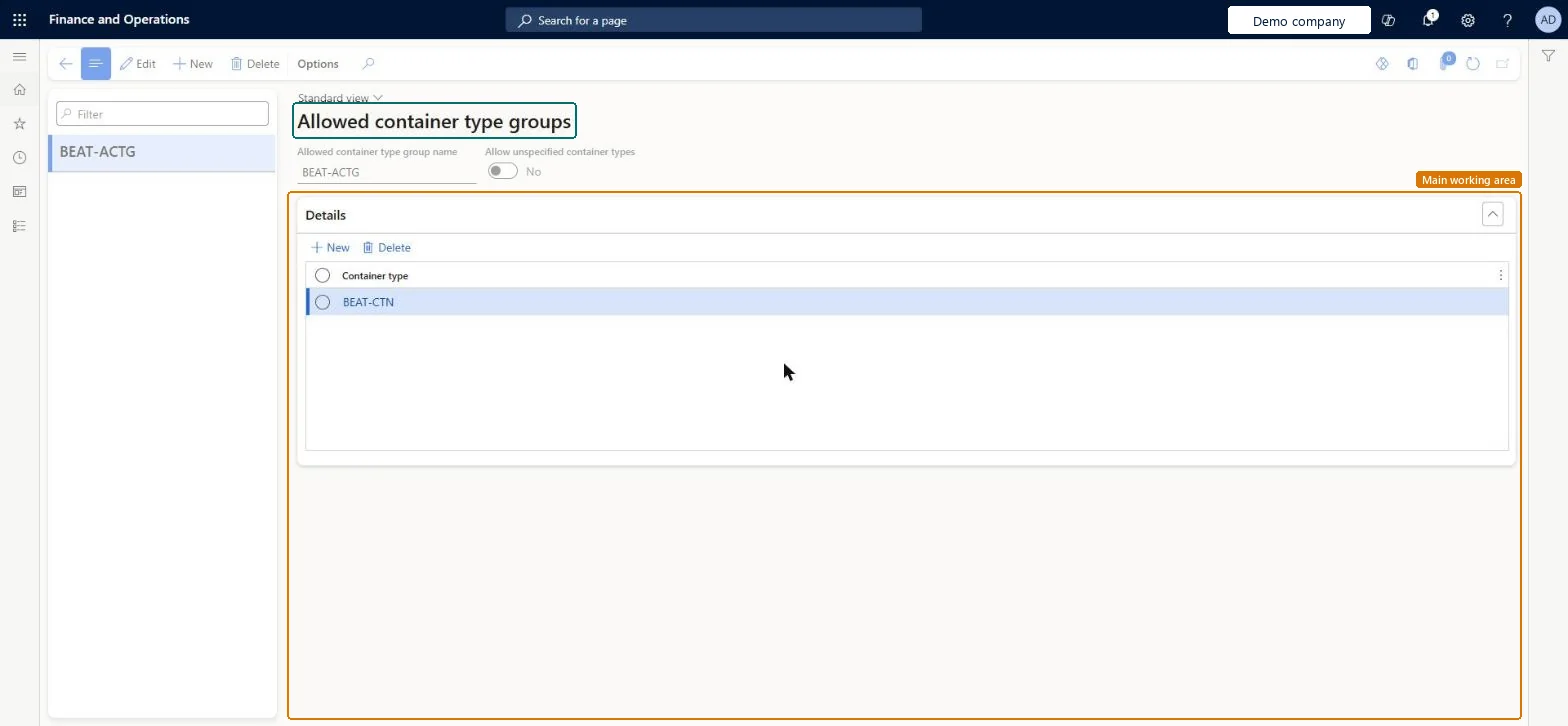
About the examples: Examples and screenshots in this guide use BEAT, a demo company in a Dynamics 365 test environment. Use your own company's codes and values instead of copying them.
Setup steps on this page
Set up Allowed container type groups
Use this page to stop locations from holding some container types by listing the types each group allows.
Steps from Microsoft
Go to Warehouse management > Setup > Containers > Allowed container type groups.
Select New on the Action Pane, or select an existing group and then Edit.
In the Allowed container type group name field, enter a unique name.
Set Allow unspecified container types as required.
On the Details FastTab, select New and choose a container type for each type the group allows.
Set Allow unspecified container types to No only where every license plate stored in the locations must carry a container typeYes allows license plates without a container type into locations in the group; No requires all license plates stored there to be associated with a container type. The group takes effect only when assigned to a location profile.
Creating the group but not assigning it to a location profile, or assigning it to a profile without license plate tracking. Learn says you can assign a group only to location profiles where license plate tracking is enabled.
Solution architect
5Design impact
Can it be undone
Reversible: The group can be edited or removed from the location profile at any time. It affects putaway location selection from then on, not license plates already stored. Microsoft Learn
Technical architect
6Technical
Menu item
WHSAllowedContainerTypeGroupChecked in Dynamics 365
Form
WHSAllowedContainerTypeGroupChecked in Dynamics 365
Table
WHSAllowedContainerTypeGroupShown as “ALLOWED CONTAINER TYPE GROUP” in Record infoKey field: AllowedContainerTypeGroupNameChecked in Dynamics 365
Data entities
WHSAllowedContainerTypeGroupEntityAllowed container type groups Microsoft data model
Who can open it
PrivilegesAllowed container type group maintain WHSAllowedContainerTypeGroupMaintainAllowed container type groups view WHSAllowedContainerTypeGroupViewDutiesInquire into warehouse operation master WMSWarehouseOperationMasterInquireMaintain warehouse operation master WMSWarehouseOperationMasterMaintain7 security rolesField Service Integration User FieldServiceIntegrationUserManufacturing execution workload shop supervisor JmgManufacturingExecutionWorkloadSupervisorProduction supervisor ProdProductionSupervisorProcess engineer RouteProcessEngineerProcess engineering manager RouteProcessEngineeringManagerWarehouse planner WHSWarehousePlannerWarehouse manager WMSWarehouseManagerChecked in Dynamics 365
Roles to set it up and use it
To set it up or change itWarehouse manager WMSWarehouseManagerProcess engineer RouteProcessEngineerTo use itWarehouse planner WHSWarehousePlannerProduction supervisor ProdProductionSupervisorProcess engineering manager RouteProcessEngineeringManagerField Service Integration User FieldServiceIntegrationUserManufacturing execution workload shop supervisor JmgManufacturingExecutionWorkloadSupervisorGive people one of these roles. On this system, 7 roles can open this page.Checked in Dynamics 365
WHSAllowedContainerTypeGroupEntity (Allowed container type groups): loaded for each company, in Microsoft's default template 400 - Warehouse management.Load order: Microsoft's default template 400 - Warehouse management loads Allowed container type groups at execution unit 1, level 30, sequence 10. Lower levels load first, and entities at the same level load in sequence order.Load first: the default templates at lower levels (System setup to General ledger)Microsoft Learn