SETUP GUIDEHow to set it up8 sections. Choose a role to highlight what matters to you.
Everyone
1What it is and why
What it is
A workspace where a vendor views its invoices by state and creates and submits invoices to the customer's workflow.
What you do here
Use this page to view vendor invoice information and to submit invoices by using workflow.
Example
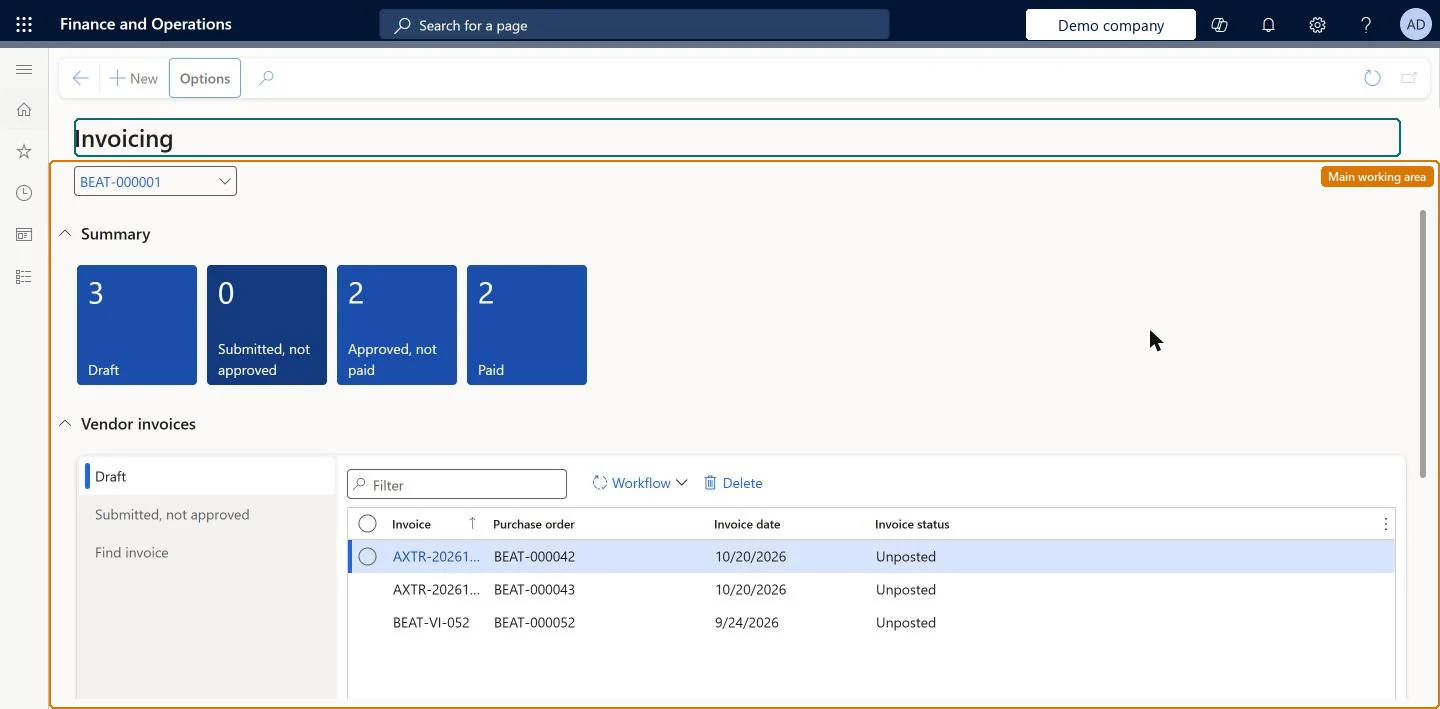
For example, after BEAT confirms purchase order BEAT-000061, the vendor selects New, enters BEAT-000061 and its own invoice number INV-4471, keeps the lines copied from the order, and submits the invoice to BEAT's workflow. The invoice moves from Draft to the Submitted, not approved tile.
The page in Dynamics 365. page title tab to open what to set or check
About the examples: Examples and screenshots in this guide use BEAT, a demo company in a Dynamics 365 test environment. Use your own company's codes and values instead of copying them.
Setup steps on this page
Submit invoices from the Invoicing workspace
Let vendors create invoices from confirmed purchase orders and submit them to the customer's workflow.
Steps from Microsoft
Go to Vendor collaboration > Workspaces > Invoicing.
Select New and enter the purchase order number, your invoice number, the invoice date and a description.
Check the lines copied from the purchase order and edit quantity and cost if needed.
Attach files, notes, images or links if needed, then submit the invoice to workflow.
Follow the invoice on the summary tiles until it is Paid.
Tiles that show the selected vendor's invoices by state: Draft, Submitted not approved (submitted but not posted), Approved not paid (posted but not fully paid) and Paid. Selecting a tile opens a filtered invoice list.Microsoft Learn
Two invoices on Approved, not paid.
Draft
Invoices that have not yet been submitted to workflow; they can be submitted or deleted.Microsoft Learn
INV-4471 before it is submitted.
Purchase order (PO) number
When given, links the new invoice to the purchase order and copies its lines; when left out, the invoice is a non-PO invoice.Microsoft Learn
The date and description the vendor gives the invoice in the New dialog.Microsoft Learn
10/31/2026, October delivery
Vendor collaboration invoices
The list page of all posted and unposted invoices, with payment status Unposted, Unpaid, Partially paid or Fully paid.Microsoft Learn
INV-4471 Partially paid
Common errors and fixes
Message
What to do
A submitted invoice stays on Submitted, not approved
The invoice waits in the customer's vendor invoice workflow; it moves on only when the customer approves and posts it. Microsoft Learn
A non-PO invoice offers no items
Without a purchase order number, vendors can invoice only items in procurement categories that are granted to them. Request the category in Vendor information first. Microsoft Learn
Test checklist
Confirm and receive a purchase order for the vendor in the customer company.
As the vendor user, select New in the Invoicing workspace, enter the order number and an invoice number, and check that the order lines are copied.
Submit the invoice and check that it leaves Draft and counts on Submitted, not approved.
After the customer posts it, check that it moves to Approved, not paid.
Create invoices from the purchase order number, so the lines are copied from the orderWith a purchase order number the invoice is linked to the order and its lines are copied; without one it is a non-PO invoice limited to granted procurement categories.
Microsoft provides two external roles for vendor collaboration: Vendor admin (external), for contacts and user requests, and Vendor (external), for purchase orders, invoices, consignment inventory, RFQs and vendor information. External users created through a user request also get the SystemExternalUser role. On the live system, Vendor contact (external) can open this workspace.
The tiles and lists show the invoices of the selected vendor account in the customer's legal entities where the contact has vendor collaboration access. Microsoft Learn
Can it be undone
Hard to reverse: Draft invoices can be deleted; submitted invoices go to the customer's workflow.
If you change it later
Submitting sends the invoice into the customer's vendor invoice workflow; it can be deleted only while it is a draft. Microsoft Learn
Technical architect
6Technical
Menu item
VendVendorPortalInvoiceWorkspaceChecked in Dynamics 365
Form
VendVendorPortalInvoiceWorkspaceChecked in Dynamics 365
To set it up or change itVendor contact (external) VendVendorContactGive people one of these roles. On this system, 1 role can open this page.Checked in Dynamics 365
Actions on the page
(Action Pane without tabs): NewChecked in Dynamics 365
Load order: The Invoicing workspace has no data entity in Data management. Invoices entered here go through the customer's vendor invoice workflow; open vendor invoices from a legacy system are loaded in Accounts payable, not through vendor collaboration.Checked in Dynamics 365
Checked in a working Dynamics 365 system, version 10.0.49: the menu item, form, table and security, the page.
To cite this step: VC-WS-020, Submit invoices from the Invoicing workspace. Beyond ERP Atlas Hub, 2026-11-11. https://www.beyonderp.cloud/atlas/step/VC-WS-020